Introduction
Zones and Routes can be created directly on the map in the Overview screen of the platform, using tools that allow the user to create their own polygon shapes. Zones can also be created in Administration, using GPS positions, and pre-selected shapes. Please refer to that article for a description of the types of Zones available, and how they function in the platform.
Zones can be edited individually under the Zone section in Administration, or in bulk, as described below.
Creating and Editing Zones
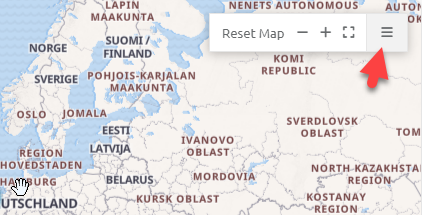
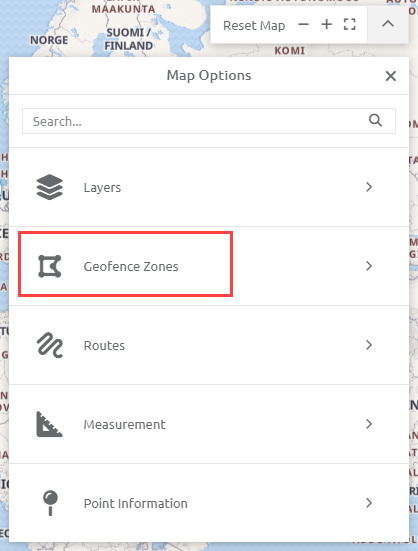
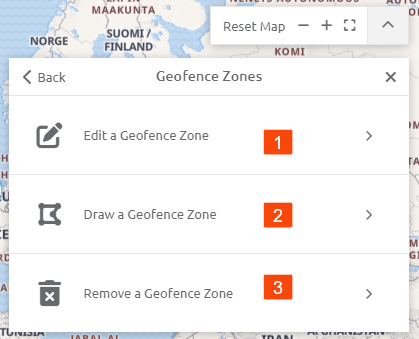
Open the toolbar on the map, and select Geofence Zones. You will be presented with three options:
- Edit a Geofence Zone
- Draw a Geofence Zone
- Remove a Geofence Zone
Edit a Geofence Zone
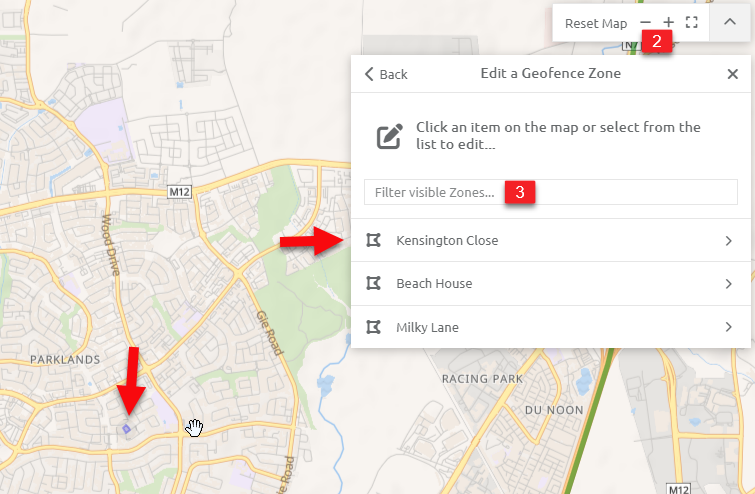
After selecting option 1 above, Edit a Geofence Zone, Zoom to a level on the map where zones that you wish to edit are visible.
- Select Edit a Geofence Zone (as in 1 above)
- Zoom to a level where the zone(s) you wish to edit are visible. These will become available in the list.
- Use the "Filter visible Zones..." dialog box to search for the zone by name.
- Once the zone is selected you are able to Zoom in and out and move the map to select the best view for the edit
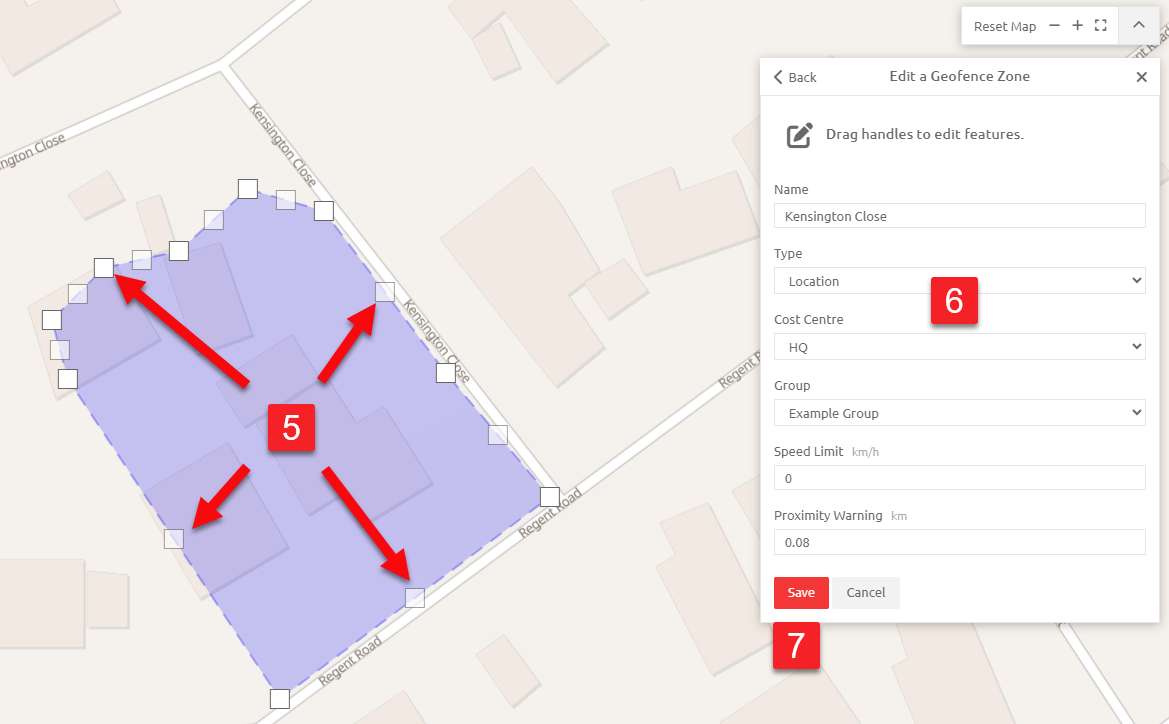
- Grab Handles will be visible, which can be dragged to edit the zone boundaries
- The Zone details, such as Name, Type, Cost Centre, Group, Speed Limit and Proximity warning can also be changed.
- Once the changes are made, click save.
Note: One is also able to Edit a Zone or Route by double-clicking it on the map. This will open the "Edit Geofence/Route" toolbox.
Draw a Geofence Zone
One is able to Draw a Geofence Zone from the Overview.
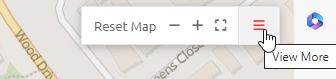
- Navigate to the Overview Page and click on the Map Toolbar (Burger button on the Top Right)
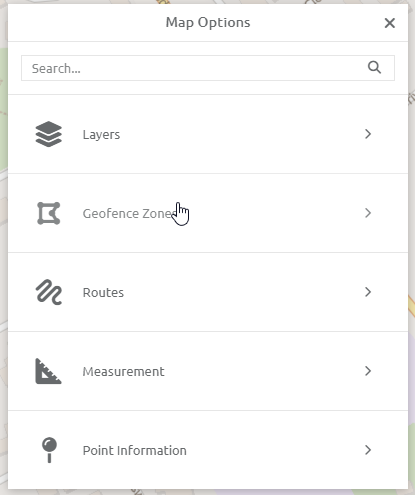
- Select Geofence Zones and then Draw a Geofence Zone
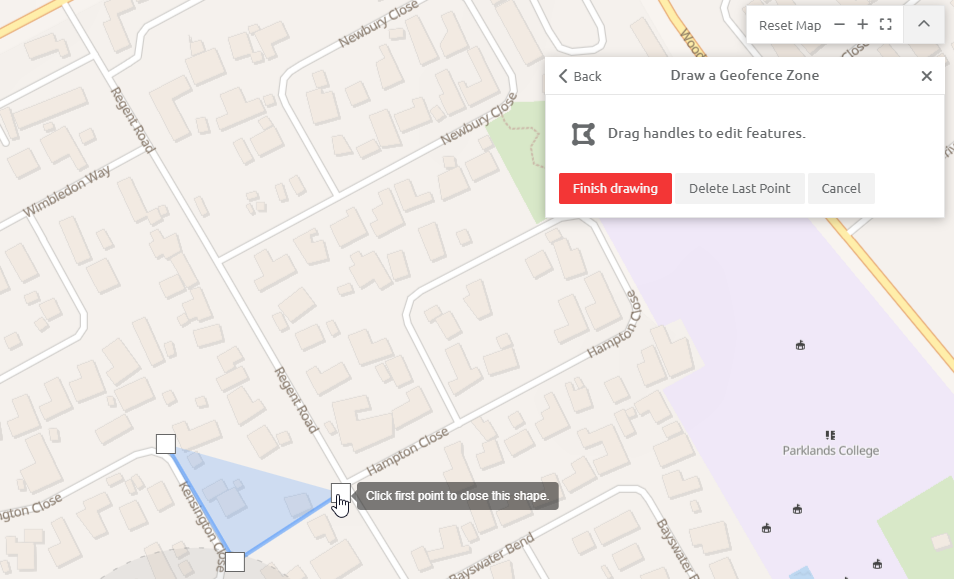
- Select the first position on the map for the Zone you are drawing, and click. You will notice a "Click to start drawing shape" prompt.
- You are able to delete the last point or cancel to process by selecting the relevant buttons on the toolbar
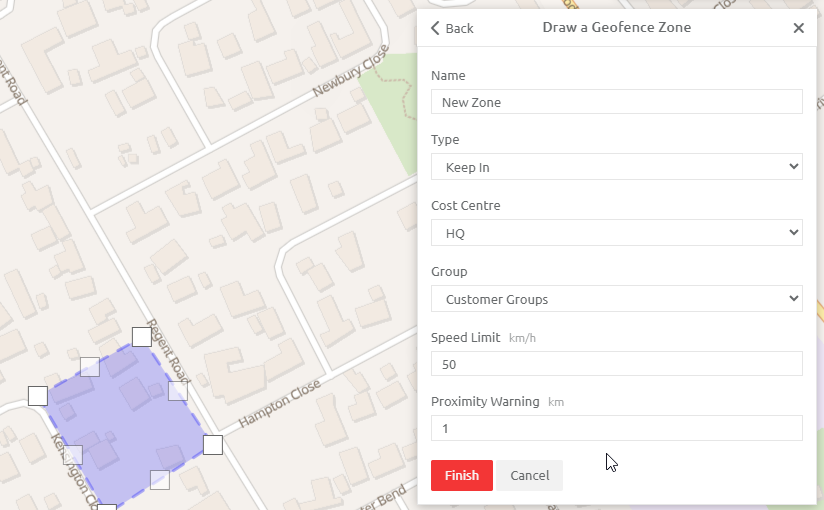
- The process is completed by clicking on the first point in your zone, where after you will be presented with a Dialog Box to capture the Zone detail.
- Capture the zone details
- Click Finish
Remove a Geofence Zone
In order to delete or remove a Zone from the Overview Page or Map View:
- Select the Map Toolbar
- Find the Zone on the map that you would like to move
- Click on Geofence Zones
- Select Remove a Geofence Zone
- Click Save and the Zone is removed
To Edit Routes from the Overview or Map View, please see this Article: Creating and Editing Routes from the Overview
Comments
0 comments
Please sign in to leave a comment.