Introduction
Asset Groups were designed to control and manage Assets of the same type/group. Assets can be assigned to multiple groups, allowing for comparison of information in groups, and there is no restrictions per User. A User can see any groups' Assets.
Asset Groups can be applied to the following items in the platform:
- Assets,
- Alerts,
- Reports
Creating Asset Groups
Before creating Asset Groups, first decide what the structure should look like, then create this in the platform. Asset Groups have a parent-child relationship. There can be multiple parent Asset Groups (unlike Cost Centres), where children can be added. Those children may then also act as a parent.
As a default, there is one parent Asset Group in the platform, called Default. This can be renamed, and children created underneath this.
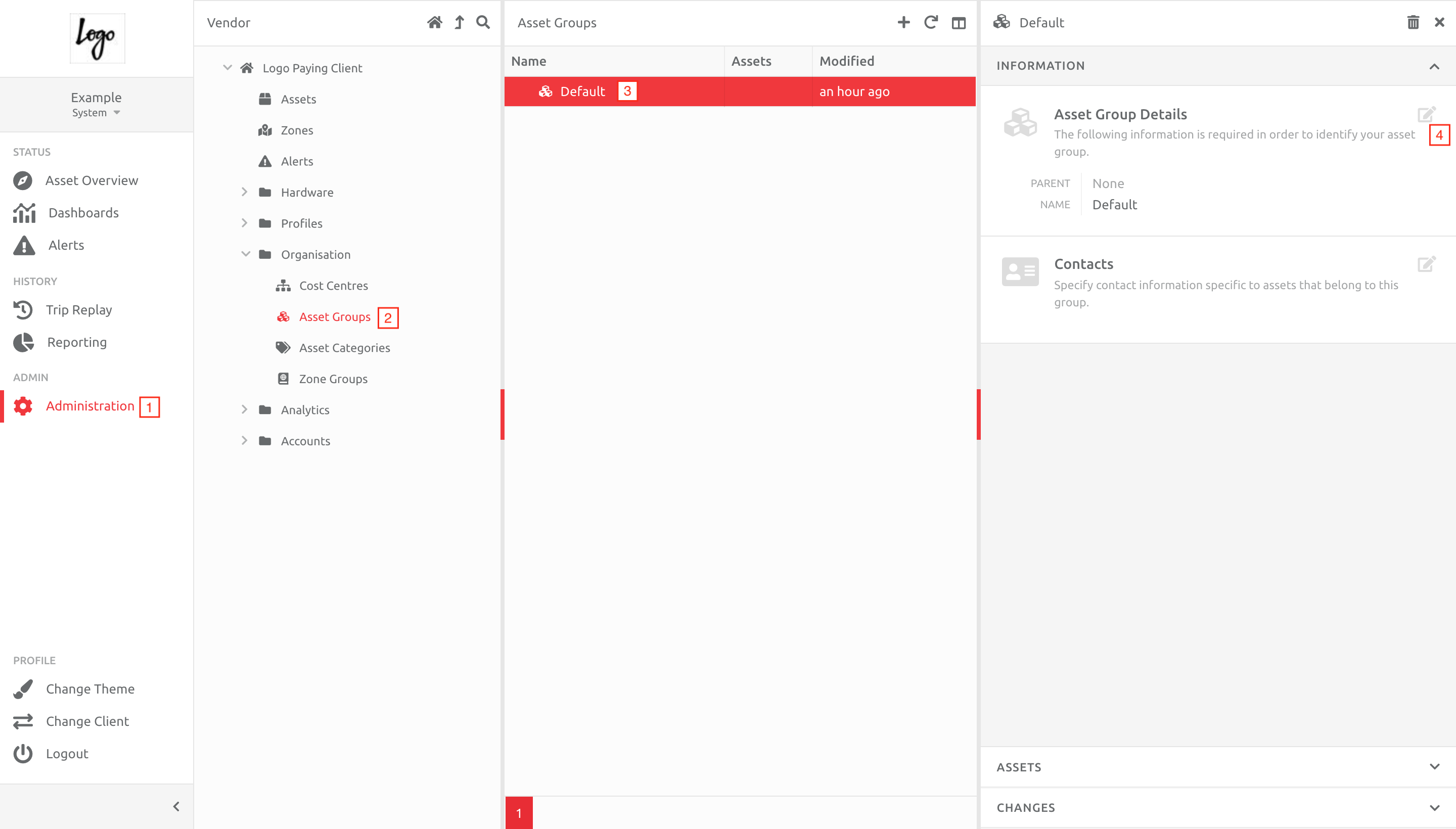
1. Navigate to Administration,
2. Choose Asset Groups under the Organisation section,
3. Choose the Default Group,
4. Click Edit next to the Asset Group Details.
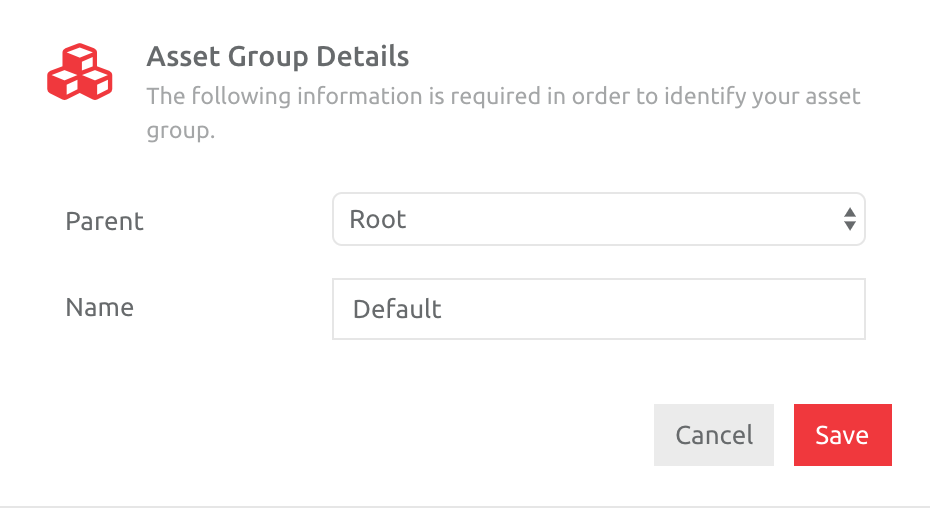
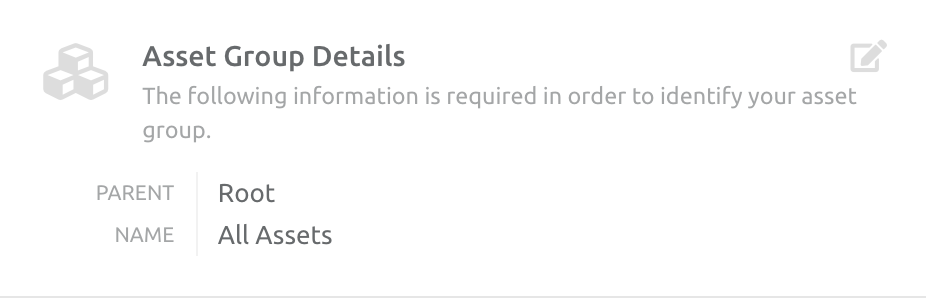
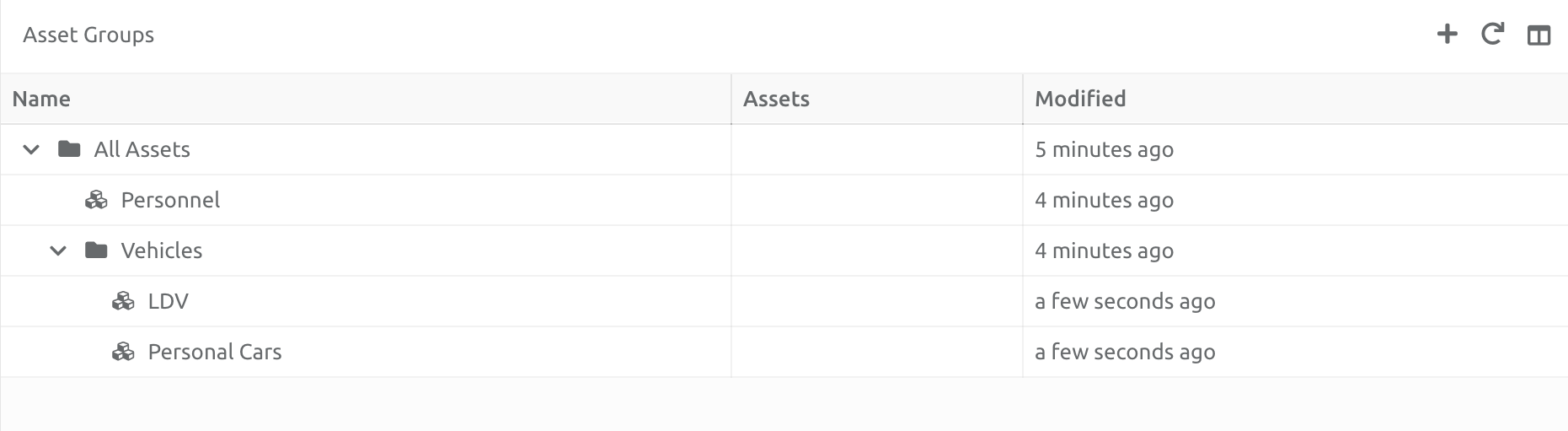
Because there can be more than one parent Asset Group, the highest level is called Root. Therefore rename the Default Asset Group, and keep the Root Parent:
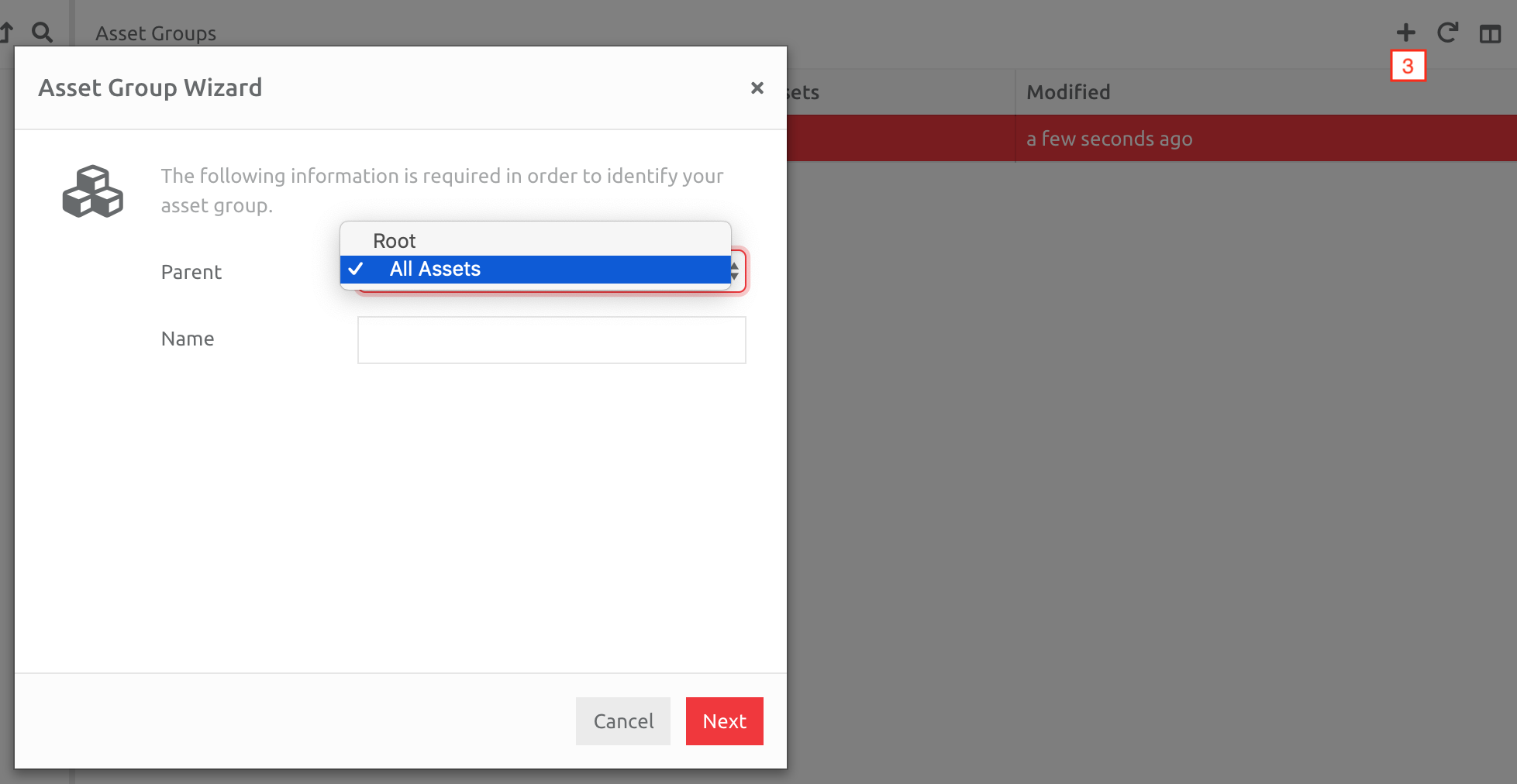
To add a new Asset Group click the Plus button, and create a new Asset Group under the Root, or the renamed parent:
Keep adding Asset Groups until you have completed the structure required.
Editing the Information in an Asset Group
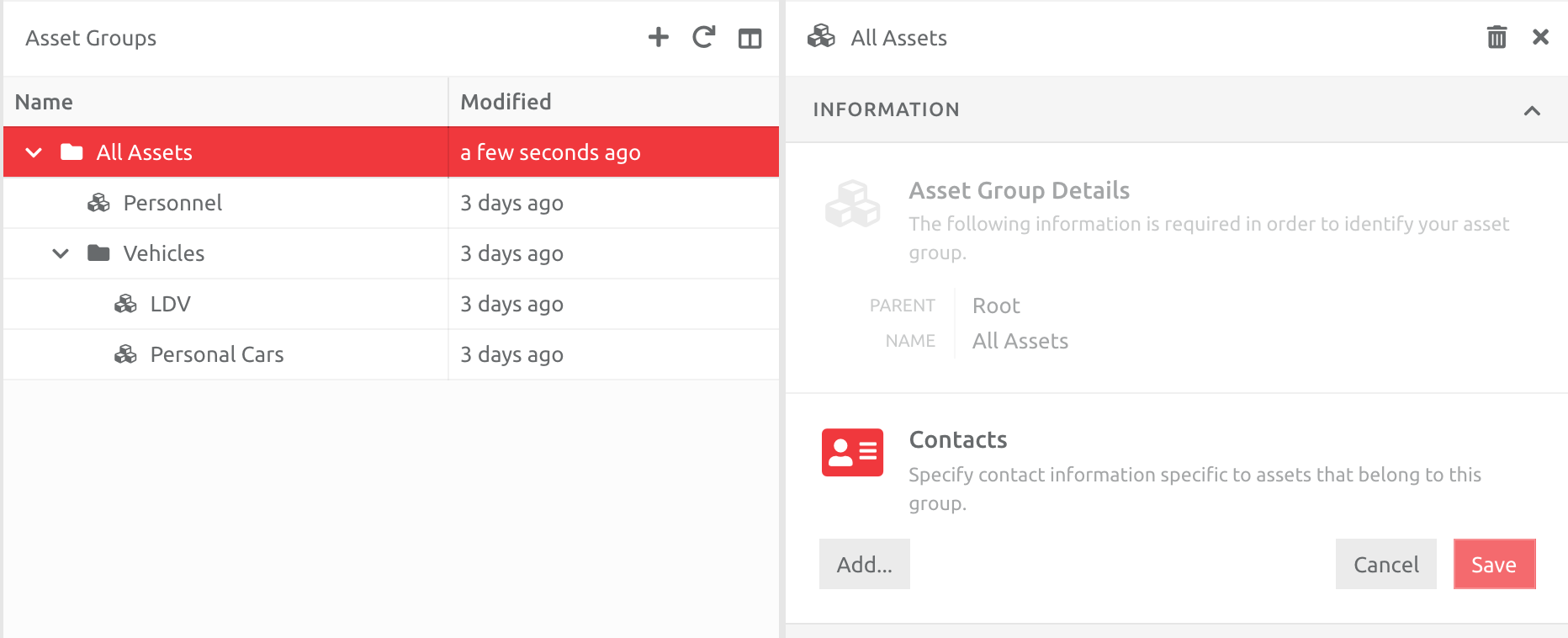
You can edit the Information in an Asset Group, which includes changing the Name and Parent, as well as add Contacts. Contacts will be seen by the Users on the Overview and Alerts section of the platform.
If you would like to add Contact details, click the Edit next to Contacts, and Add a new Contact:
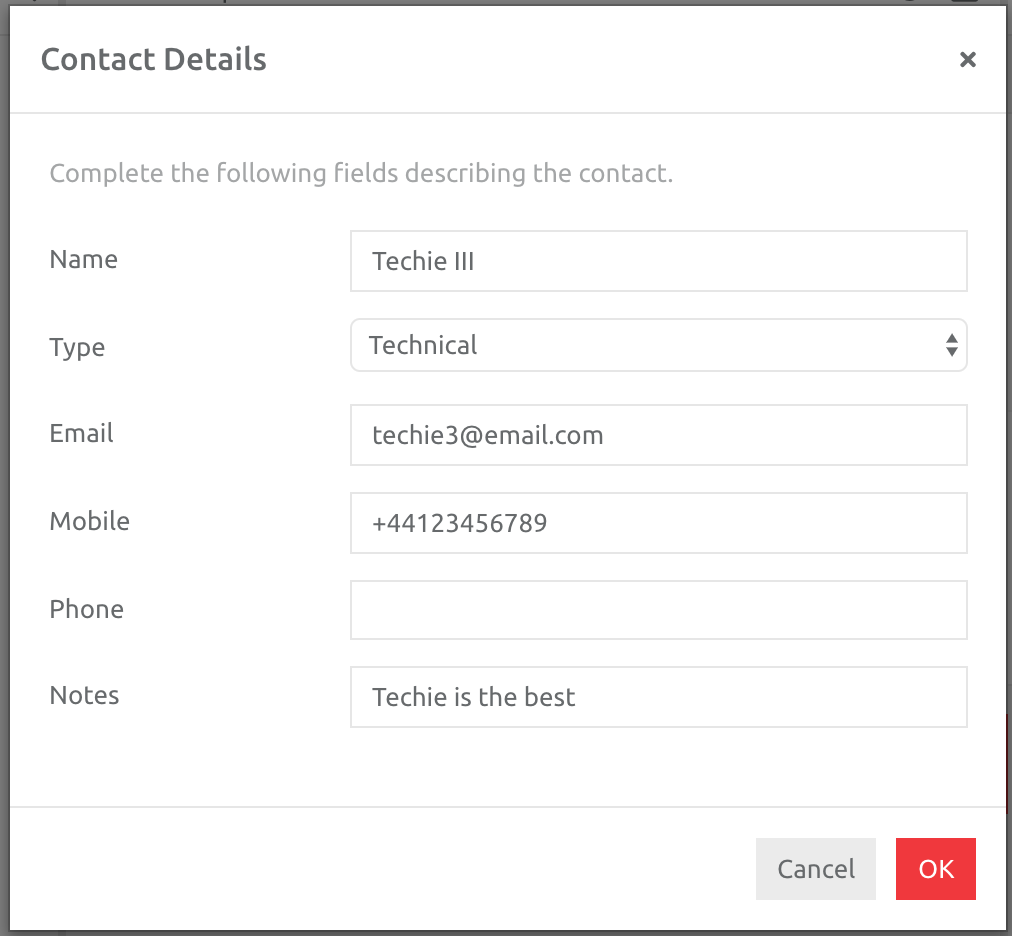
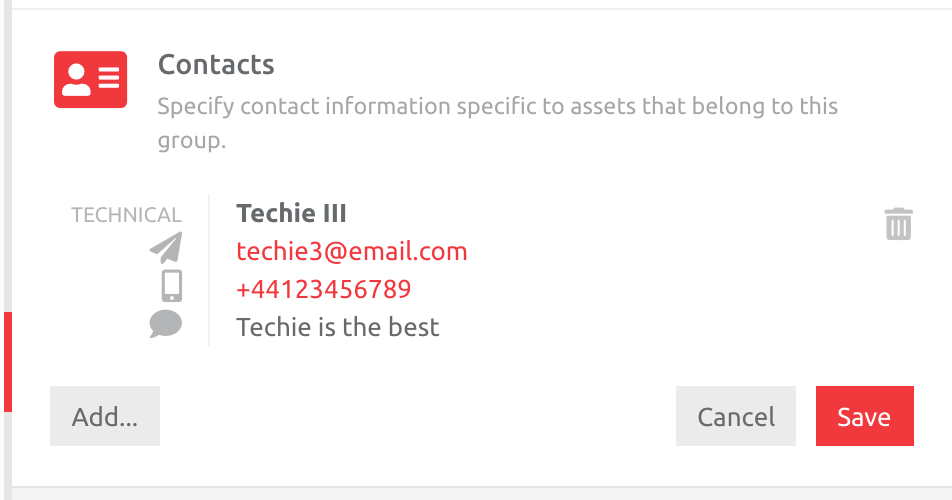
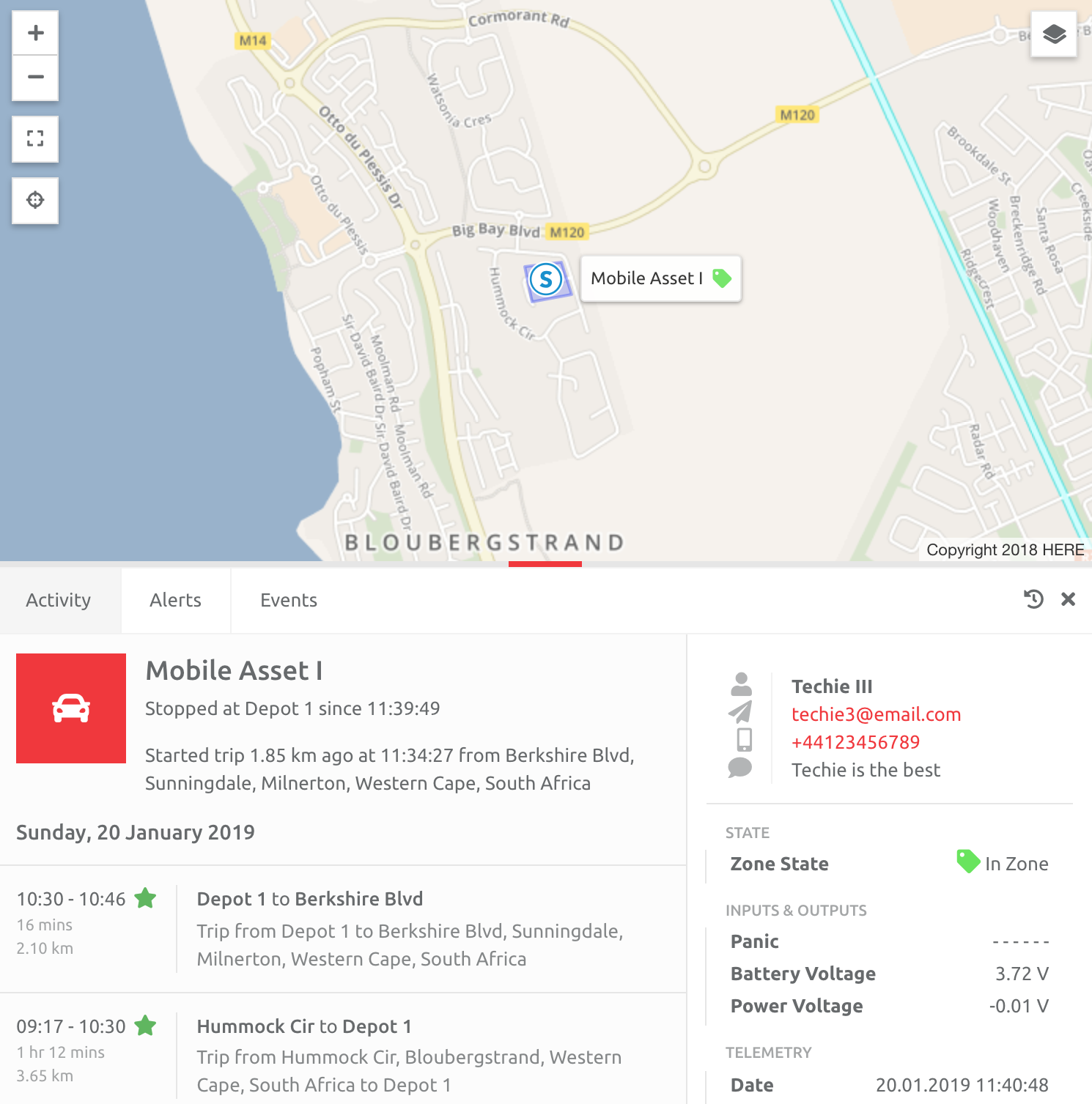
This information is displayed, with clickable links, on Assets on the Overview screen and Alerts, such as below:
Viewing Assets in an Asset Group
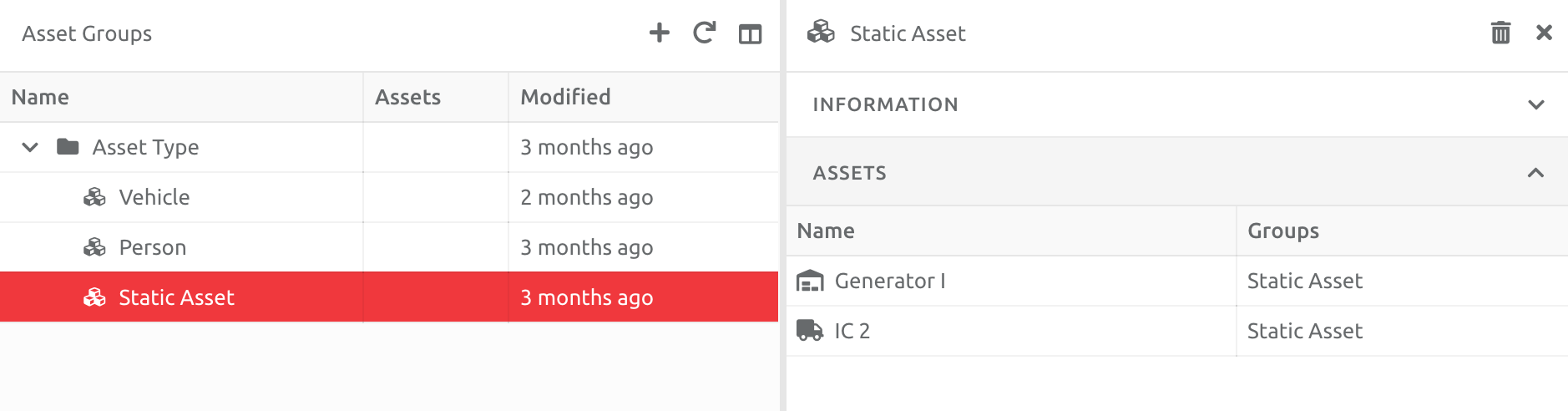
You can see which Assets are assigned to an Asset Group by choosing that Group in the list. Choose the Assets section to see the information:
Comments
0 comments
Please sign in to leave a comment.