Introduction
Asset Events are a set of conditions, per Asset, that trigger events. Events can be used to generate alerts (see end of the article to see how to set up Alerts). For example, if a vehicle speeds, or if temperature reading goes too high, a fuel level has a sudden drop, a driver over-revs the engine, those are events. Alerts use those events to sound the alarm, or notify someone of this issue. These triggers/events can be edited on Assets, individually, or in bulk.
To find and Edit the Asset Event triggers
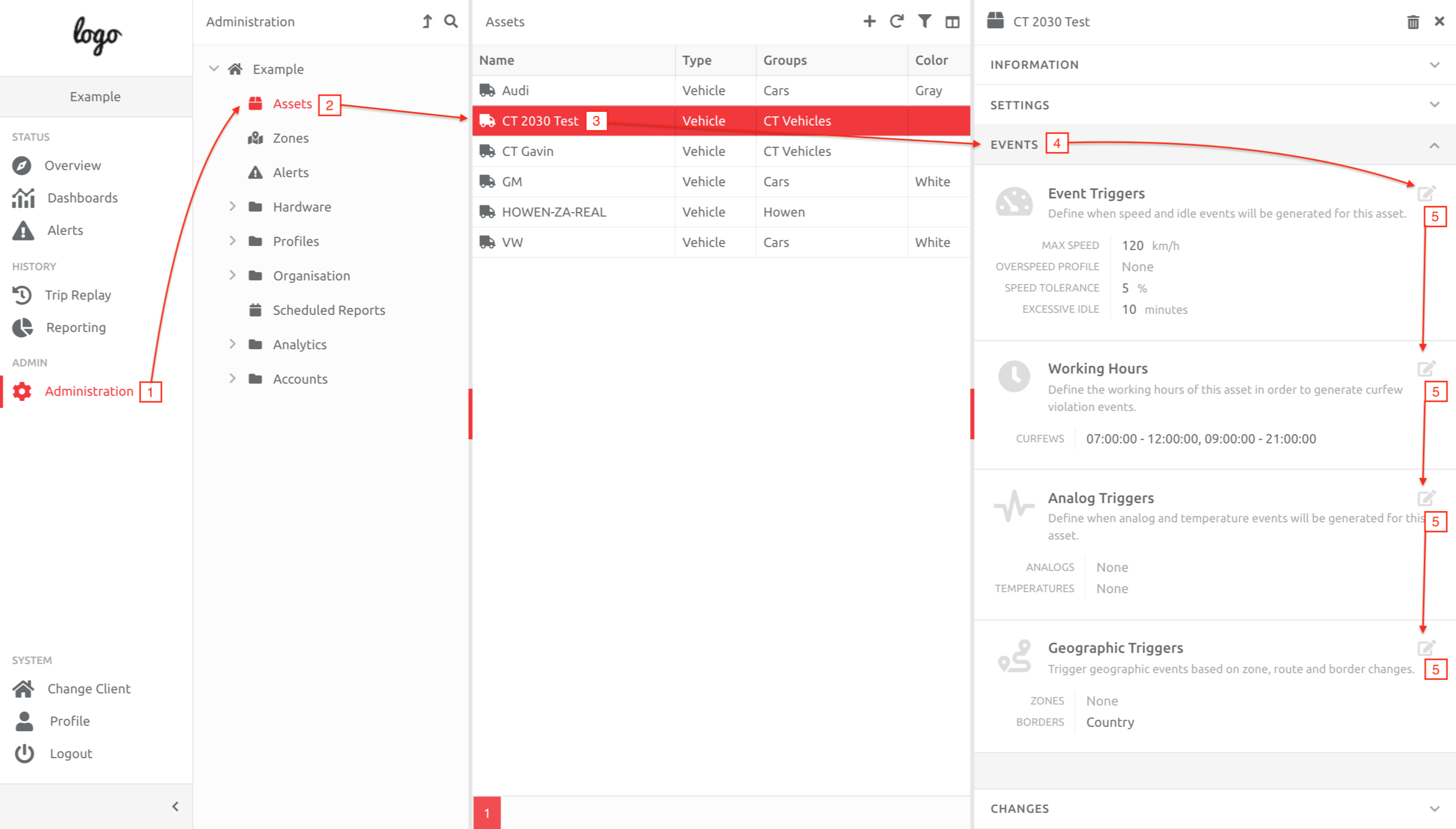
(1) INDIVIDUAL ASSETS
1. Go to Administration,
2. Choose the Assets section under the Client,
3. Choose the Asset you would like to edit from the list,
4. Choose the Events section on the Asset,
5. Click the Edit button on the section you would like to edit.
(2) MULTIPLE ASSETS (BULK)
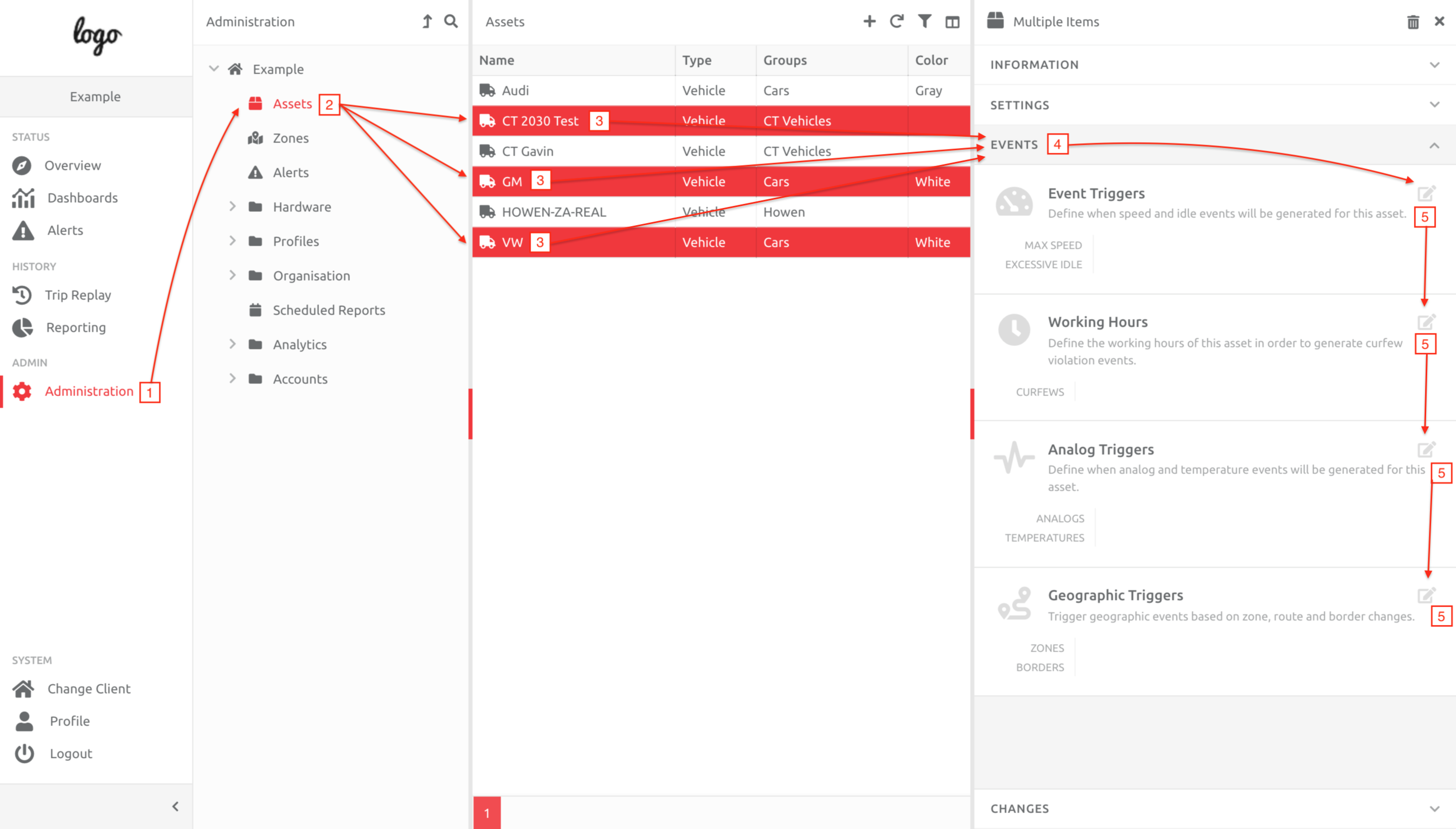
1. Go to Administration,
2. Choose the Assets section under the Client,
3. Choose the Assets you would like to edit from the list (ctrl-click on more than one Asset),
4. Choose the Events section on the Assets,
5. Click the Edit button on the section you would like to edit.
Please note - any information already in the sections will disappear, and any changes made will affect all the Assets chosen.
After clicking the Edit button, choose which Trigger to add. As per the screenshot below, we are adding Analog Triggers:
1. Click Add under the Analogs section. A pop up appears with
2. Analog Event Triggers,
3. Choose the Analog IO you would like to create events from,
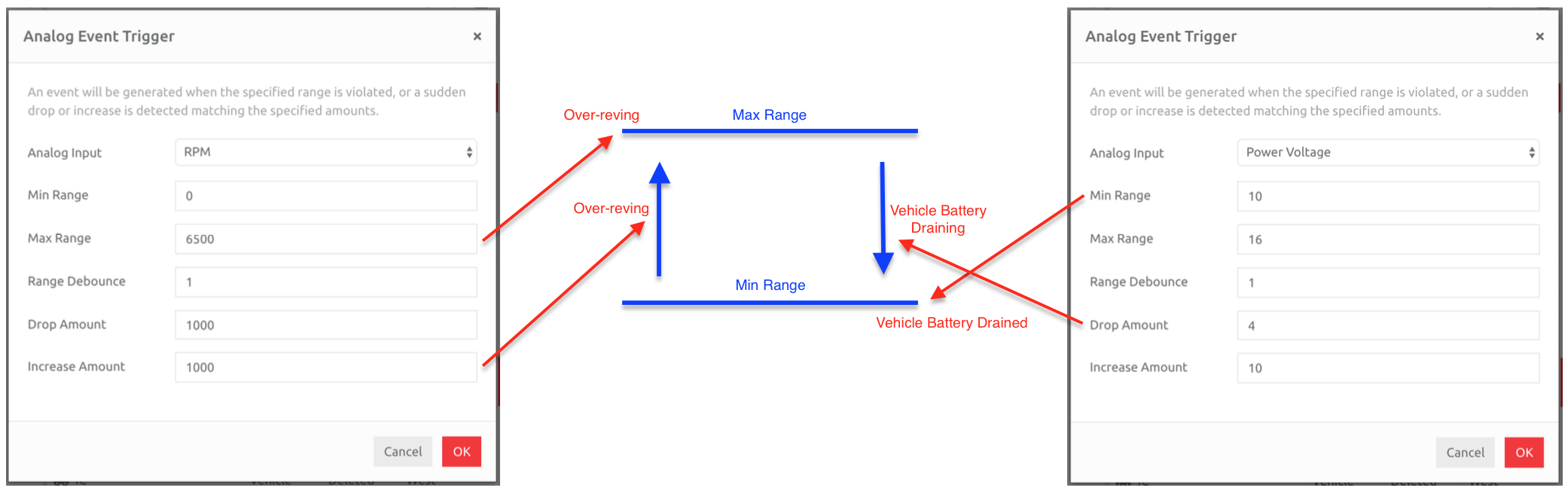
4. Add the Min and Max Range (if one of the limits is not needed, then add a number that will never trigger an event), the Range Debounce* (how many positions of data to use [generally use 1 unless you want to see the value for a few more positions]), and Drop and Increase amount, depending on the Input.
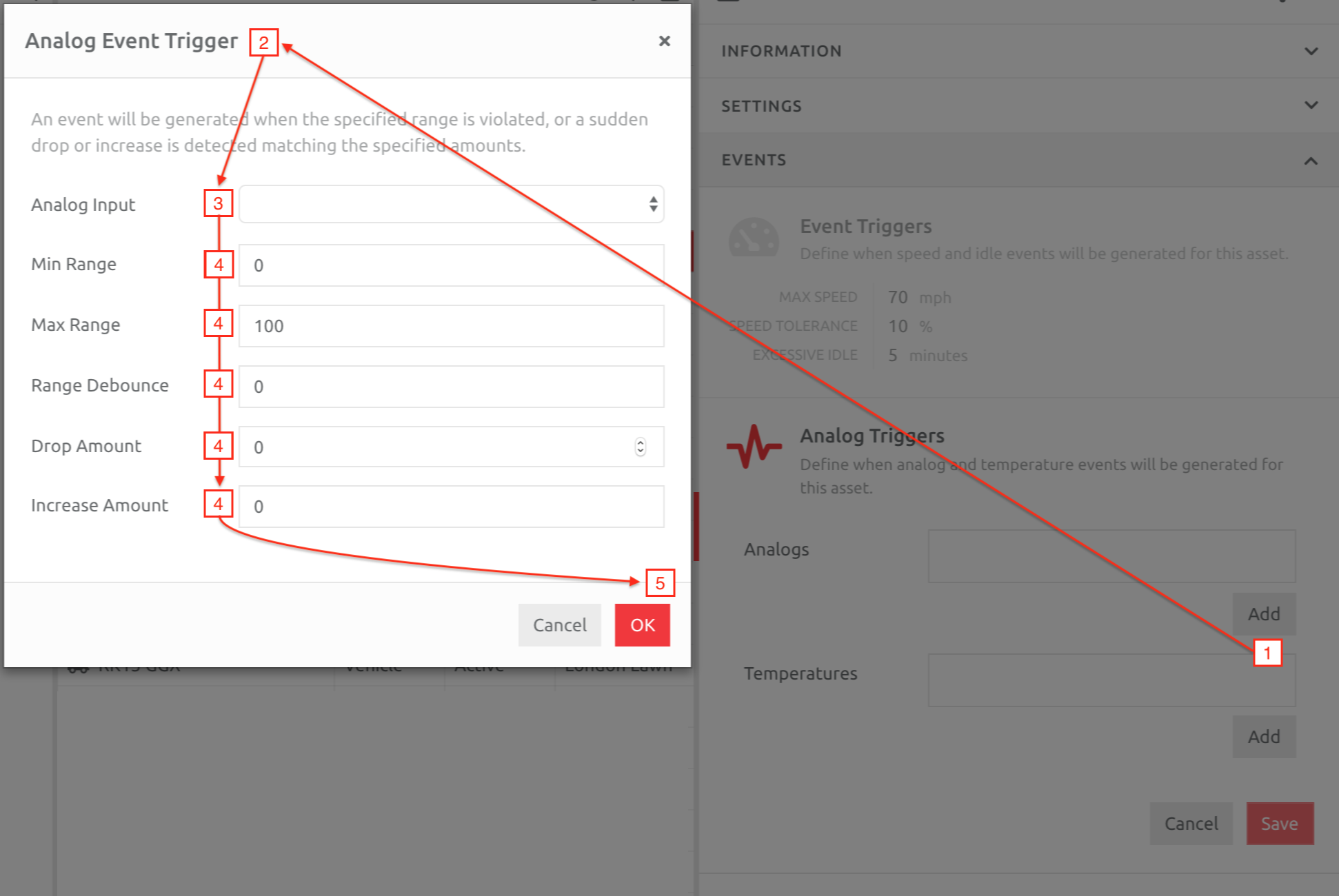
*Range Debounce = the number of positions the drop or increase needs to be over, for the event to trigger. For example, if Range Debounce = 6, then the drop or increase needs to be constant over 6 packets of data.
Event Triggers - Speed and Idle
SPEED
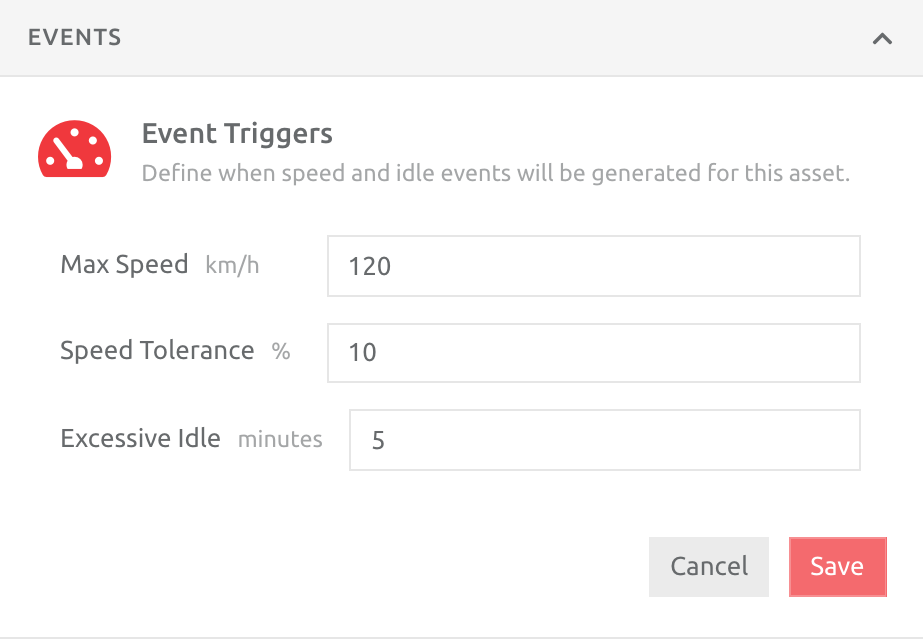
The platform uses the lower of map road speed limits, location speed limit, and Asset Event Triggers (Max Speed and Tolerance) to generate Speeding events. The platform will apply the lower limit, with the tolerance added on as the speed limit.
The platform does not know what type of vehicle you are tracking - it could be a Caterpillar Grader, a 10Ton Truck, or High Performance car. Each of those vehicles have different maximum speeds allowed on roads, and the map road speed limits may not apply. For example, a Caterpillar Grader may only be allowed to go maximum of 30 with 0% tolerance, and would be speeding if going any speed above 31, so 40 on a road with a 40 speed limit, 50 on a road with a 50 speed limit etc. Any speed limit above 30 is ignored. Set these values as required, per Asset, either individually, or in bulk.
In the example below, the following speeds would be considered speeding (11% above the map speed limit):
| Map or Location Speed Limit | Speeding Event |
| 40 | 45 |
| 60 | 67 |
| 80 | 89 |
| 100 | 111 |
| 120 | 133 |
In the example below, the following would be considered speeding:
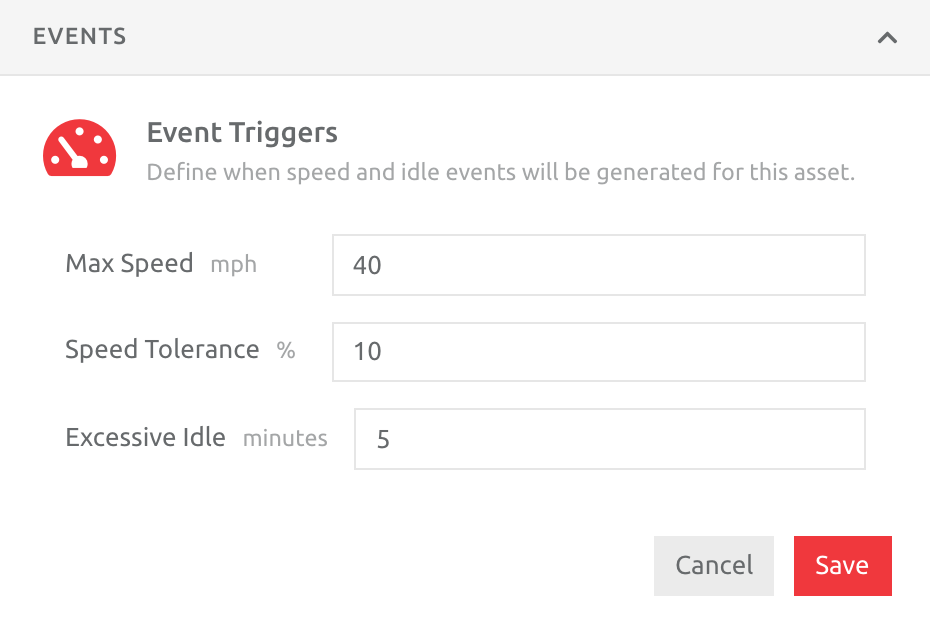
| Map or Location Speed Limit | Speeding Event |
| 30 | 34 |
| 40 | 45 |
| 50 | |
| 60 | |
| 70 |
IDLING
The platform will generate an Excessive Idling event using the value set on the Asset/s. If the Asset idles for longer than the limit set, an event will trigger, and used to generate an Alert. Set this value according to the Asset being monitored.
Event Triggers - Working Hours
Working hours can be added to an Asset, which allows Users three outputs:
1. Curfew violations - an Alert can be generated when an Asset is utilised outside of working hours,
2. Curfew Violation Report - generates the trips taken outside of the working hours, either in Listing or Daily Summary format, like the Trip Listing Reports, and
2. Asset Utilisation Report - these can be run using the working hours, to determine the utilisation statistics within those hours. Items like distance, idling and active time can be generated, within these hours.
After clicking the Edit button nest to Working Hours,
1. Click Add under the Curfews section. A pop up will appear with
2. Time of day the hours should start and end,
3. Time Zone, and
4. The Days of the week the hours need to apply to.
5. When the information is correct, click OK.
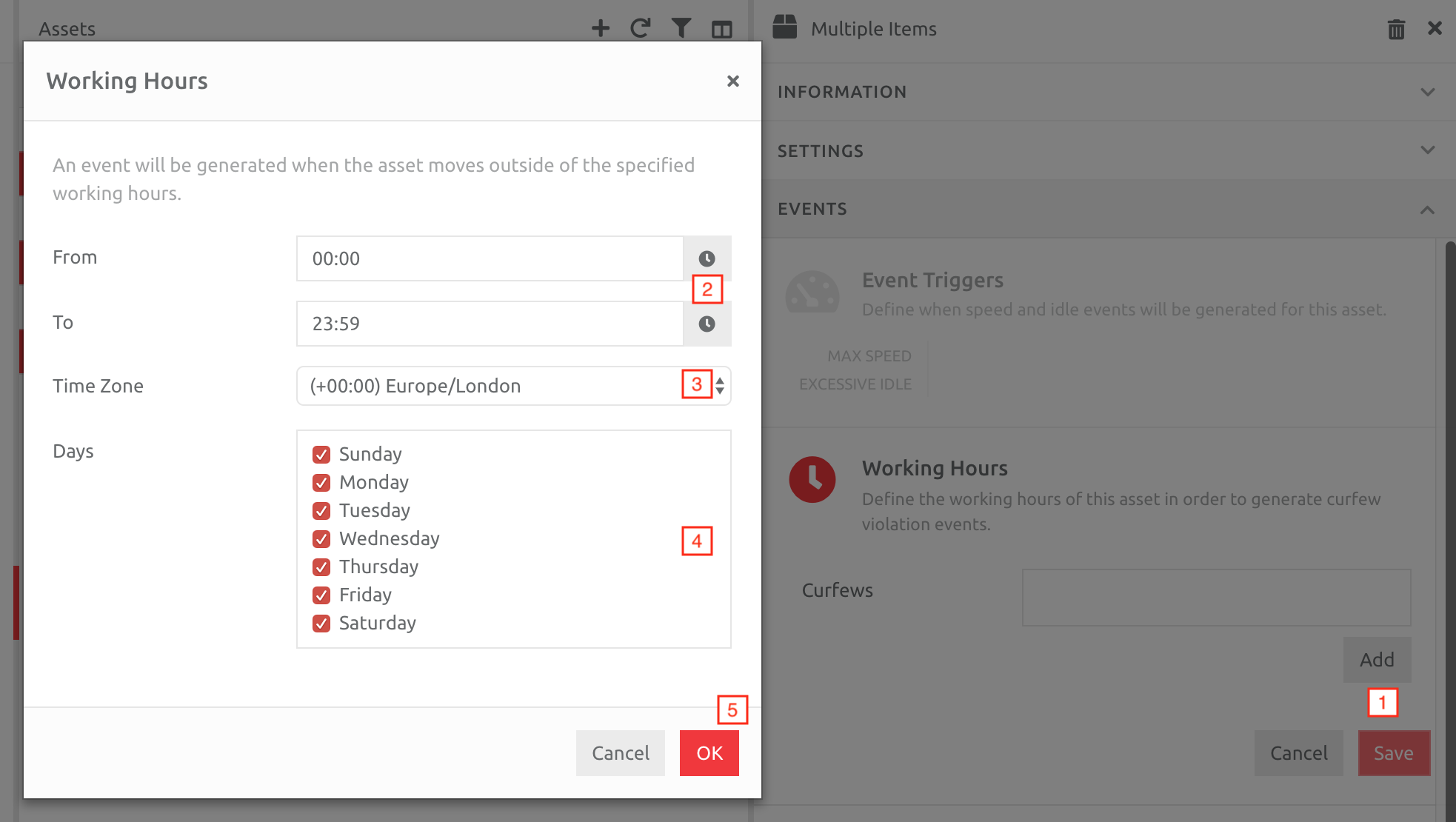
Add the hours per day, and repeat if there are more than one set of working hours. For example, if Assets can be used from 08h00 - 17h00 during the week and 09h00 - 13h00 on a Saturday, create two sets of working hours. One for the week, and one for Saturday.
Please note: the "day" ends at 23:59. If an Asset works overnight, e.g. 18h00 to 06h00, please create one set of working hours from 18h00 - 23h59, and a second set from 00h00 - 06h00.
Event Triggers - Analog Triggers
Analog triggers include all Analog, CAN and Temperature values coming from the Device. The data from the Device can be used to Trigger the following events:
1. Low range event - i.e. when the data value drops below this level,
2. High range event - i.e. when the data value rises above this level,
3. Drop event - i.e. when the data value drops quickly,
4. Increase event - i.e. when the data value increases quickly.
Examples of the above include things like
- RPM - when the value goes to high = over-revving
- Temperature - when the value goes to high or too low = out of acceptable range for the goods in transit,
- Fuel level - when the value drops quickly = fuel theft
- Fuel level - when the value rises quickly = fuel fill up
In the examples below, we would like to know when a vehicle is being revved excessively, and when the battery of the vehicle is potentially draining. The two blue lines in the middle represent the ranges, and the arrows the drop and increases.
Event Triggers - Geographic Triggers
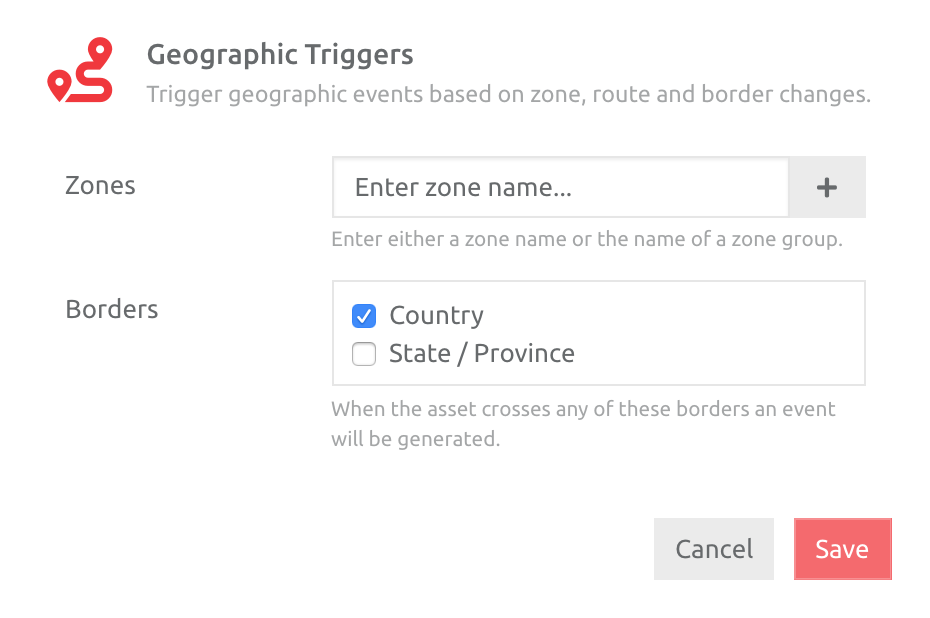
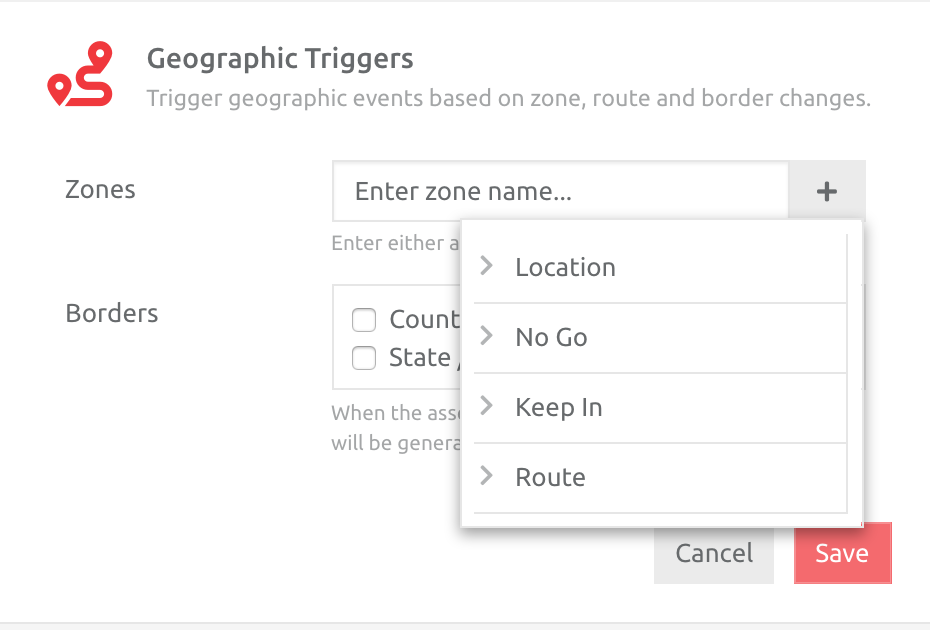
If you would like to trigger an event when an Asset crosses a specific Zone boundary, or State/Province or Country Border, set this up under Geographic Triggers:
Creating Alerts from Event Triggers
To create an Alert from Event Triggers, please set up the rest of the Alert as per normal, and choose the type of Range or change event from the following options:
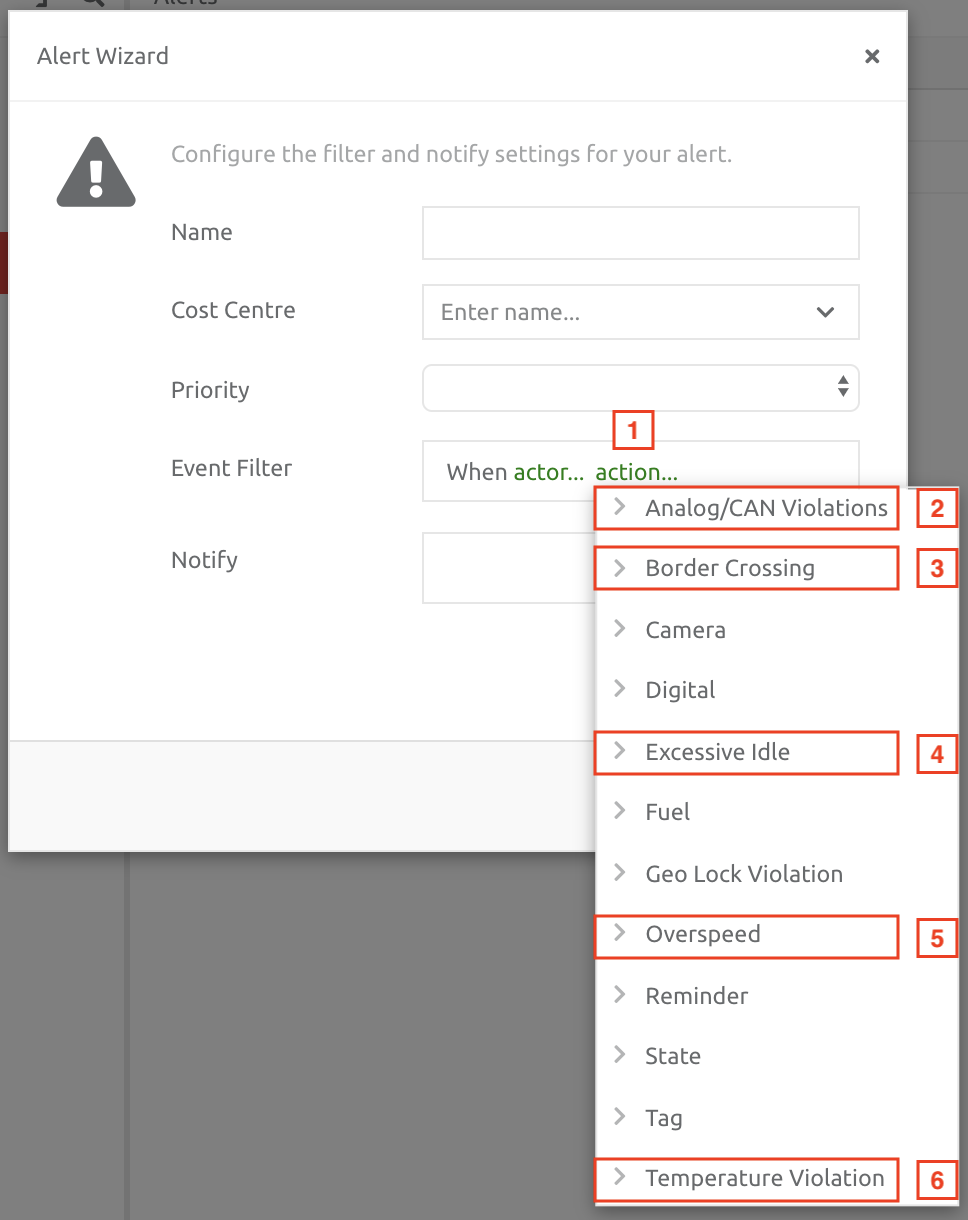
1. Select action...
2. Analog/CAN Violations = Analog and/or CAN triggers,
3. Border Crossing = Geographic triggers,
4. Excessive Idle = Idling limit trigger
5. Overspeed = Speeding triggers,
6. Temperature Violation = Analog trigger for temperature.
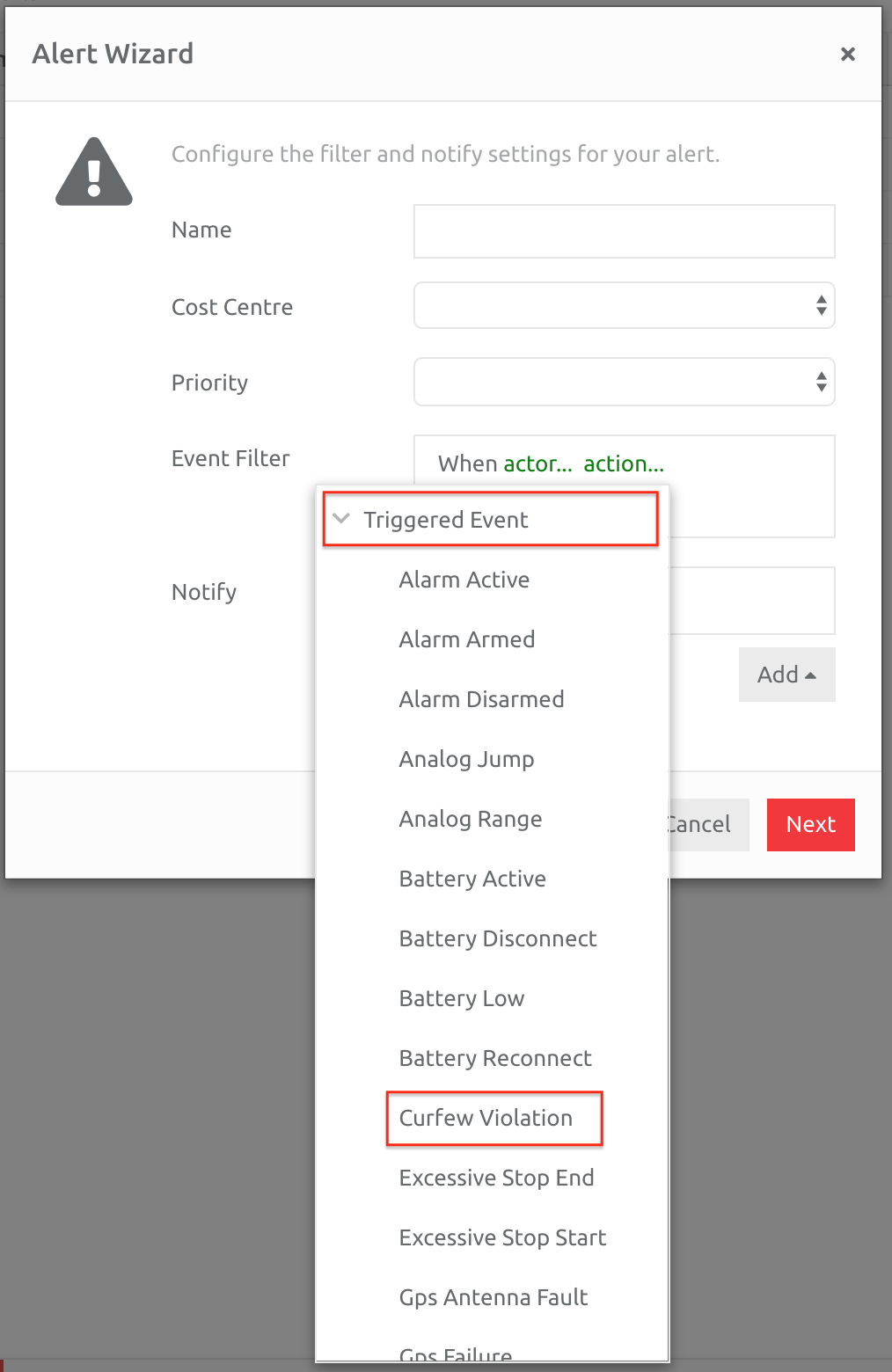
Curfew Violation alerts, generated from the use of an Asset outside of Working Hours, is found under the Triggered Event section:
Comments
0 comments
Please sign in to leave a comment.