Introduction
The platform allows users to receive alerts in real time, by either email or SMS. Alerts are triggered from events, which come from:
1. The Device directly - e.g. impact, harsh braking,
2. The software set up, in combination with the Device's data - e.g. overspeeding, fuel fill ups, temperature violations.
The platform has a powerful engine behind the Alerts feature, and allows for complex, specific Alerts to be built. This avoids unnecessary lists of Alerts being generated in Clients, and spamming Users phones or inboxes. For example, a speeding alert can be created when a certain speed has been reached, or a speeding alert triggers at a certain time of day, or when harsh braking occurs below a certain speed etc. This is explained below.
Creating an Alert
Alerts can be created in Administration or on the Alerts page under the Status section. This article covers the creation and editing of Alerts on the Alerts page. To discover how to create Alerts in the Administration, please follow this link.
Status Page: Alerts
1. Go to the Alerts page under Status,
2. Click the Plus button,
3. Enter the relevant information in the Wizard (explained below).
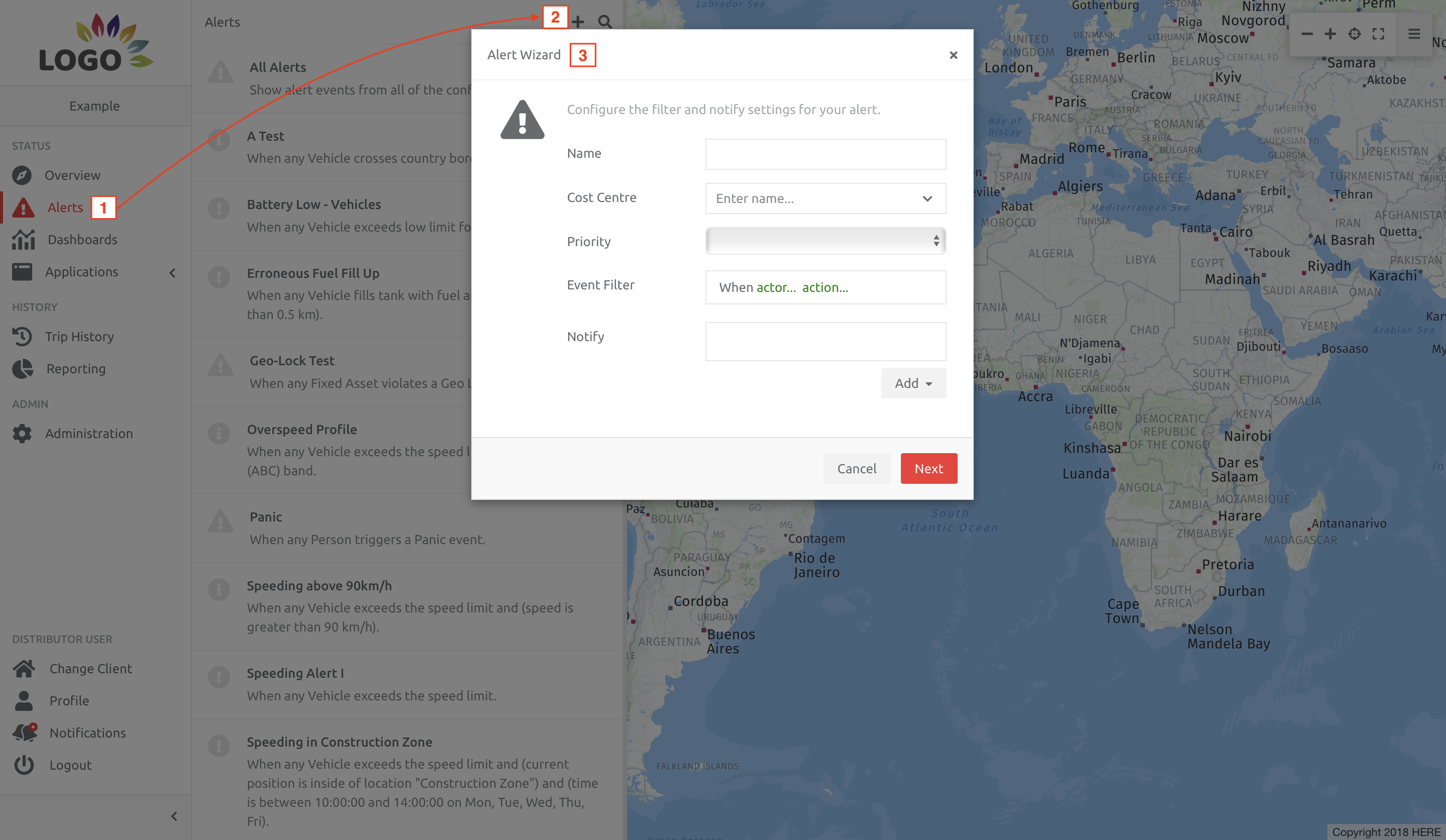
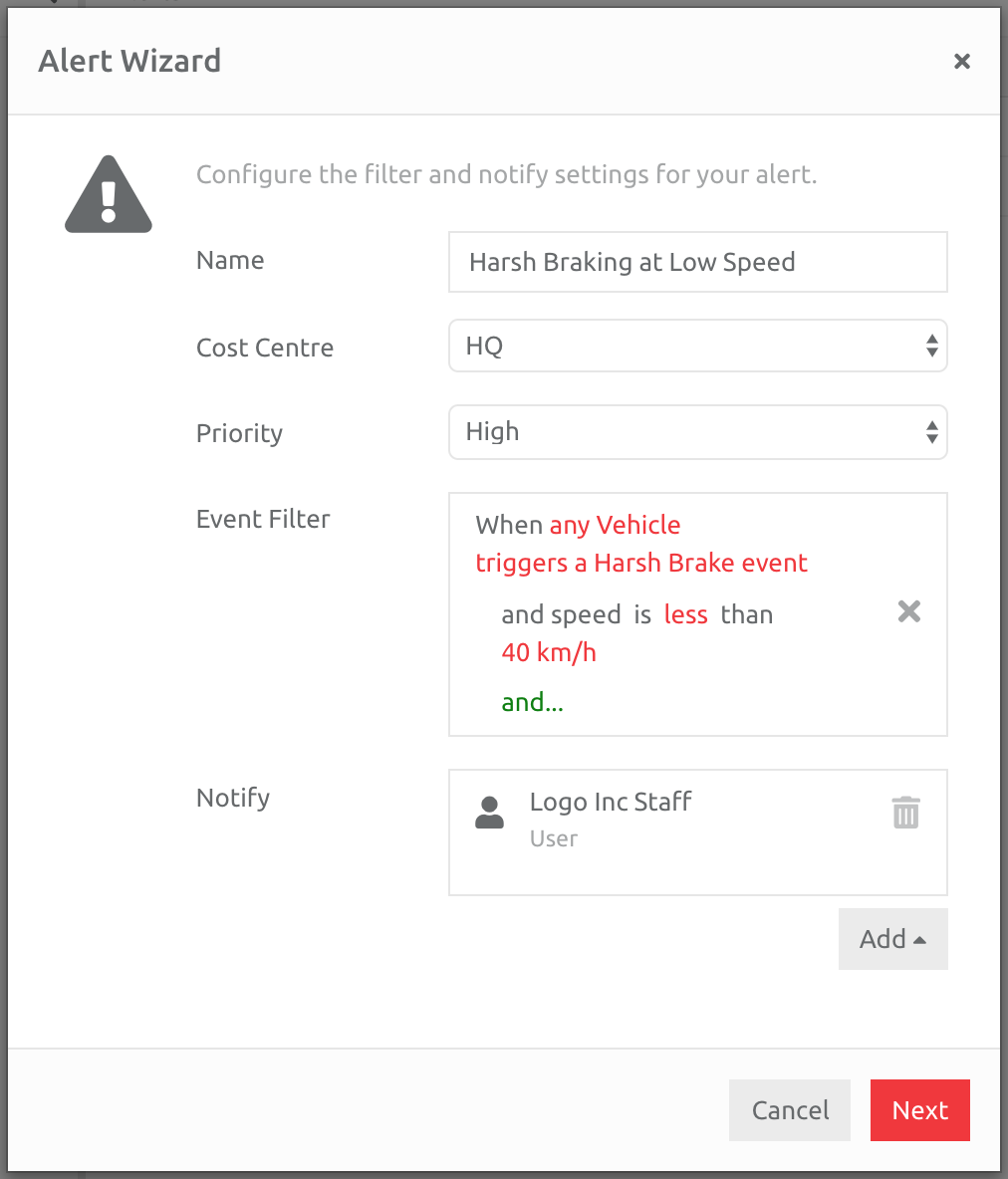
Name the Alert and add the Cost Centre and Priority. The Priority should correlate with the User Notification settings if a User is to be notified.
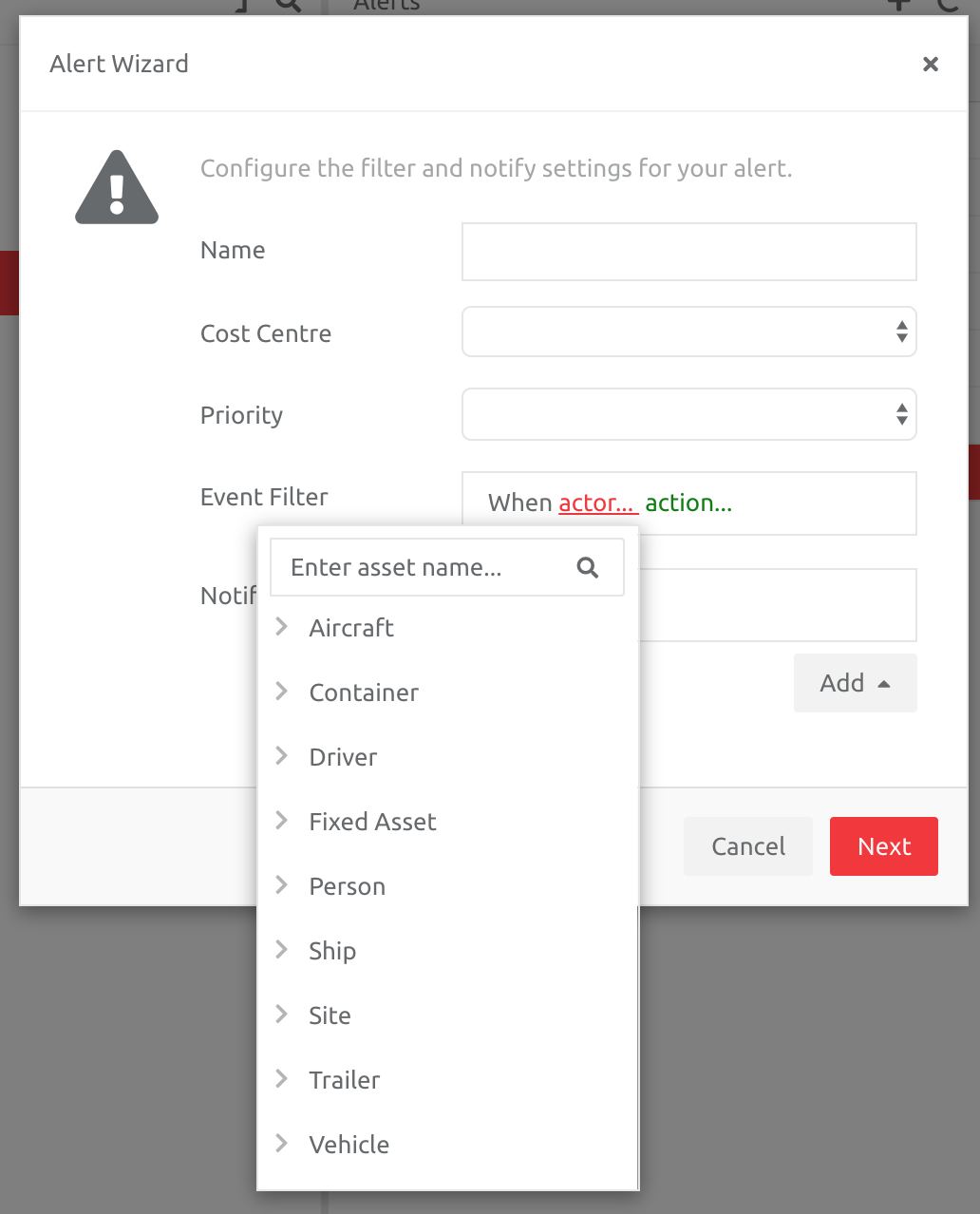
The actor corresponds to which Asset will trigger the Alert (the WHO). Specific Assets can be added by typing in their name, or groups chosen under the Asset types.
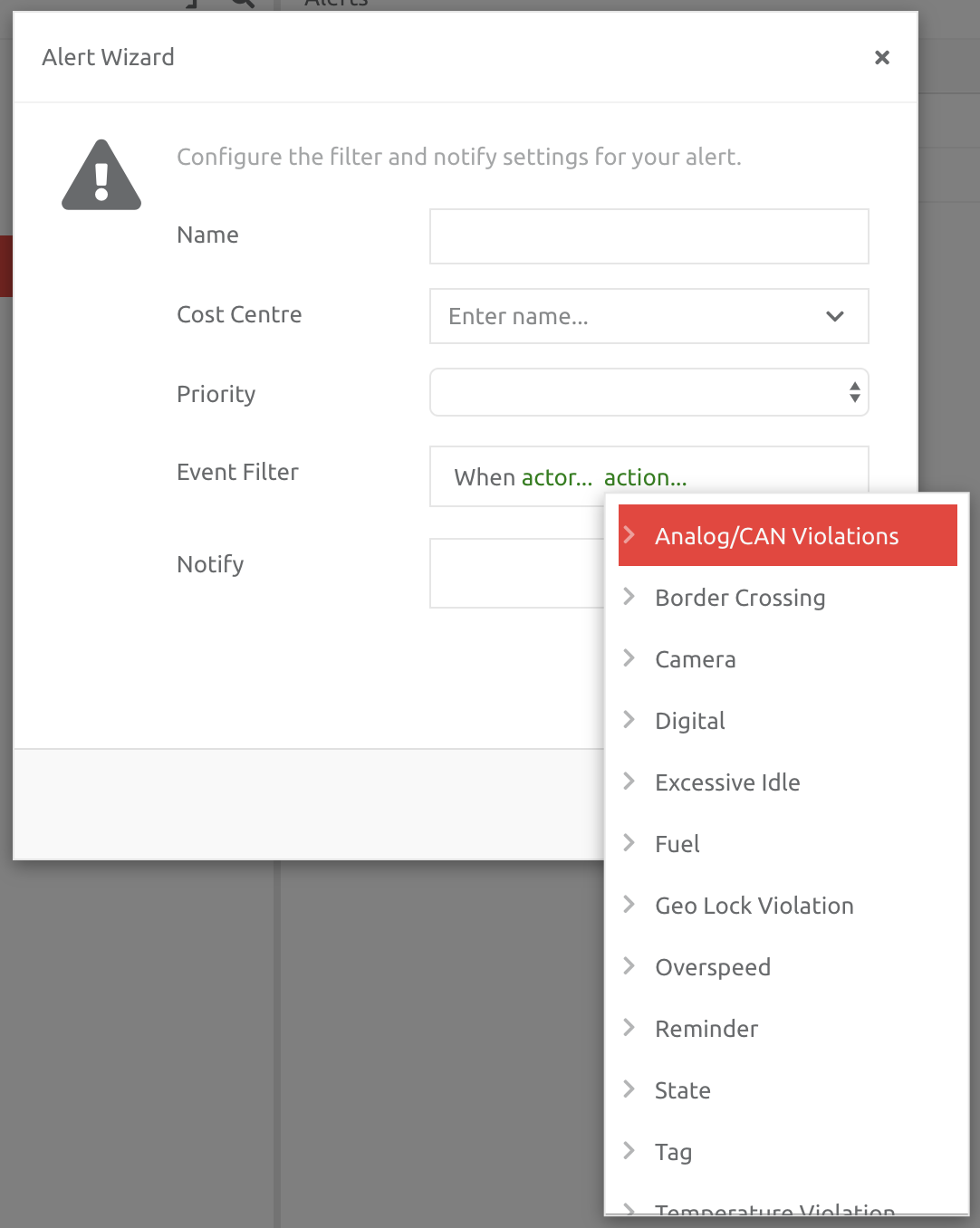
The action corresponds to which Event will trigger the Alert (the WHAT). The drop down list contains all the possible Events from the Device and Asset (please ensure you choose an Event that is being received by the platform - for example, if the Device cannot send in GSM jamming Events, then an Alert with this Event will never trigger).
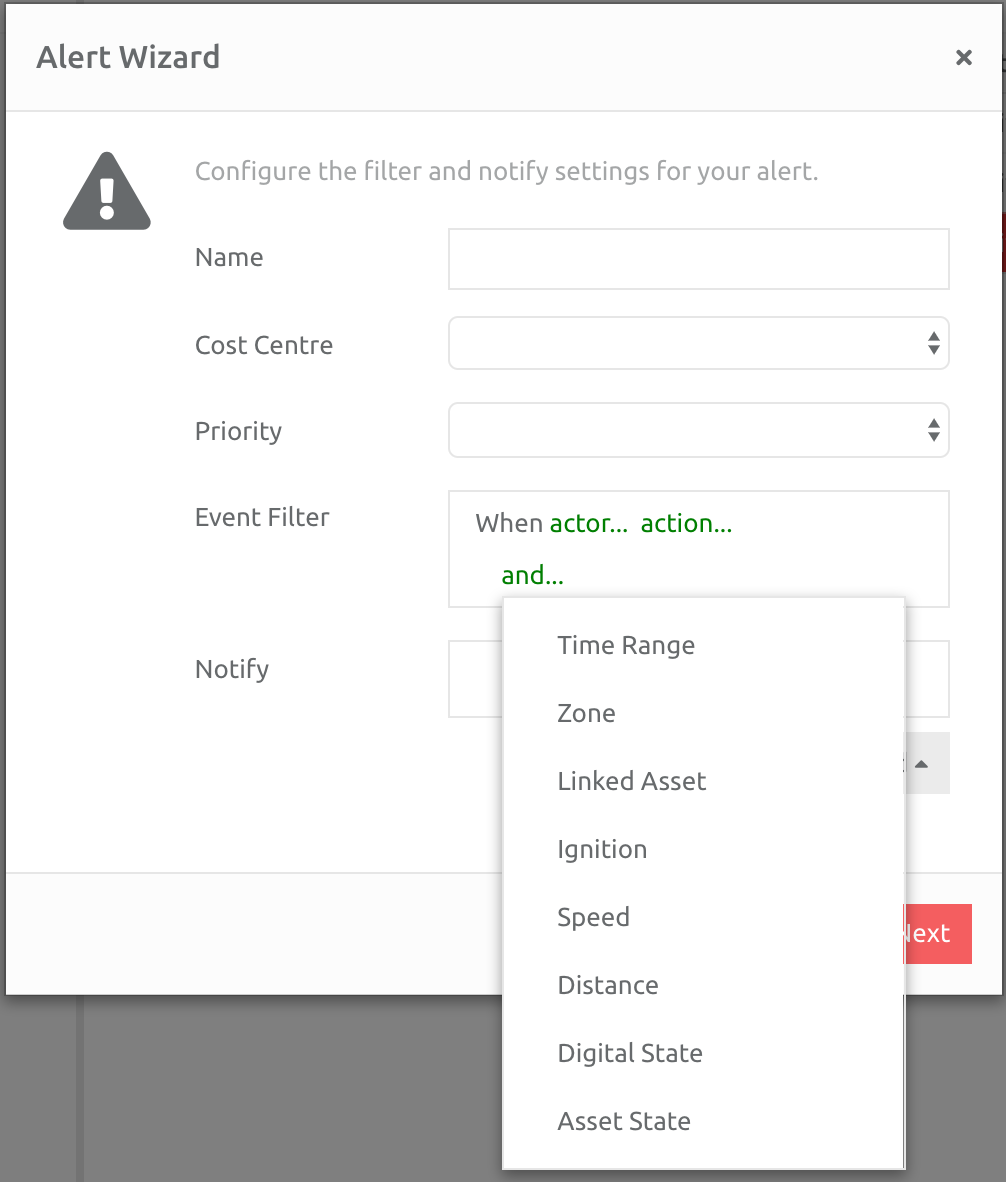
The and corresponds to additional Events that can be used to trigger an Alert (the FILTER). The drop down list contains all variables that can be set in the Alert. Please make sure that the Filter is applicable. For example, if a Digital State is used as a Filter, but no Digital inputs are set up on the Device, the Alert will never trigger.
Once the Event Filter has been completed, add a User if needs be. In this example below, an Alert has been created for Harsh Braking below 40km/h, and a staff member will be notified if this triggers:
Editing and Deleting an Alert
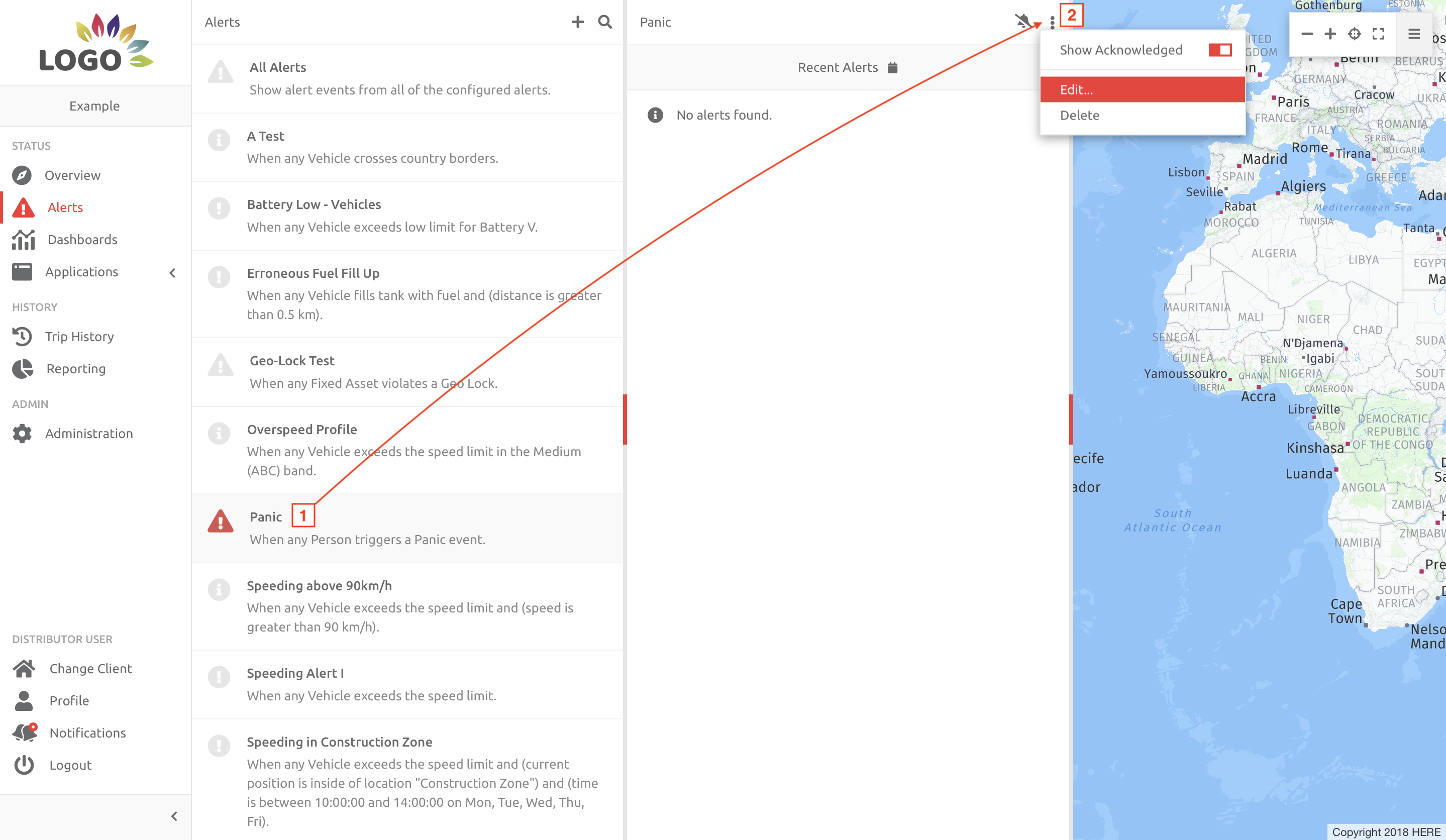
Alerts can be edited and deleted from the Alerts page.
1. Choose the Alert to be Edited/Deleted,
2. Click the 3 buttons (Settings) icon, and choose Edit or Delete as required.
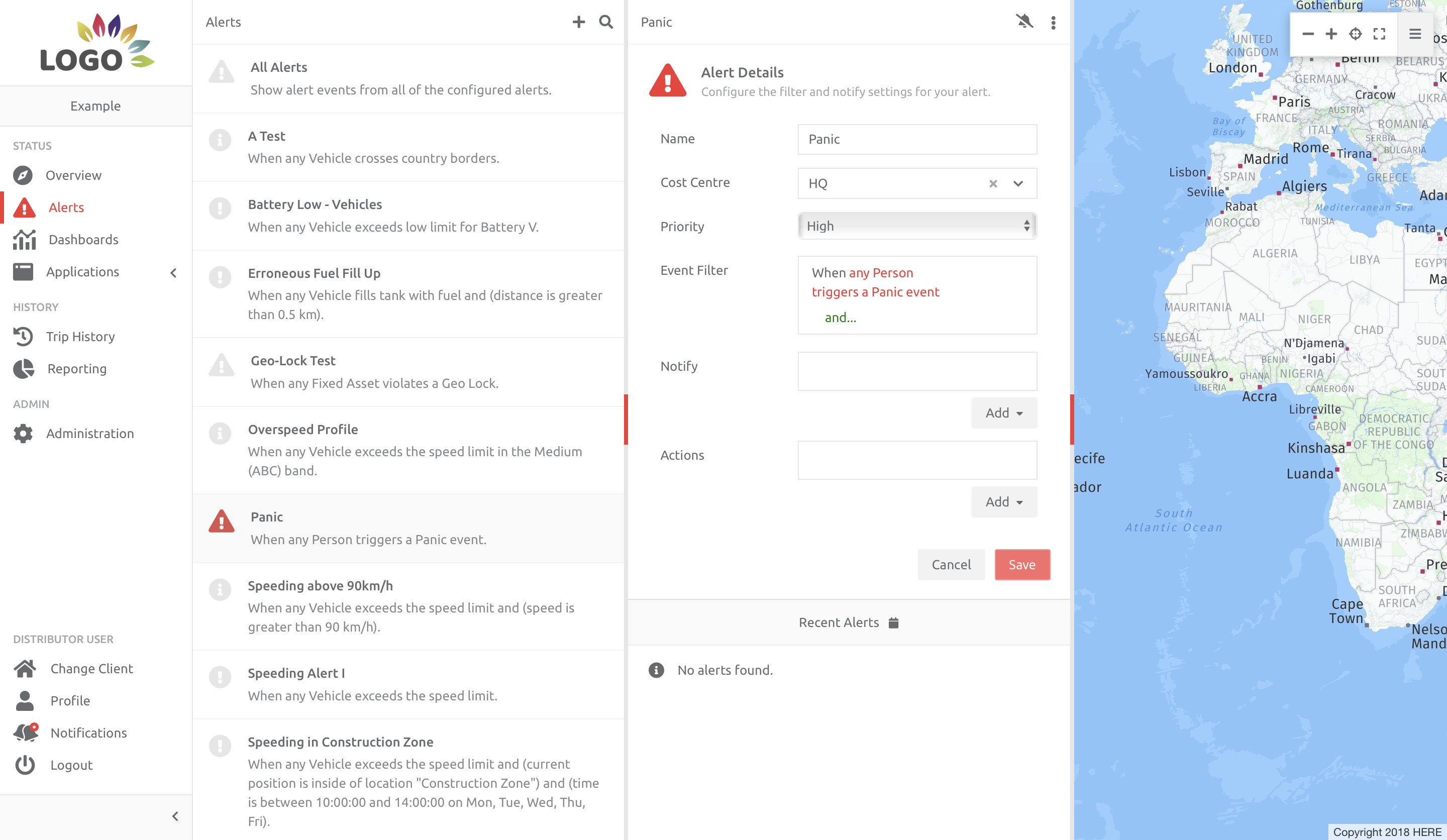
If editing the Alert, an edit box will display in place of the Recent Alerts, and the Alert can be edited as needed. Follw the steps described above to edit the Alert, and Save or Cancel the changes made.
Comments
0 comments
Please sign in to leave a comment.