Introduction
Users can search an area on the map, to determine which Assets have been in the same, and for how long. This helps users to identify which Assets have been in a particular area on a particular day. The data is displayed in a list format, and the Users can click through to the Trip History to see the Events per Trip.
The search feature is available on the Overview Map and within the Map Search Page itself.
A few points:
- The data generated uses the Zone Report, listing as the basis for data generation,
- If a point on the map is chosen, Users can determine the radius to be searched,
- If the search area is a location, only that location can be searched,
- The Asset/s must have entered and exited the area to be recognised (i.e. two events - entry and exit).
Enabling the Map Search Page
The Map Search feature can be enabled as required, per Client. This feature can be enabled using Client Groups, or on individual Clients, as required.
Searching an Area on the Overview Map using the Pin
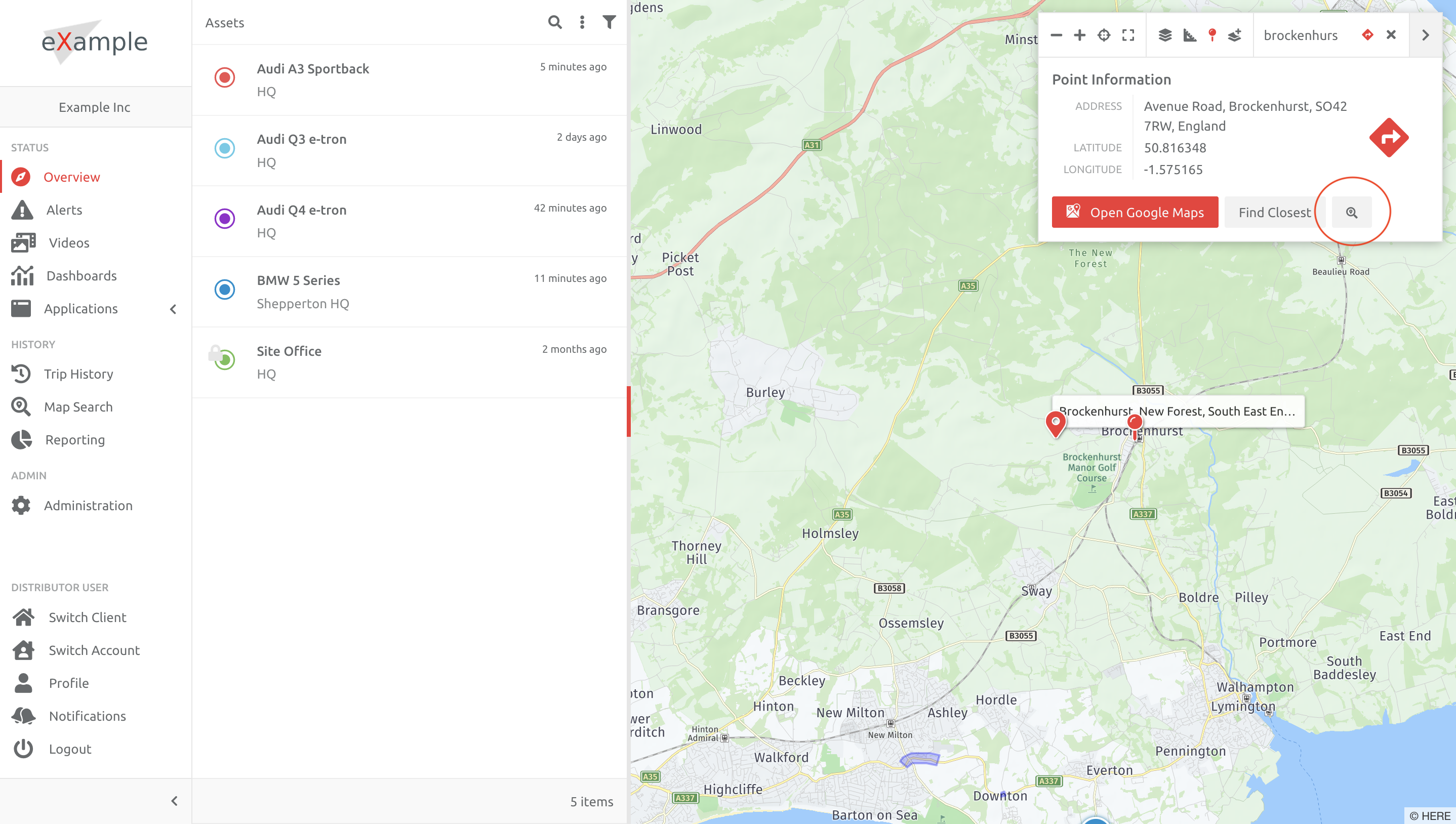
1. Open the map toolbar and search for the area/postcode/address,
2. Choose the pin and drop this on the result,
3. Click the Search icon.
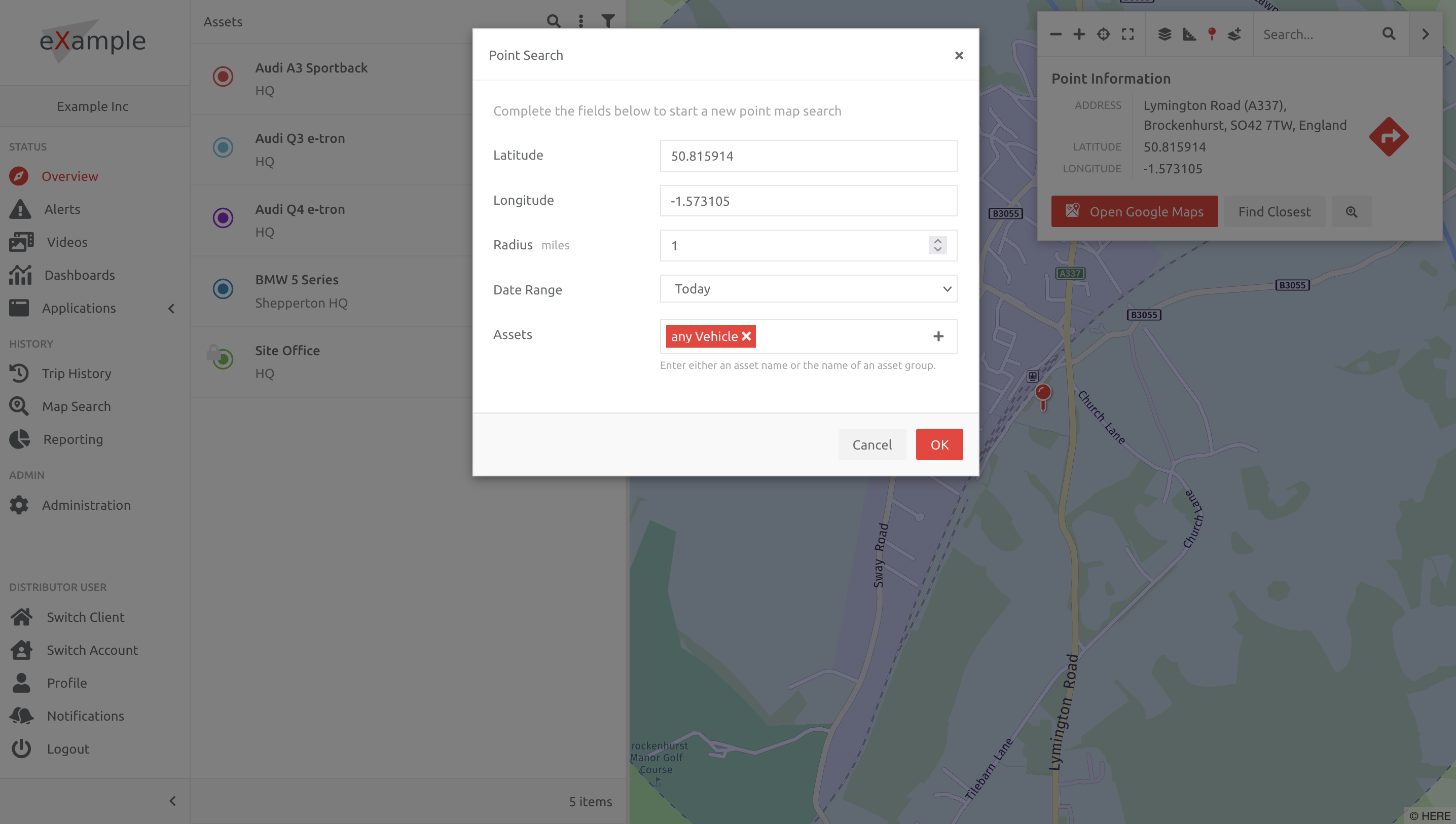
4. Complete the information for the search, and wait for the results.
Searching an Area on the Overview Map using Right Click
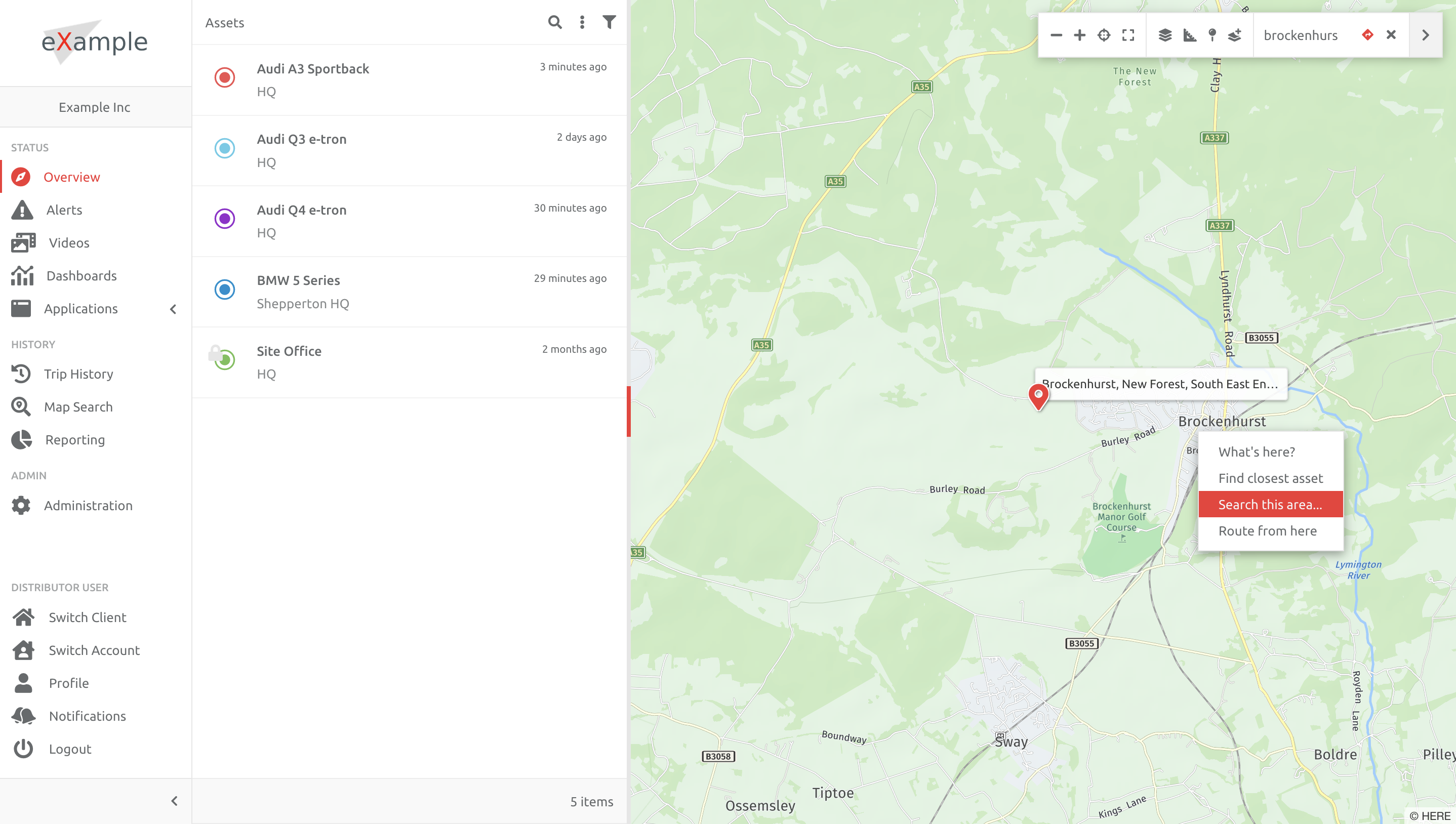
1. Open the map toolbar and search for the area/postcode/address,
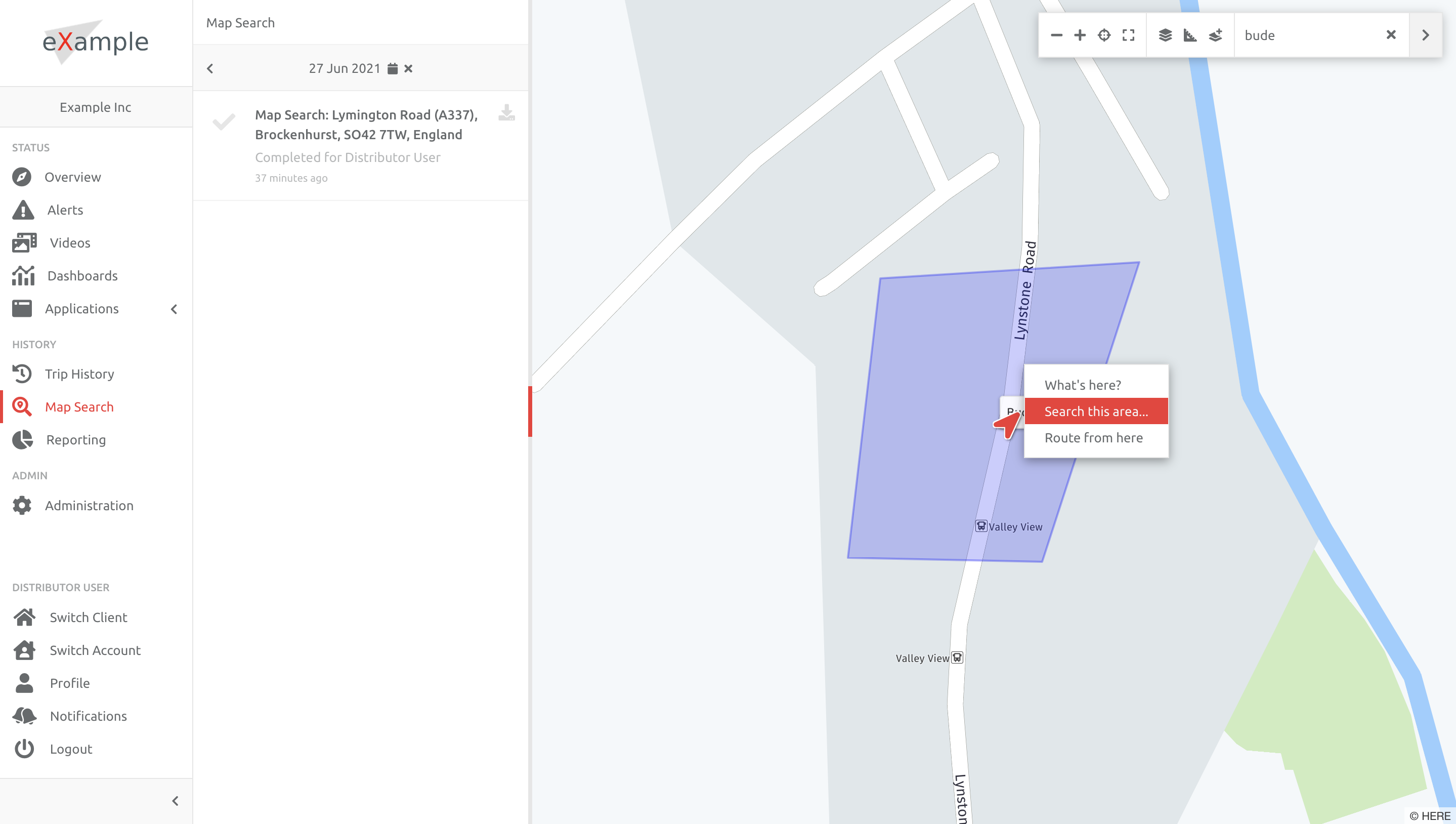
2. Right click on the resultant flag or address etc,
3. Choose Search this Area...
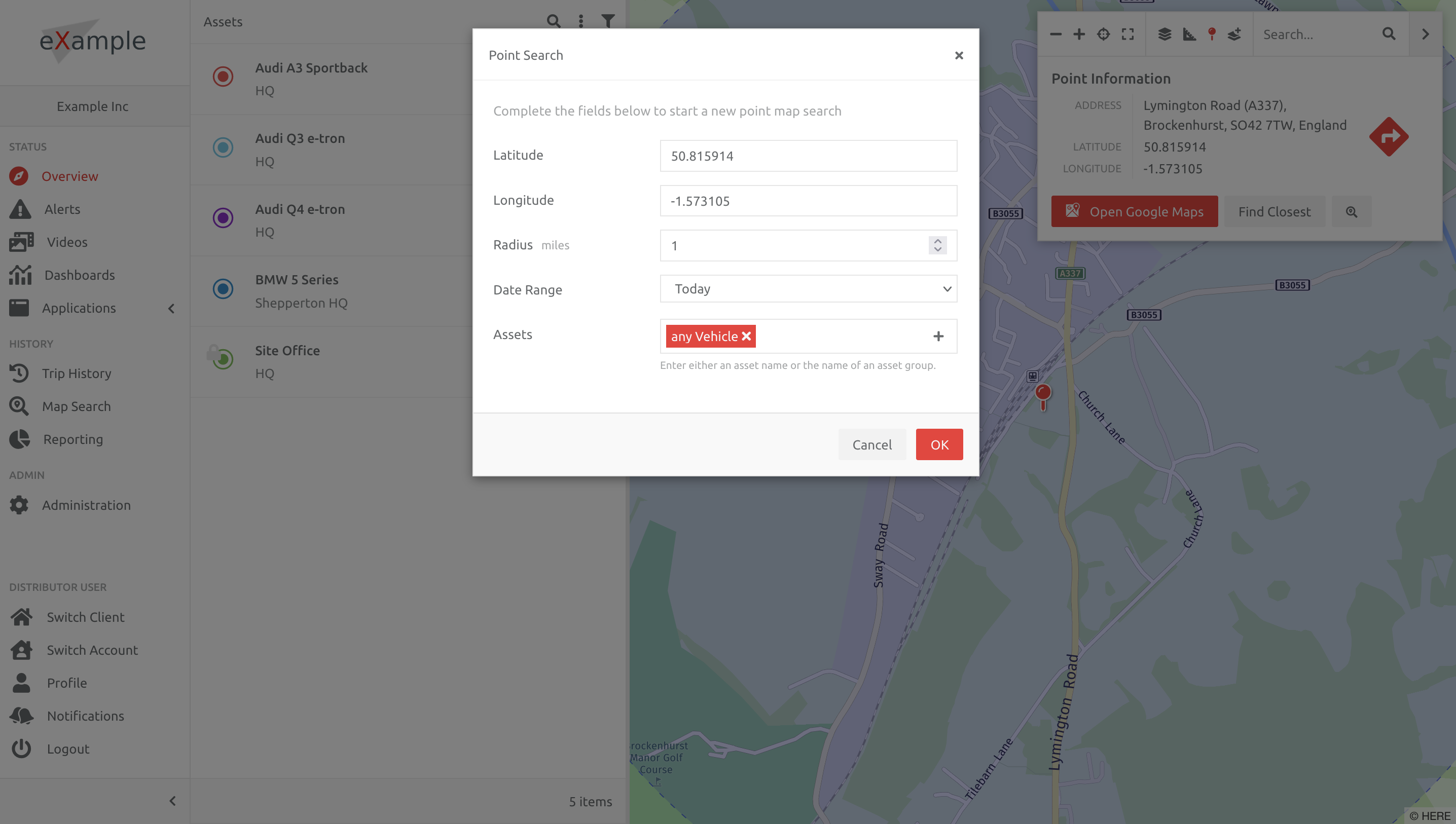
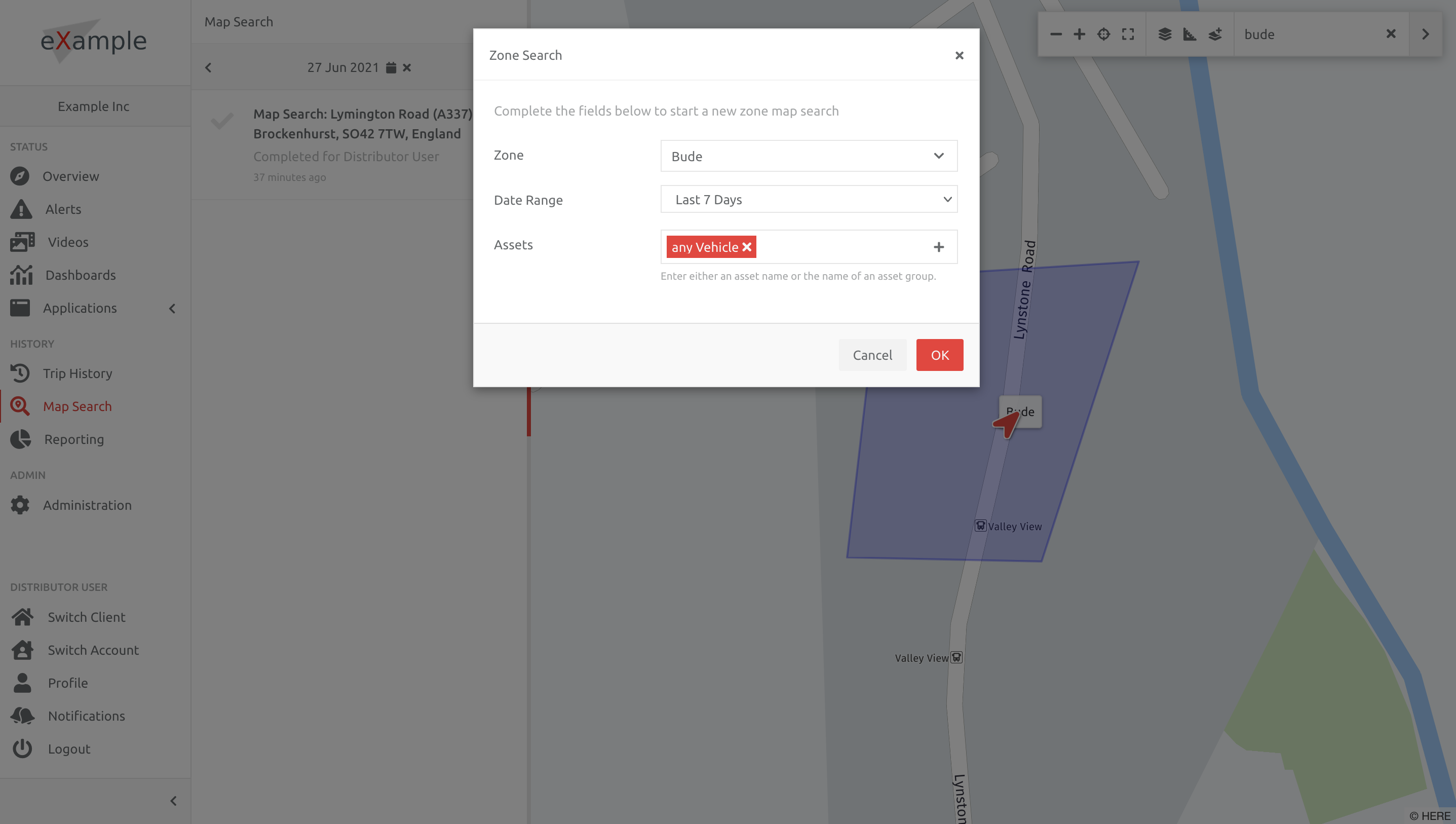
4. Complete the information for the search, and wait for the results.
Searching an Area Using the Map Search Page
1. Open the Map Search page,
2. Open the map toolbar and search for the area/postcode/address/location,
3. Right click on the resultant flag/address/location etc,
4. Choose Search this Area...
4. Complete the information for the search, and wait for the results.
Searching the Results
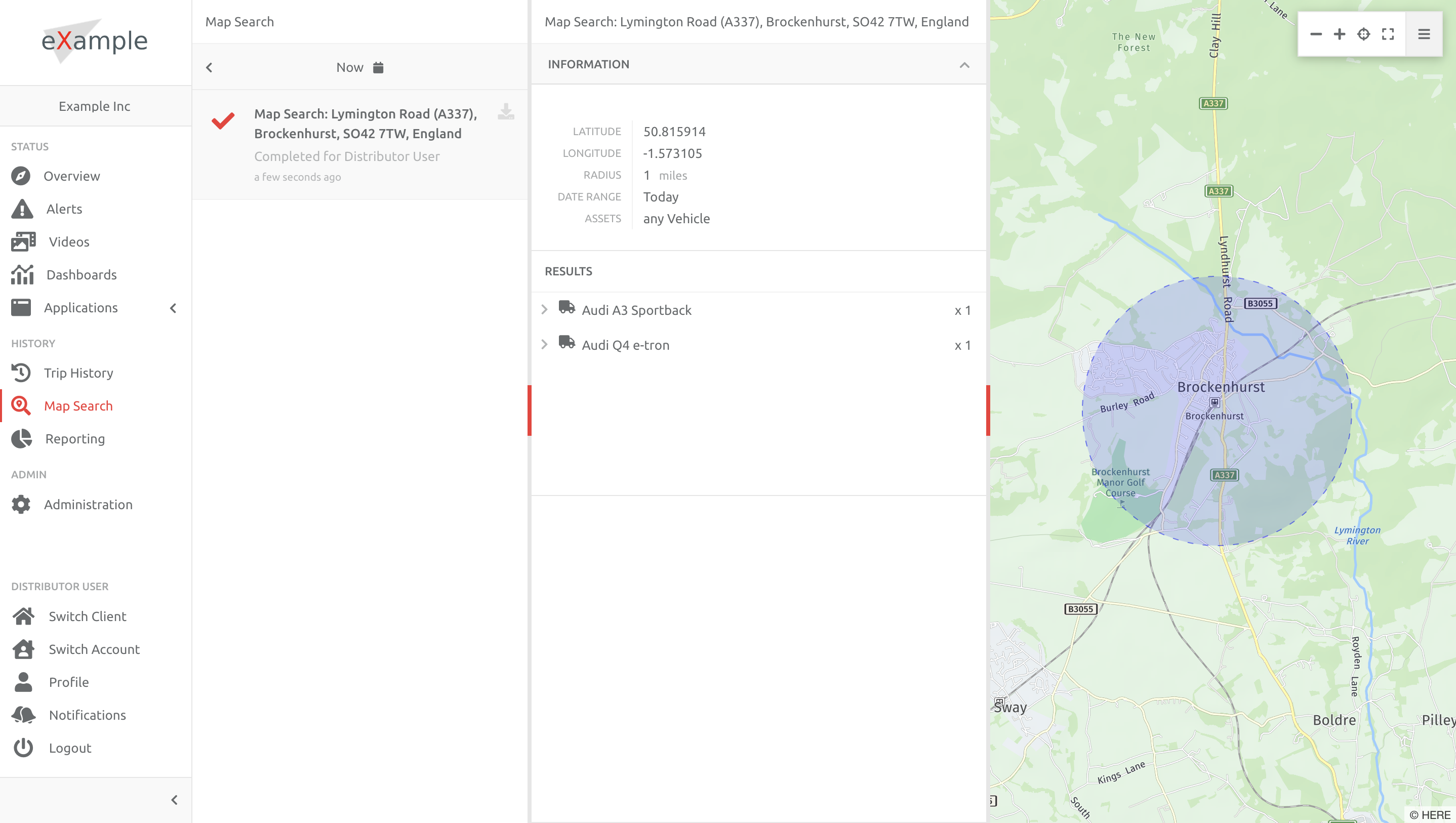
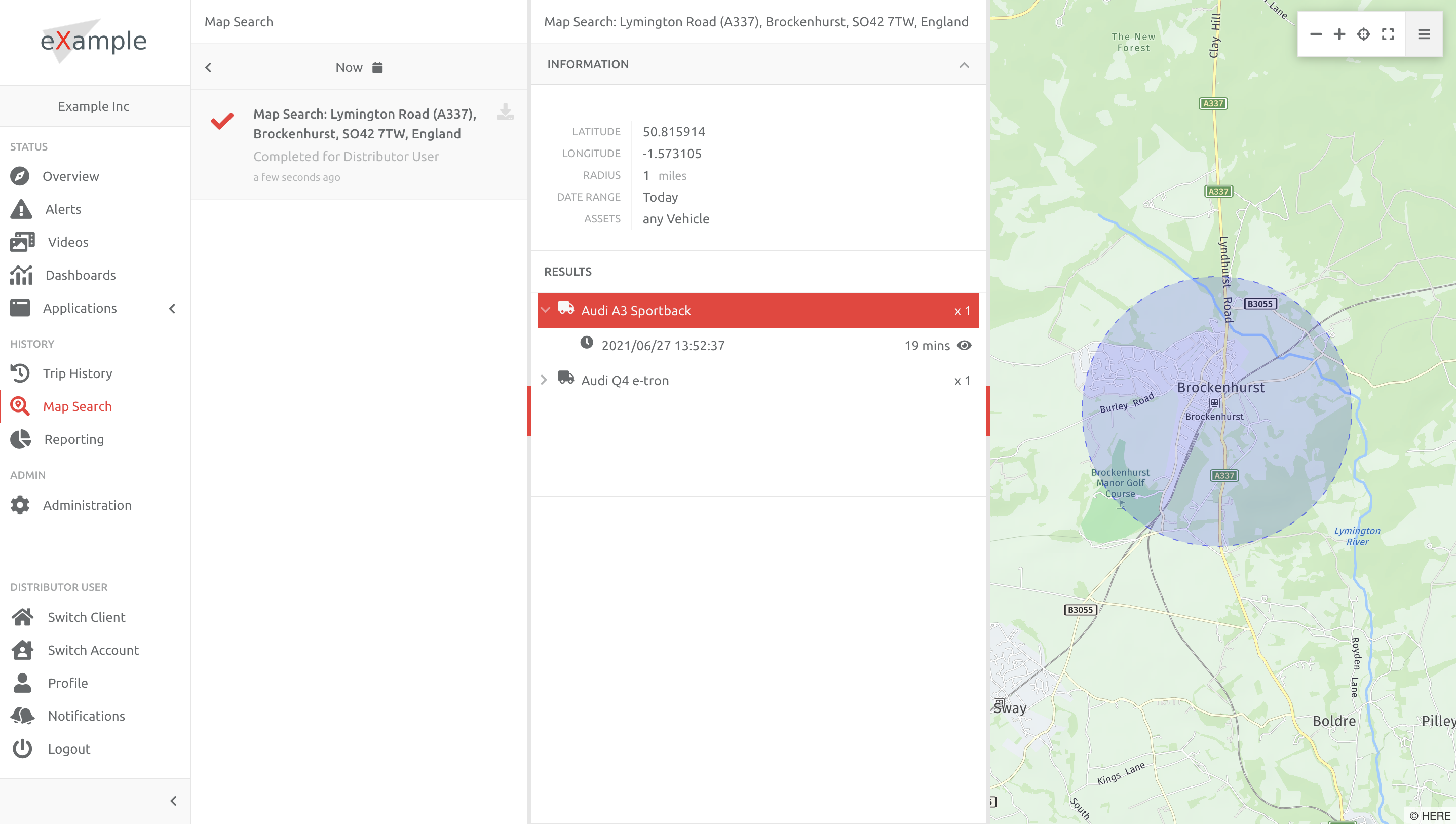
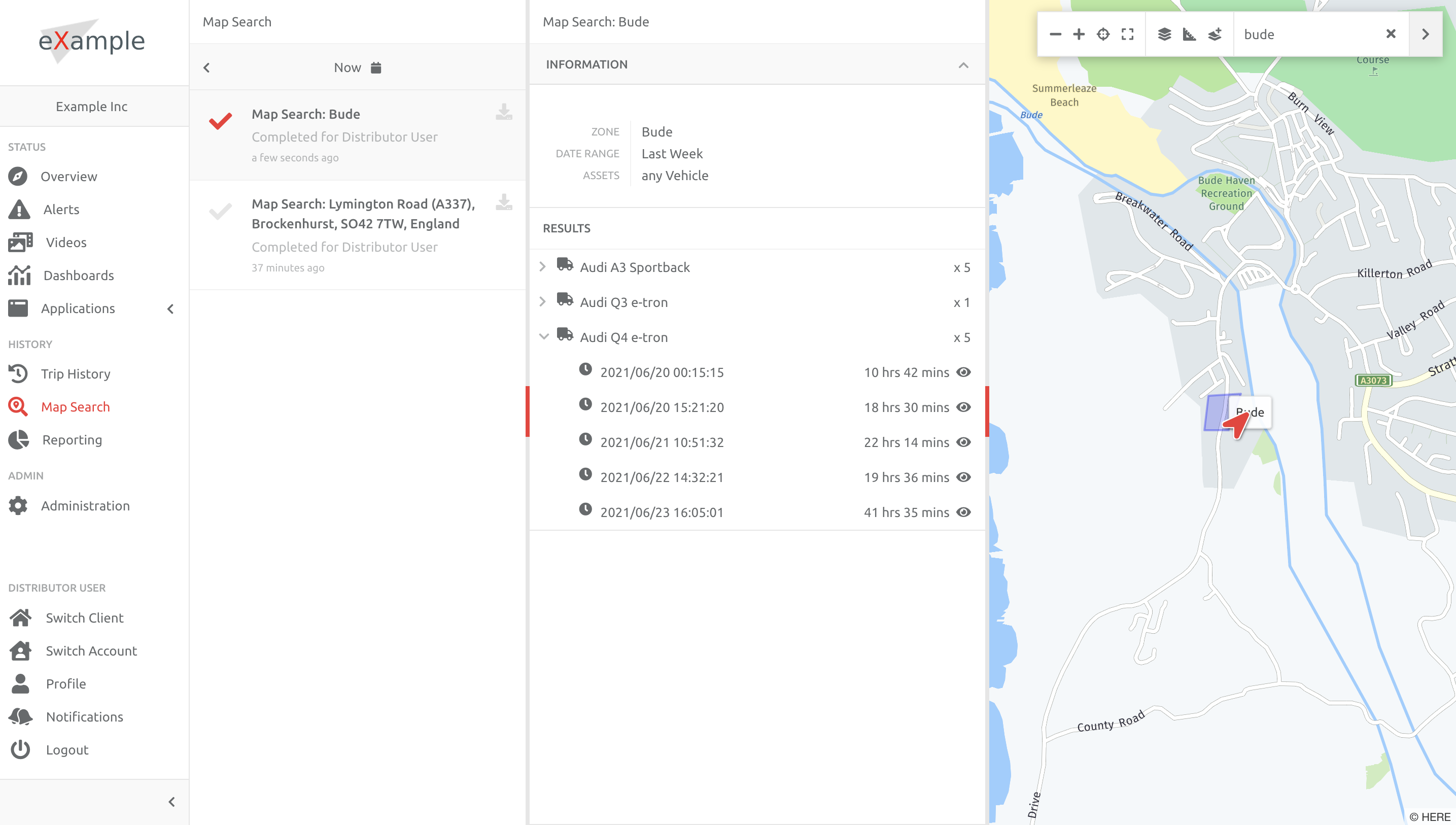
The report will run and the resultant Asset list displayed under the information of the search. Each Asset found, along with the number of entries is listed. The Report itself can be downloaded in CSV format.
Result 1
Result 2
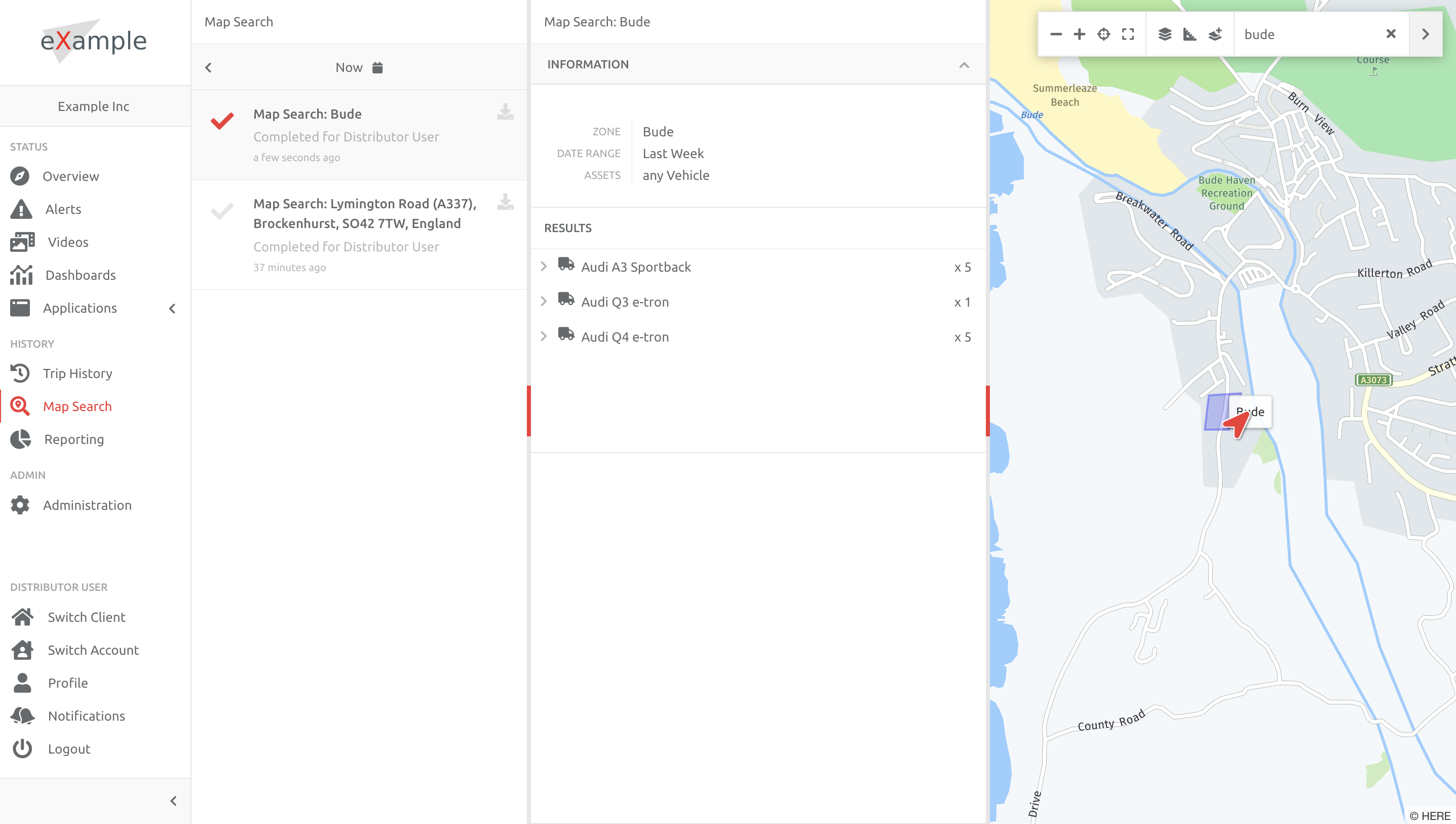
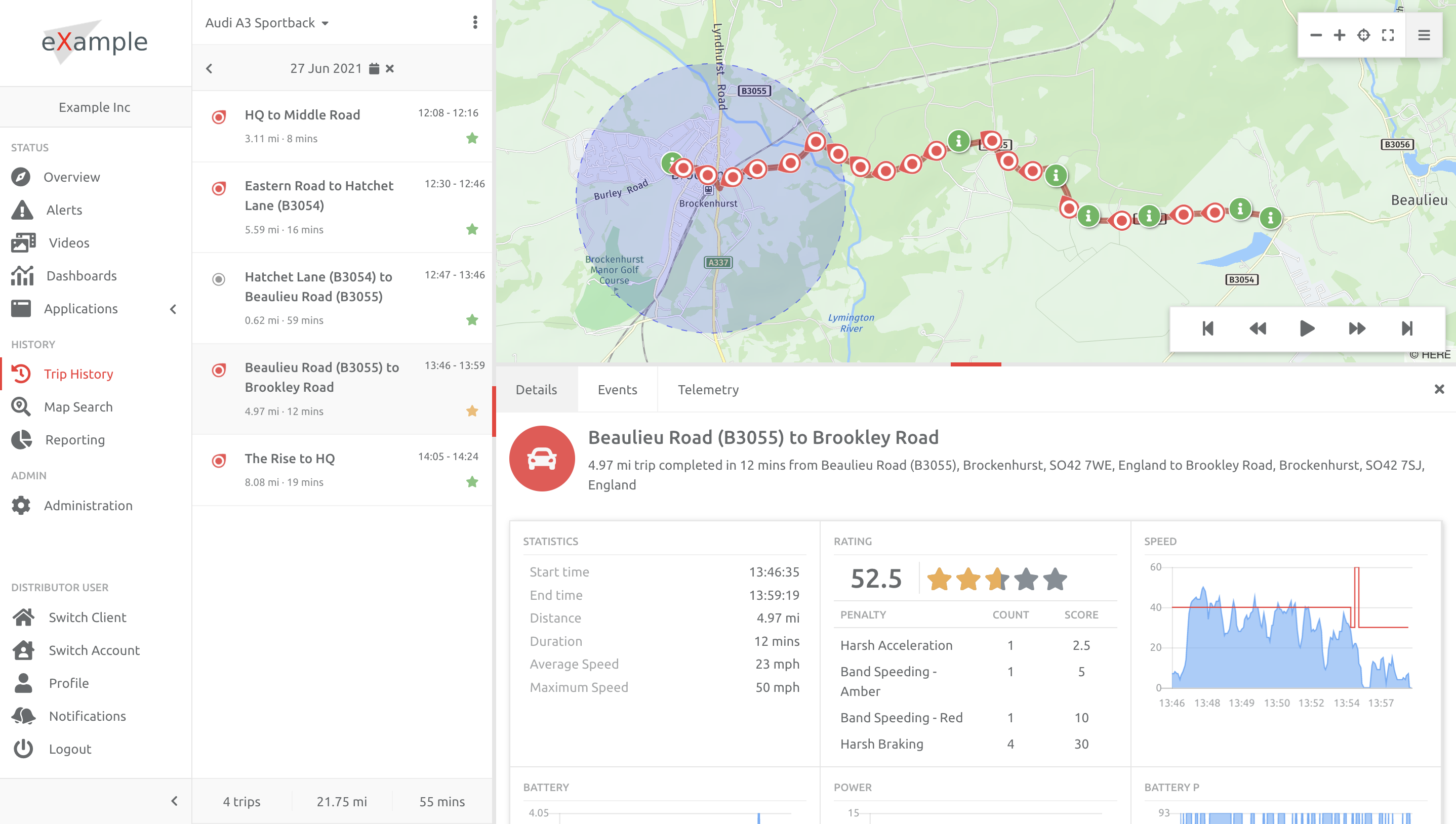
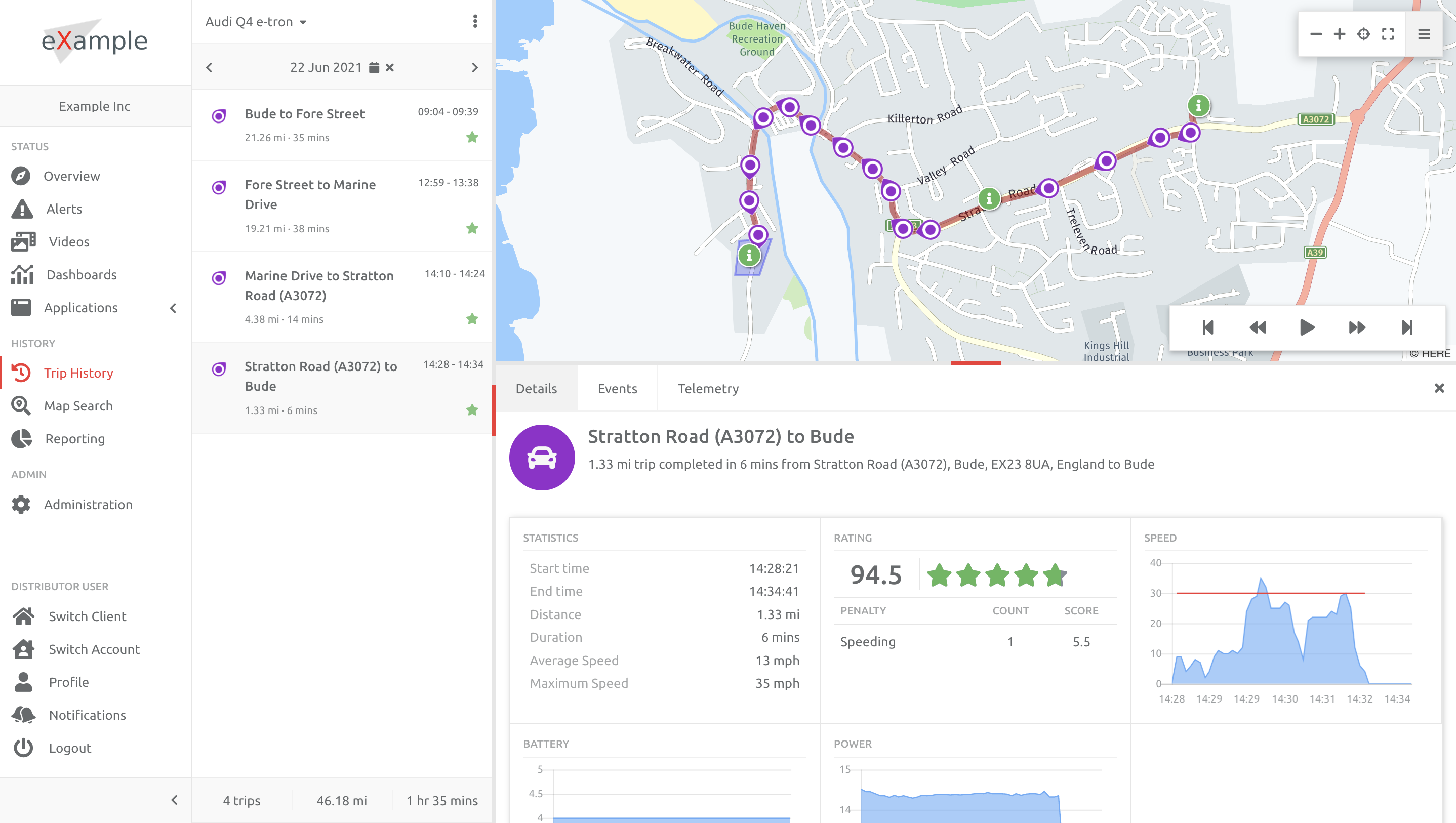
Open the Asset details to list each entry, the time this occurred, along with the time the Asset spent in the area. If Users would like to see the Trip in question, click the eye icon next to the time. This will take the User to the Trip History, where the search area is highlighted.
Result 1
Result 2
Comments
0 comments
Please sign in to leave a comment.