Introduction
The platform contains a scheduling engine that allows Users the ability to run Reports at a set time, and email these to any User in the Client, either once off, or on a repeated schedule.
Scheduled Reports can be created in the Reporting section, as well as from the Administration section of the platform. The flexibility of allowing Users to schedule Reports from either of those two sections means that:
- If a Client has been set up and the Administration section disabled, Reports can still be scheduled from Reporting (if enabled),
- A User can schedule a Report from the Administration section, if busy with another task in Administration, instead of having to leave Administration and open the Reporting section.
The article below explains the set up in the Administration section. To create Scheduled Reports under Reporting, please follow the link to this article: Scheduled Reports.
Scheduling Reports
There are two parts to scheduling Reports, namely:
1. Create a Schedule, and
2. Add the Report/s to the Schedule.
Create a Schedule
1. Go to Administration,
2. Choose the Scheduled Reports section under the Client,
3. Click the Plus button,
4. Enter the information in the Wizard.
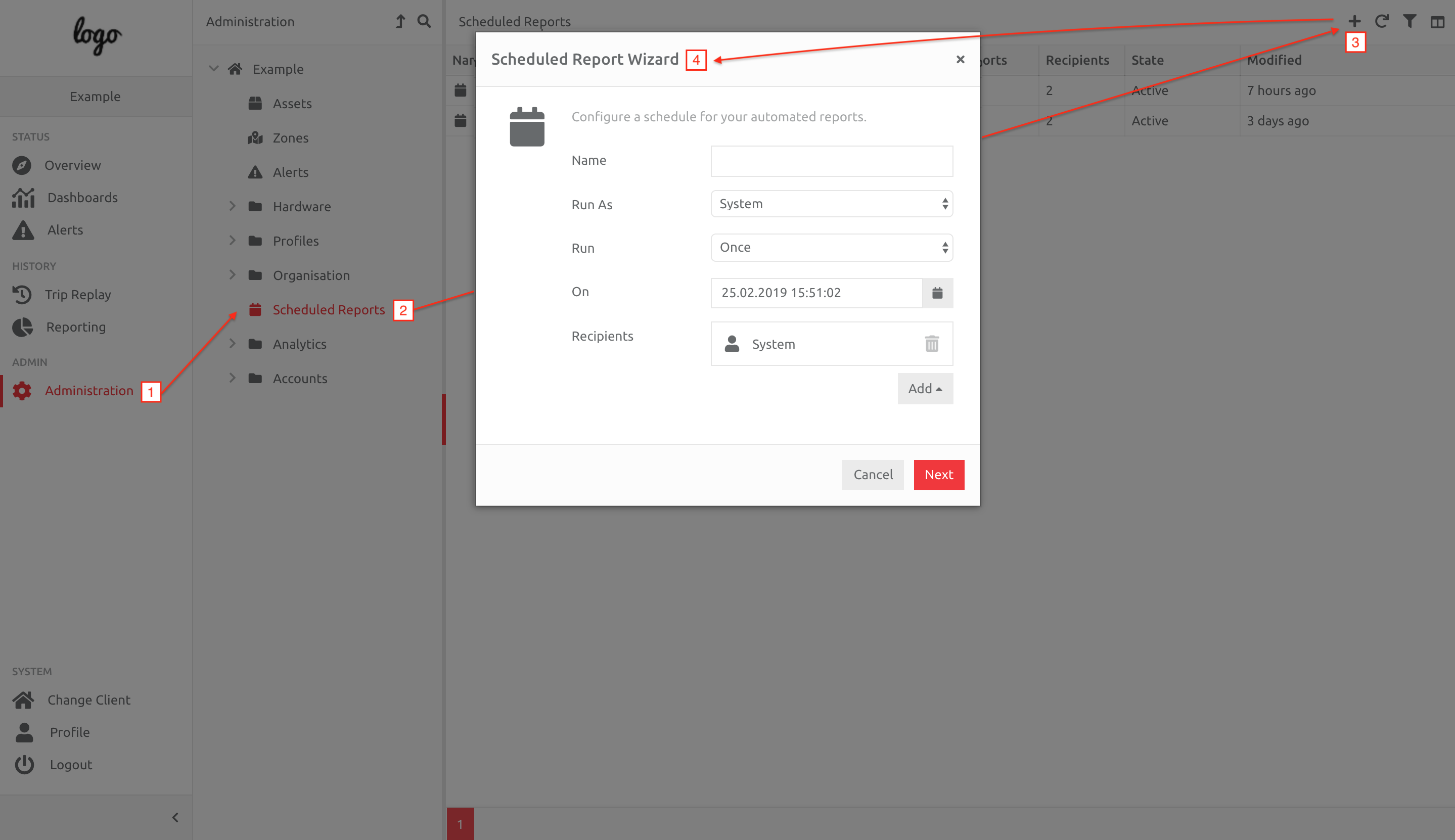
The information entered in the Wizard tells the platform when the Reports should run, and who, if anyone, should receive them by email. By default the user creating the Schedule is added to the Recipients list. You are able to add Users, or groups of Users based on their User Role.
Once a schedule has been saved, you can also add an Email Address of a recipient.
Edit the information to create a unique schedule, then click Next, and complete the set up.
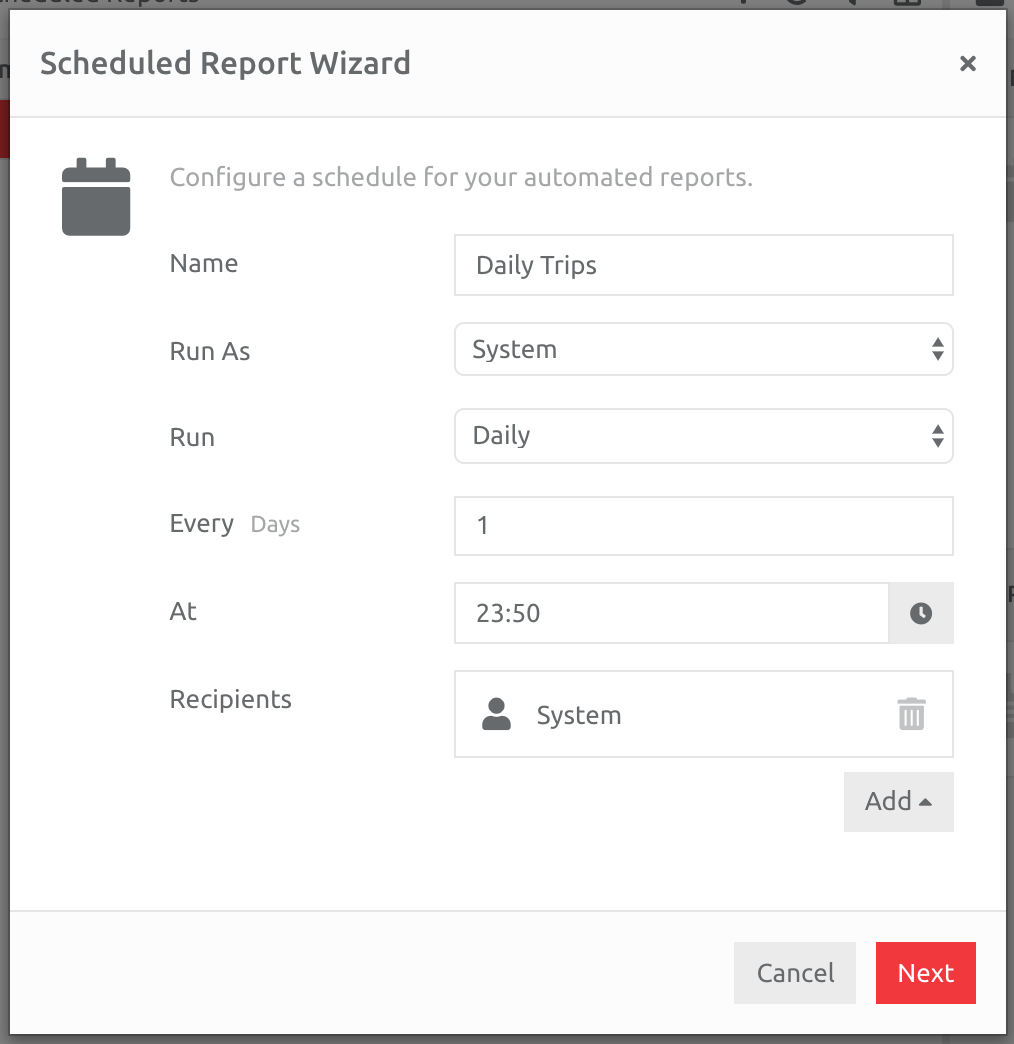
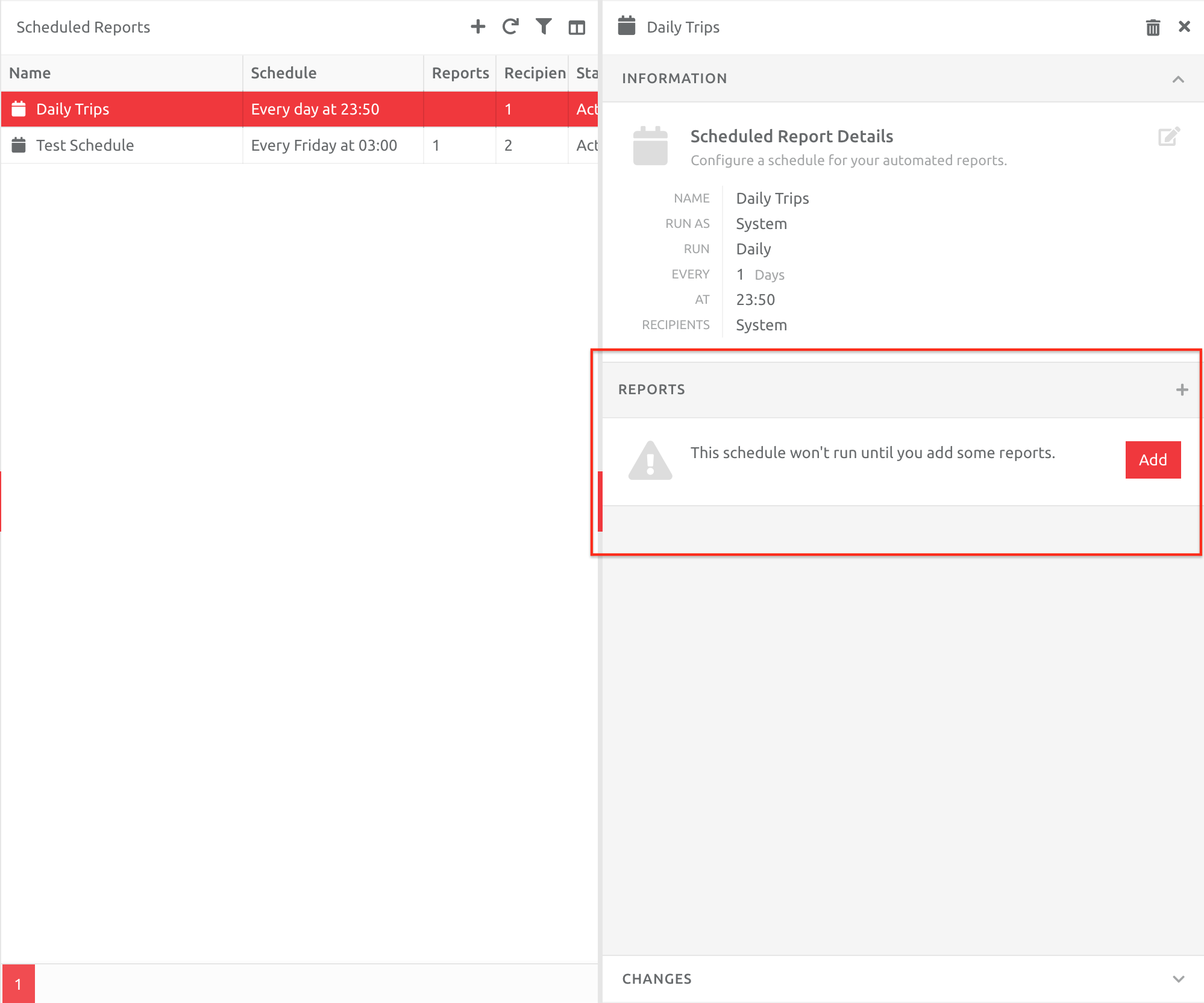
The schedule will appear in the list, and the Information tab will be open. Underneath this, the REPORTS section will be blank, and a message will state that the Schedule won't run unless reports are added.
Add the Report/s to the Schedule
Click the Add button to add a report:
Choose the type of Report you would like to add to the schedule, and then complete the parameters for that Report. Note that not all reports can be scheduled.
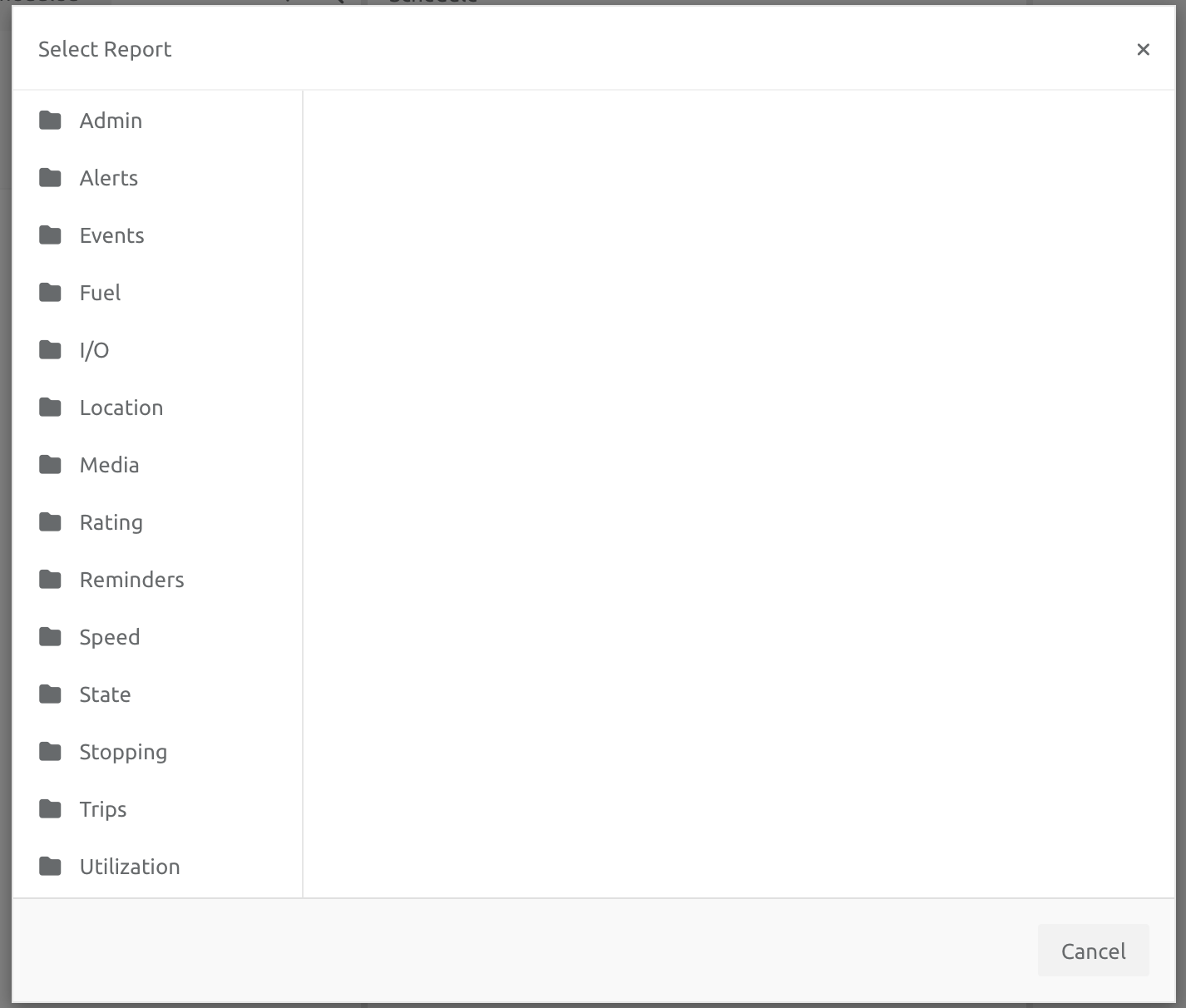
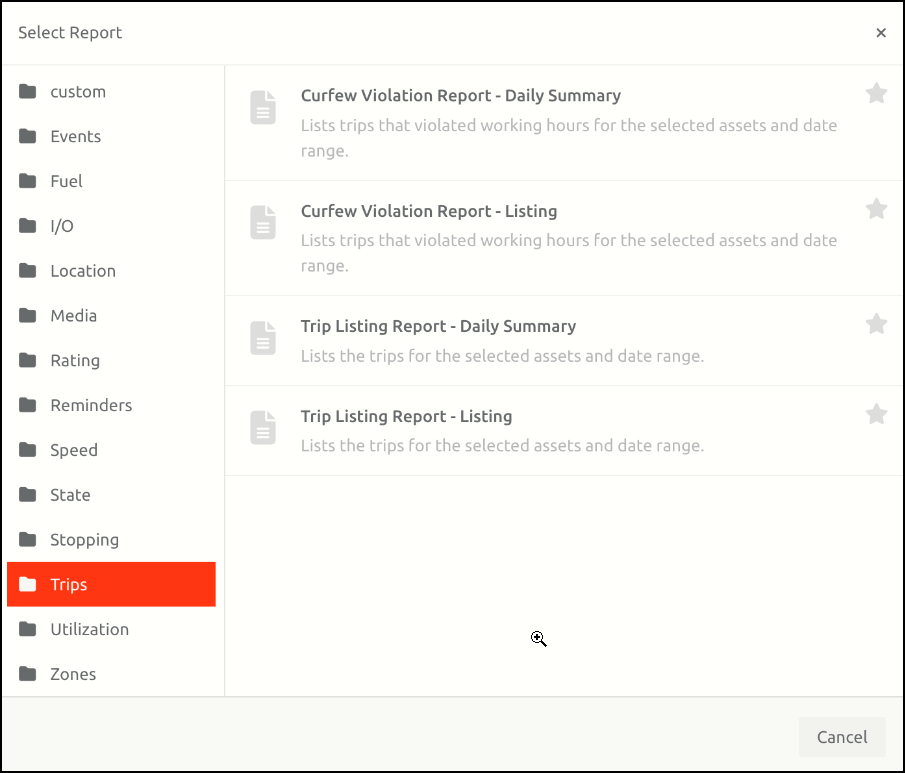
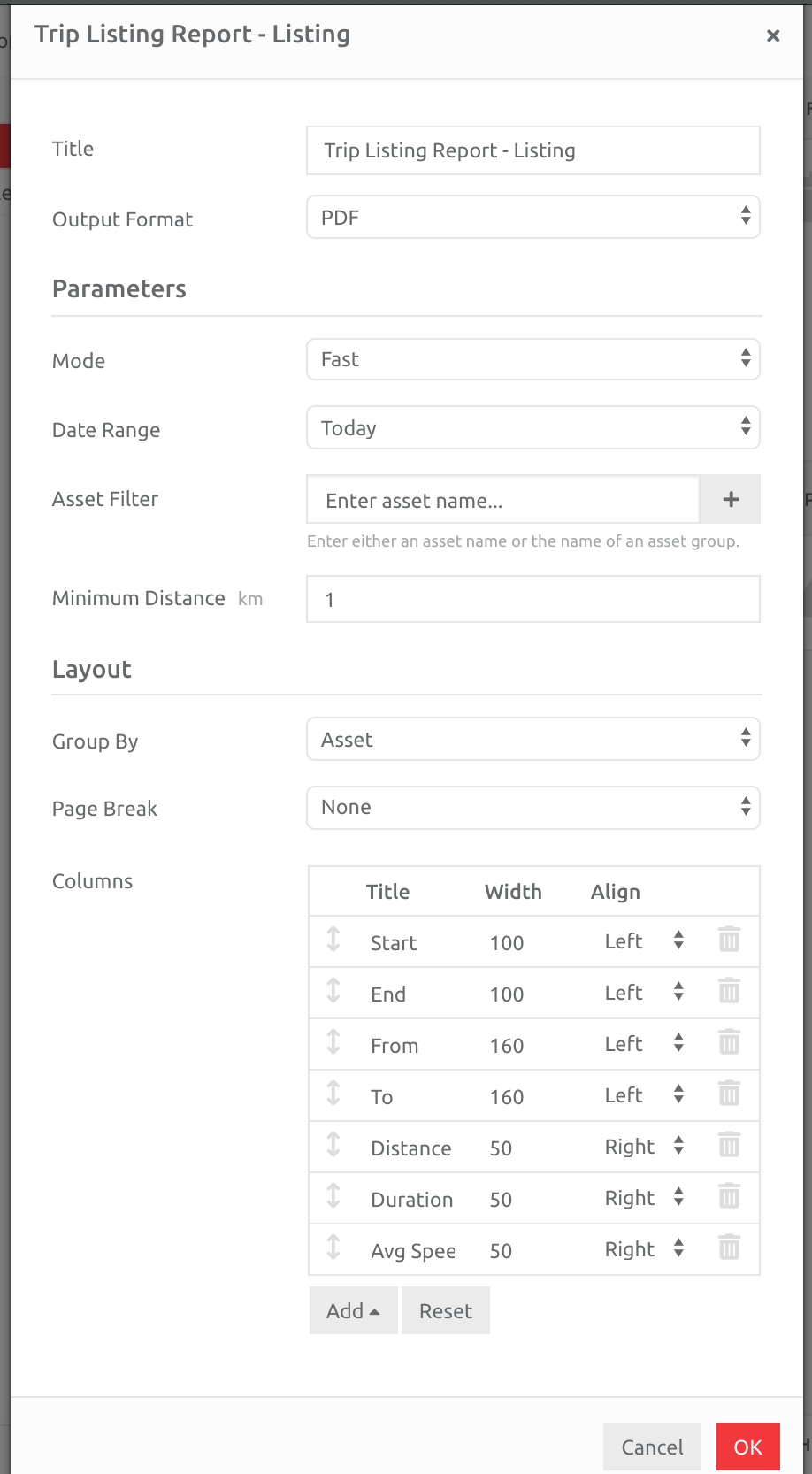
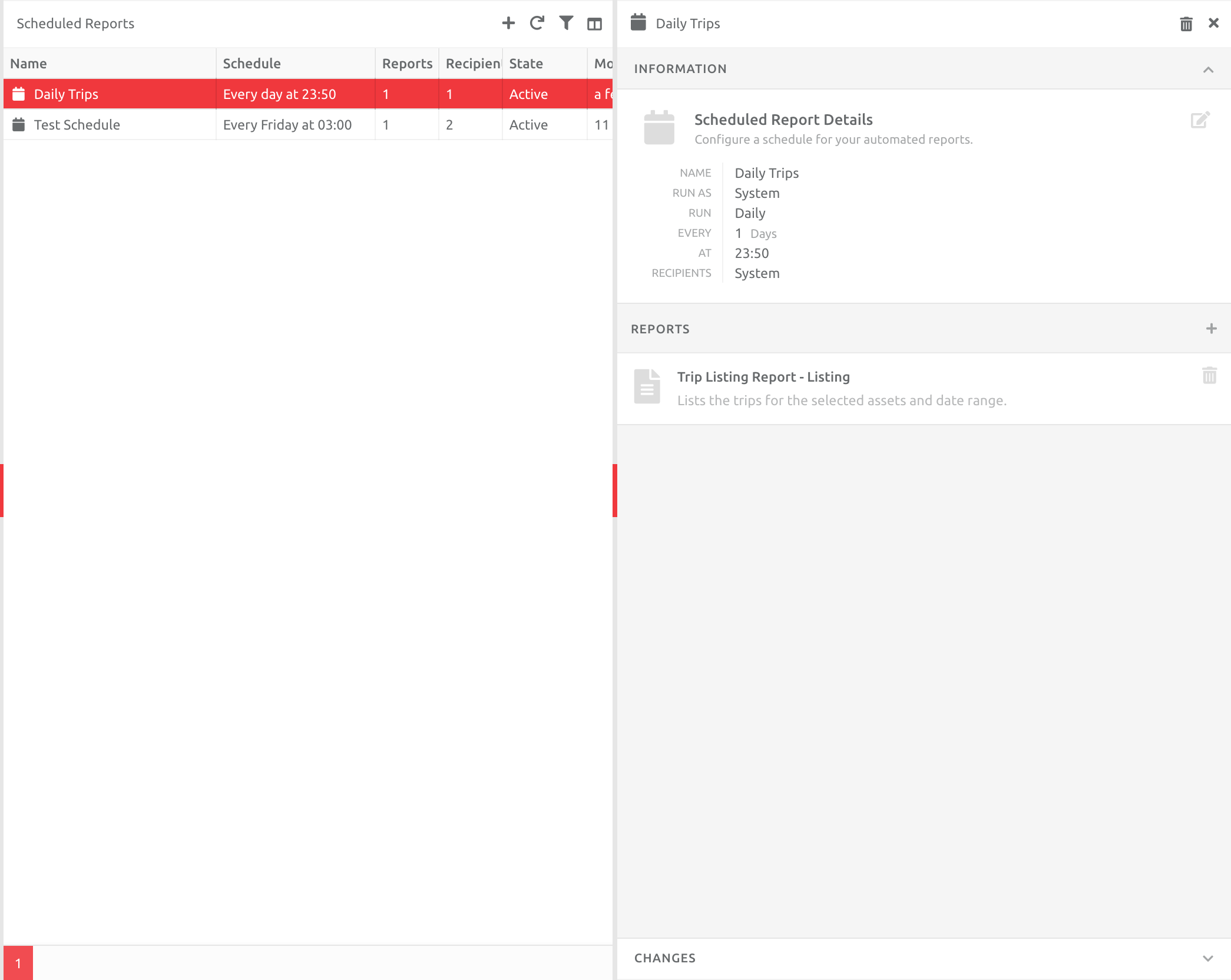
After you choose the parameters and click Ok, the Report will appear in the Schedule. To add another Report, click the Plus button on the right hand side of REPORTS, and complete the procedure as outlined above.
Comments
0 comments
Please sign in to leave a comment.