Introduction
Asset Categories were designed as part of the Analytics feature. Categories give Users the ability to analyse data within Clients, by filtering data per Category. For example, data can be filtered by vehicle color versus make of vehicle. Or company department versus make of vehicle etc.
Categories are created like Asset Groups, and up to a maximum of 5 parent Categories can be created in one Client. Unlike Cost Centres and Asset Groups, Assets are added to the Category children only. Therefore children must be created to be useful.
Please note: parent Categories cannot be deleted, so please do not create any unless needed.
Creating Asset Categories
Before creating Asset Categories, decide what datasets would be useful to filter data in the Client, then create this in the platform. Asset Categories have a parent-child relationship, with Assets assigned to the children. There can only be a maximum of 5 parent Categories, where children can be added. Those children may then also act as a parent.
As a default, there are no Categories in the Client. The first Category needs to be a parent, under the Root (highest level):
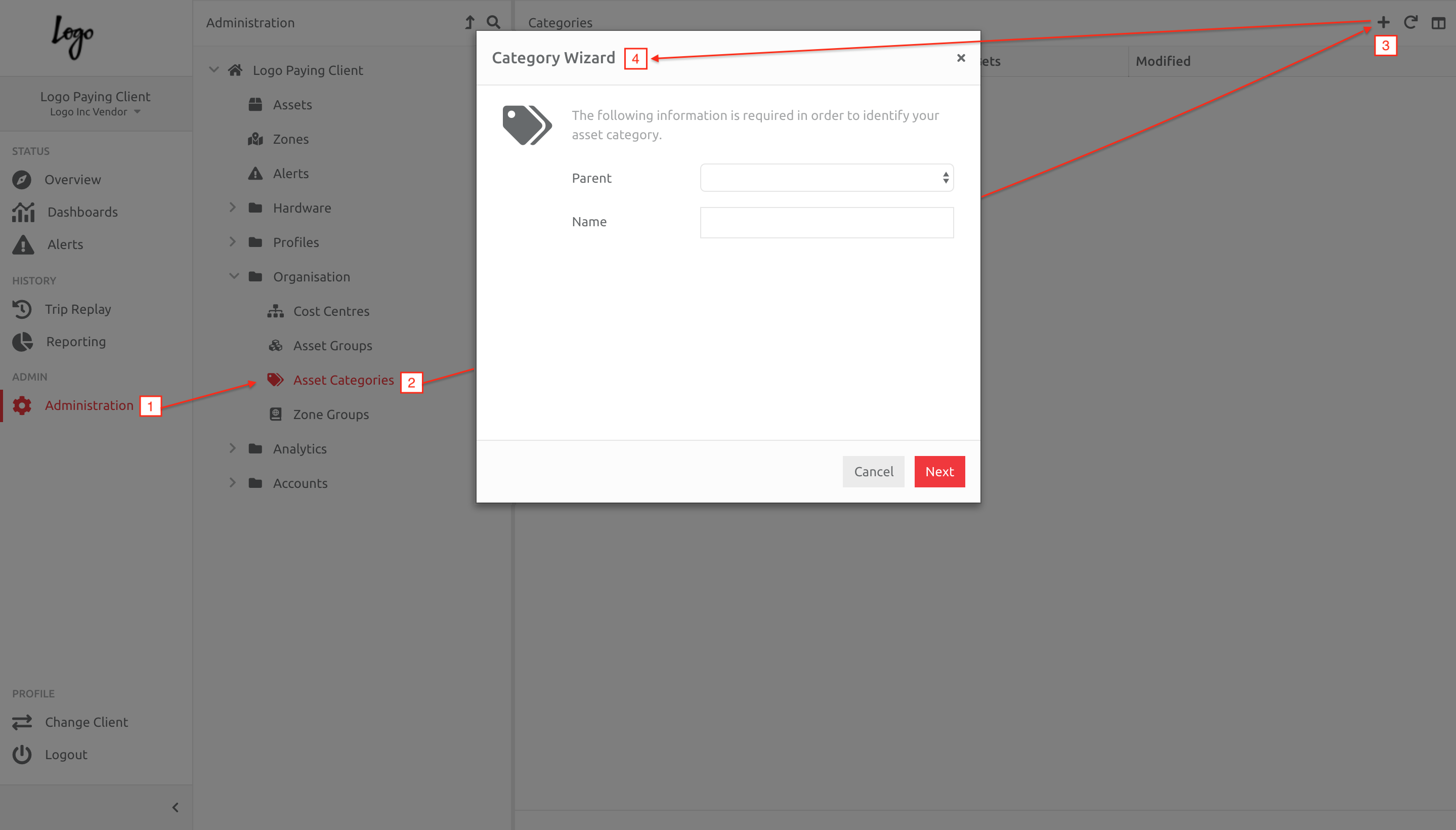
1. Navigate to Administration,
2. Choose Asset Categories under the Organisation section,
3. Click the Plus button,
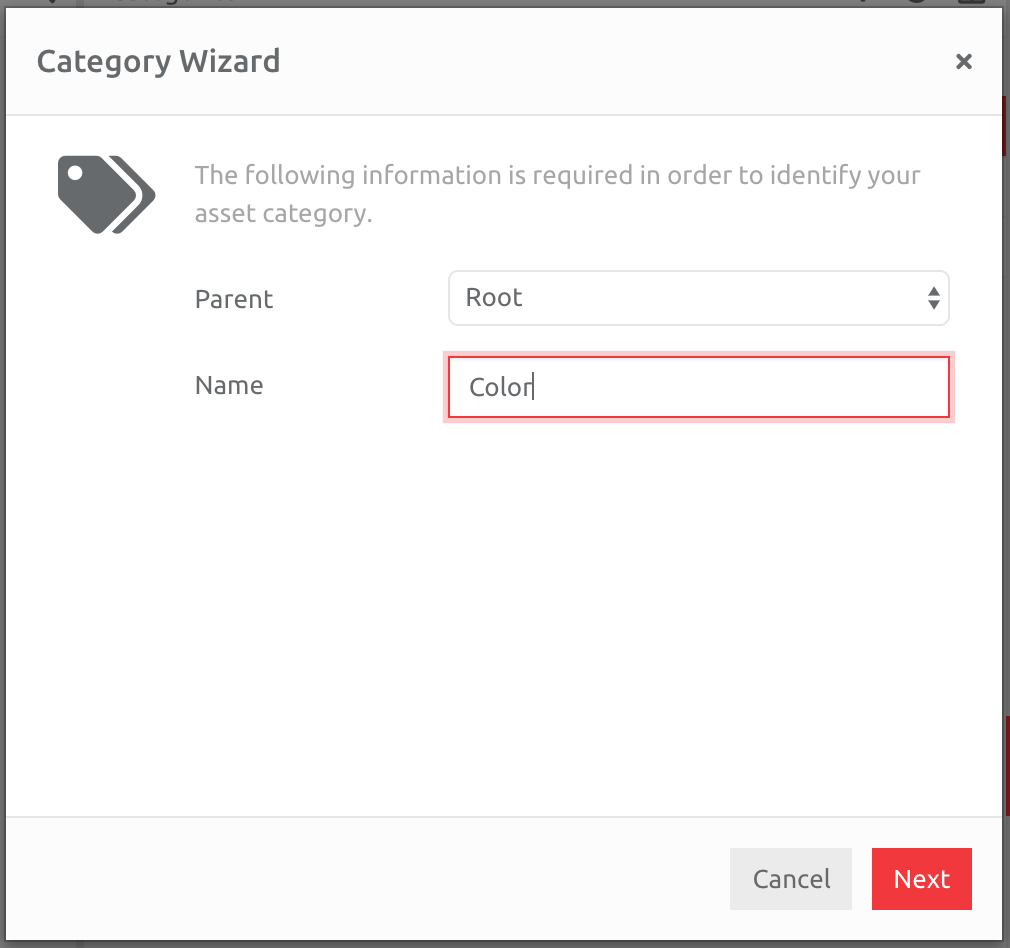
4. Enter the information in the wizard. In the following screenshot, a Category called Color is created as a parent Category.
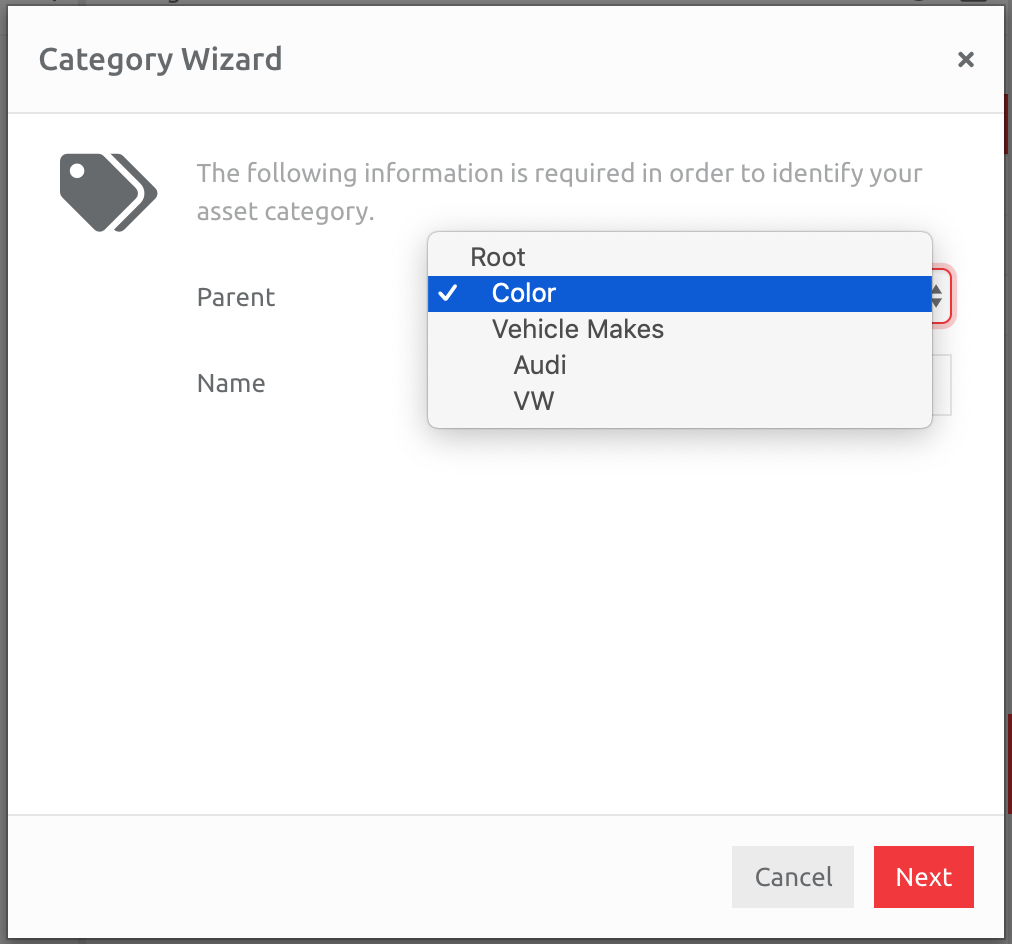
Repeat the steps above to add children to the Category created, or another parent or two, until you have completed the structure. In the screenshot below, there is another parent called Vehicle Makes, with two children under that.
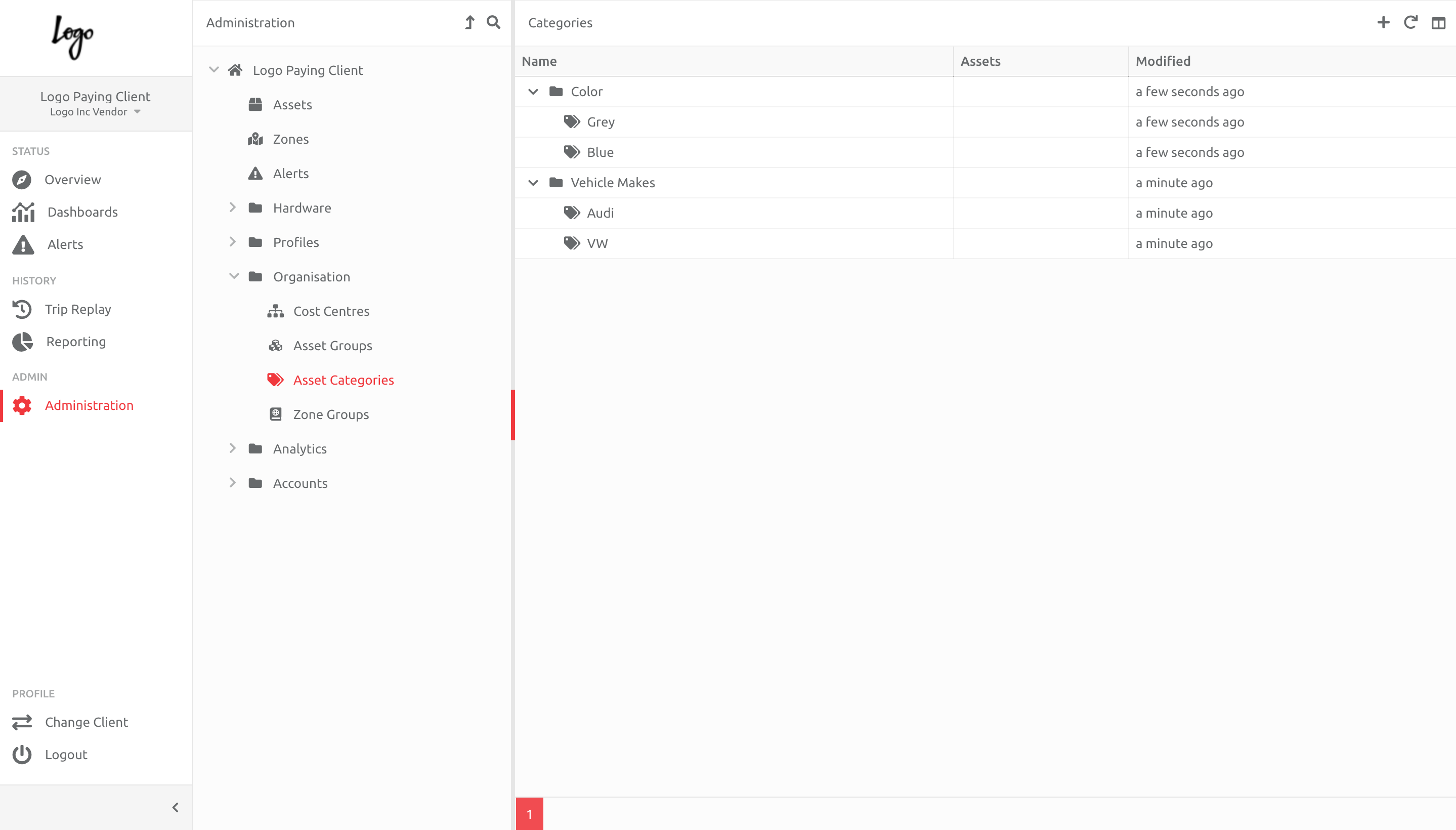
The final Category structure in this Client contains two parents with children:
View and Edit the Information in an Asset Group
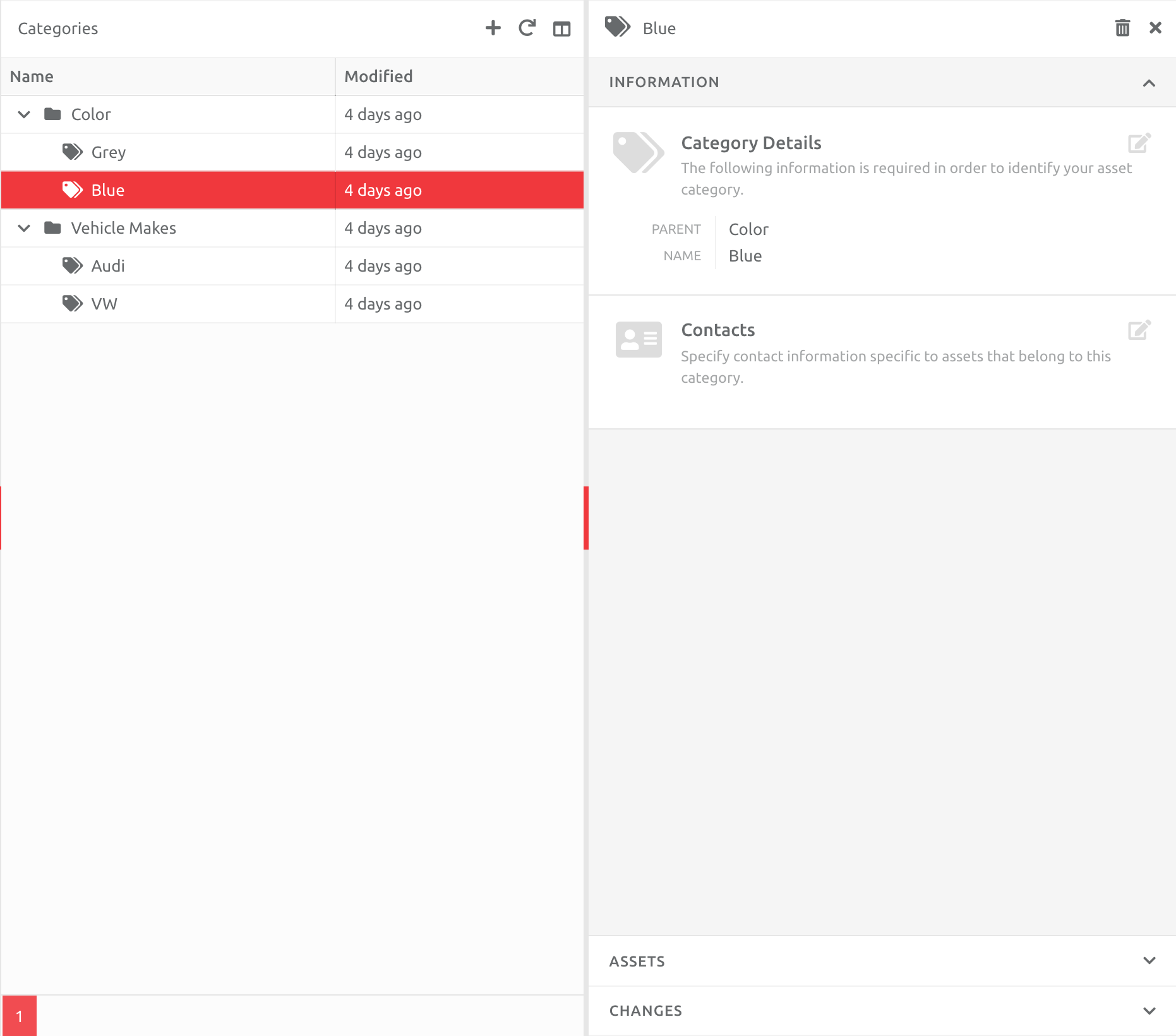
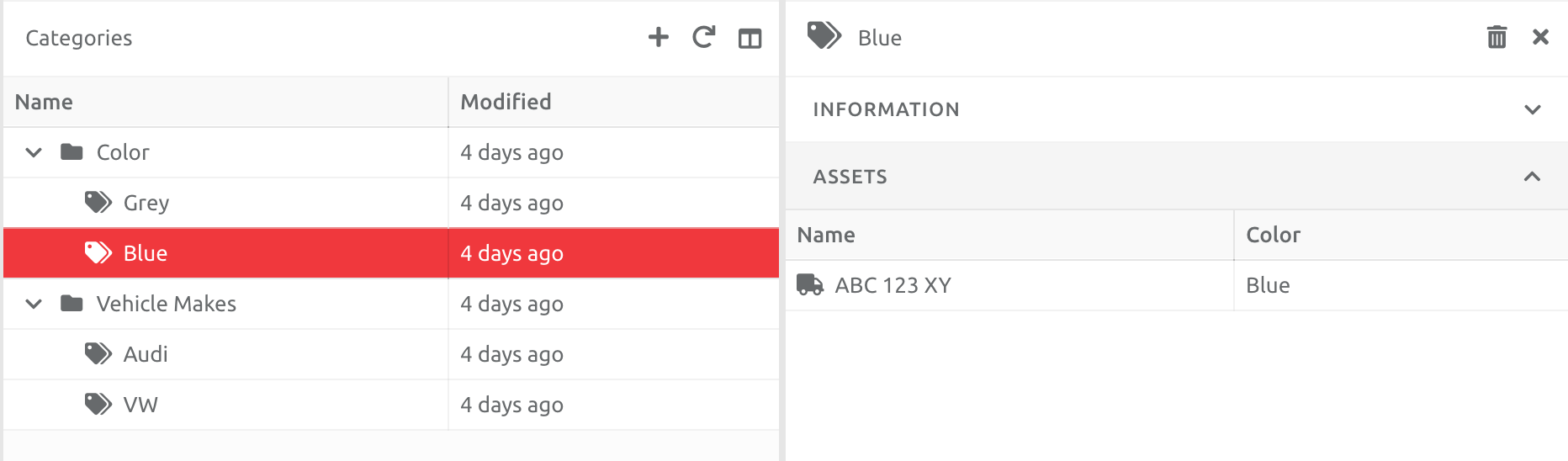
You can see which Assets are in the categories created, as well as edit the Category Information, which includes changing the Name and Parent, as well as add Contacts.
Using Asset Categories in the Analytics Tool
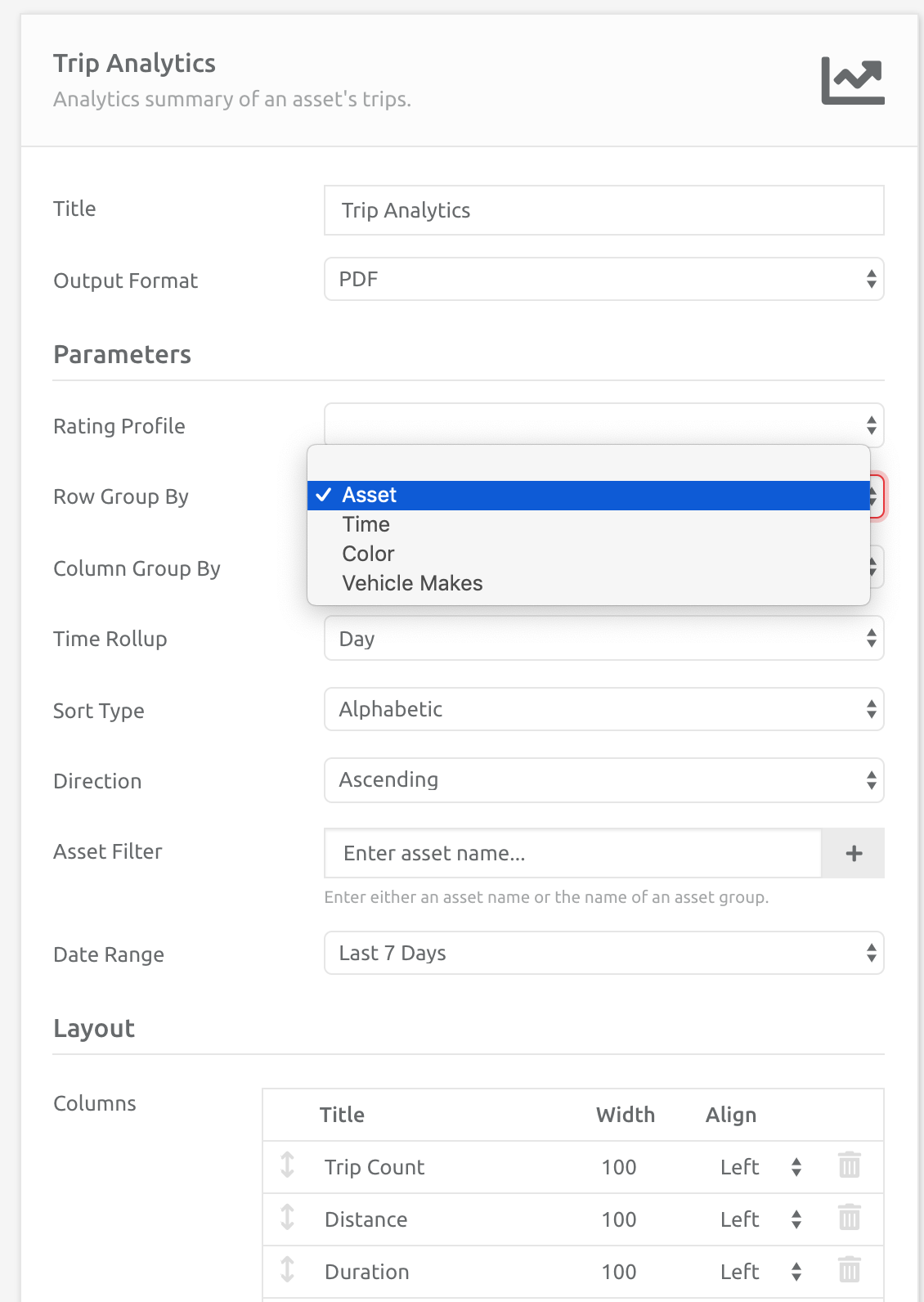
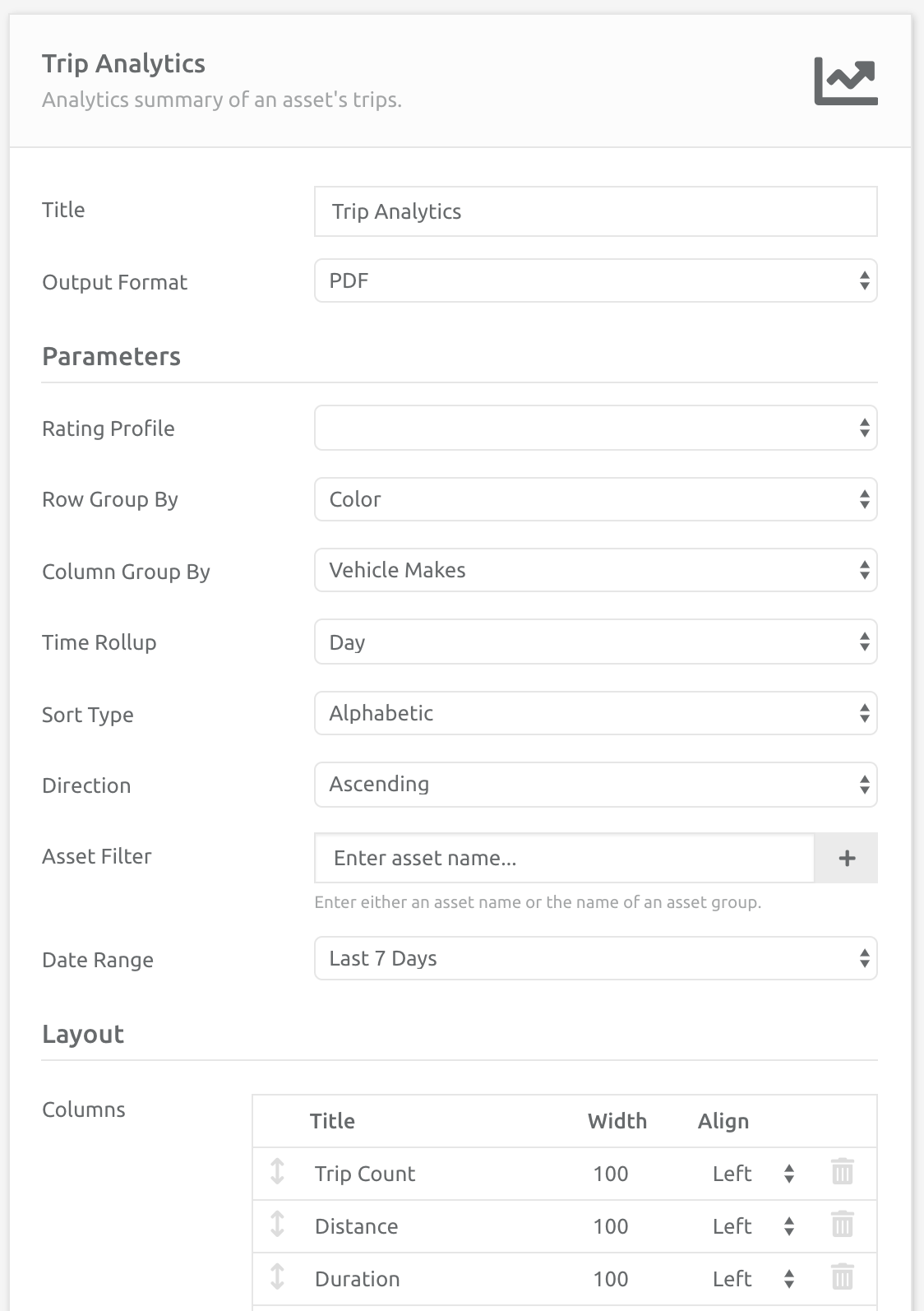
When running an Analytics Report, Categories can be used in the Row and Column Group By sections. In the screenshots below, the data will be grouped by Color versus Vehicle Make:
Comments
0 comments
Please sign in to leave a comment.