Introduction
Cost Centers were designed to restrict access and visibility between different divisions of the same company. Users and Assets can be assigned a Cost Center, with Users only having access to the Assets assigned to the same Cost Centers.
Cost Centers can be applied to the following items in the platform:
- Users,
- Assets,
- Locations,
- Alerts,
- Reports
As an example, Client "Example Inc" has branches in two European countries, the United Kingdom and France. They have depots in London, Newcastle, Paris and Marseille. Each depot in each city manages their own fleet of vehicles, and is overseen by the country branch. The two country branches are managed by managers in the head office. An organisation chart for the company would look something like this:
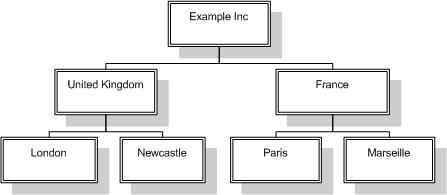
Each block in the diagram is a separate unit within the company that is responsible to the block above it in the tree.
Cost Center allow for the following restrictions:
- Users in the city divisions can only see, Report on, and create Alerts on their own Assets e.g. a User in the London/Paris depot can only see their Assets.
- Management in the United Kingdom and France branch can only see, Report on, and create Alerts on their depots Assets, but not any of the Assets in the other country branch/depots.
- Top management at Example Inc can see, Report on, and create Alerts on any of the Assets, regardless of country or city.
Creating Cost Centers
Before creating Cost Centers, first decide what the structure should look like, then copy this into the platform. Cost Centers are in a parent-child relationship. There can only be one parent Cost Center to start with, where a child/children can be added. Those children may then also act as a parent.
As a default, there is one parent Cost Center in the platform, called Default. This can be renamed, and children created underneath this.
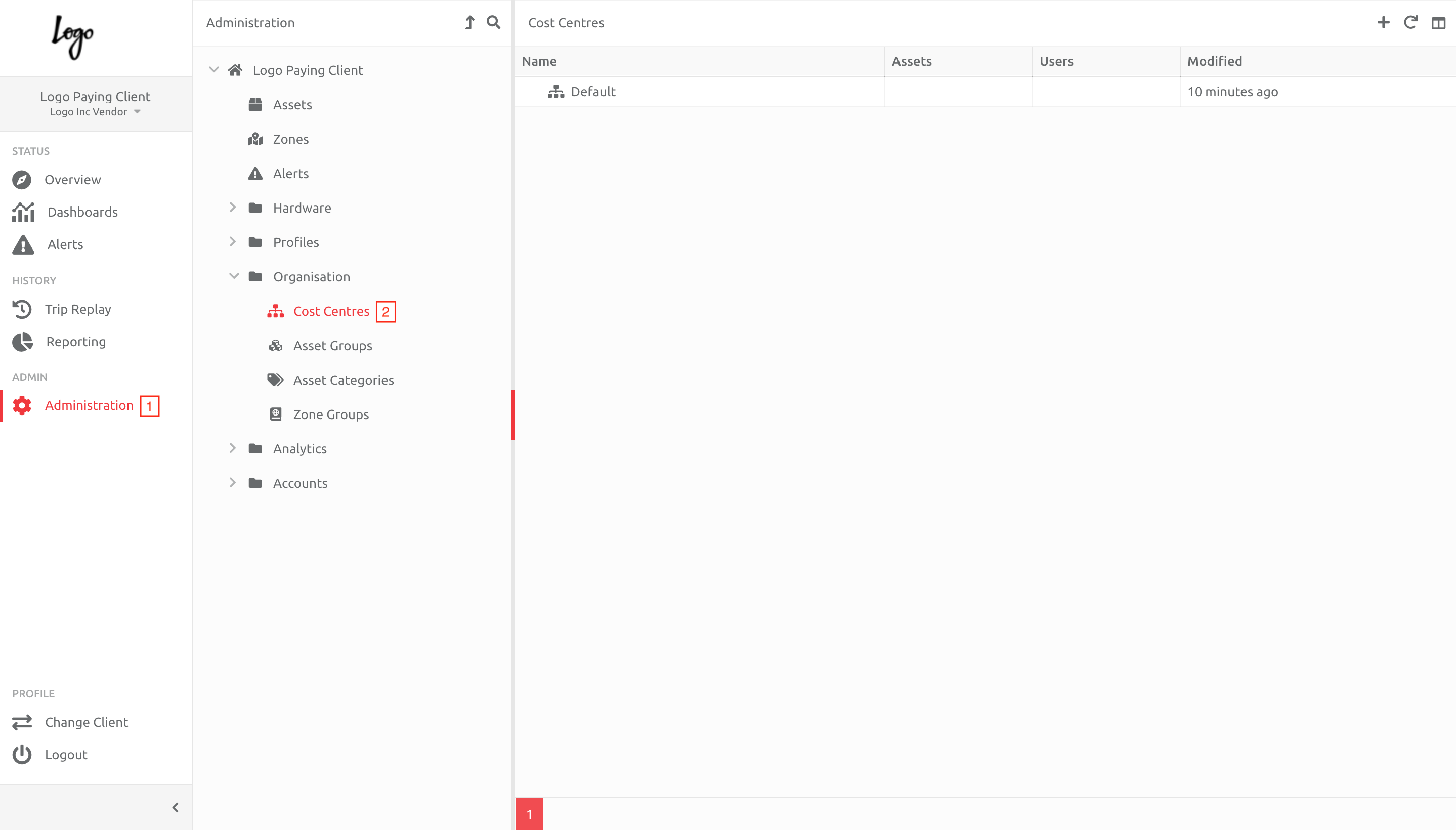
1. Navigate to Administration,
2. Choose Cost Centers under the Organisation section.
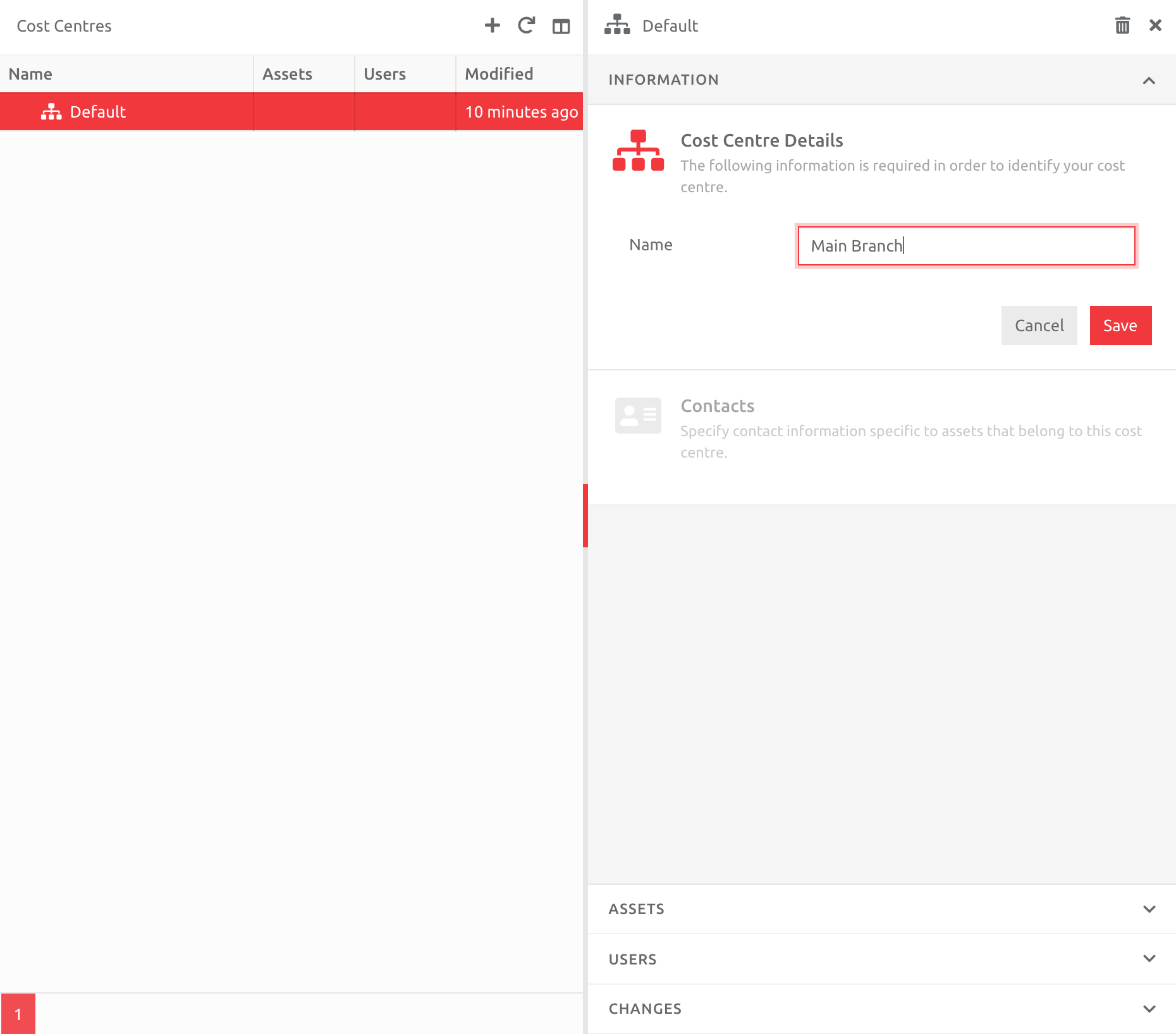
Choose the Default Cost Center, click Edit and rename this folder, and Save the changes.
3. To add a child Cost Center, click the Plus button, and create a new Cost Center under the renamed parent:
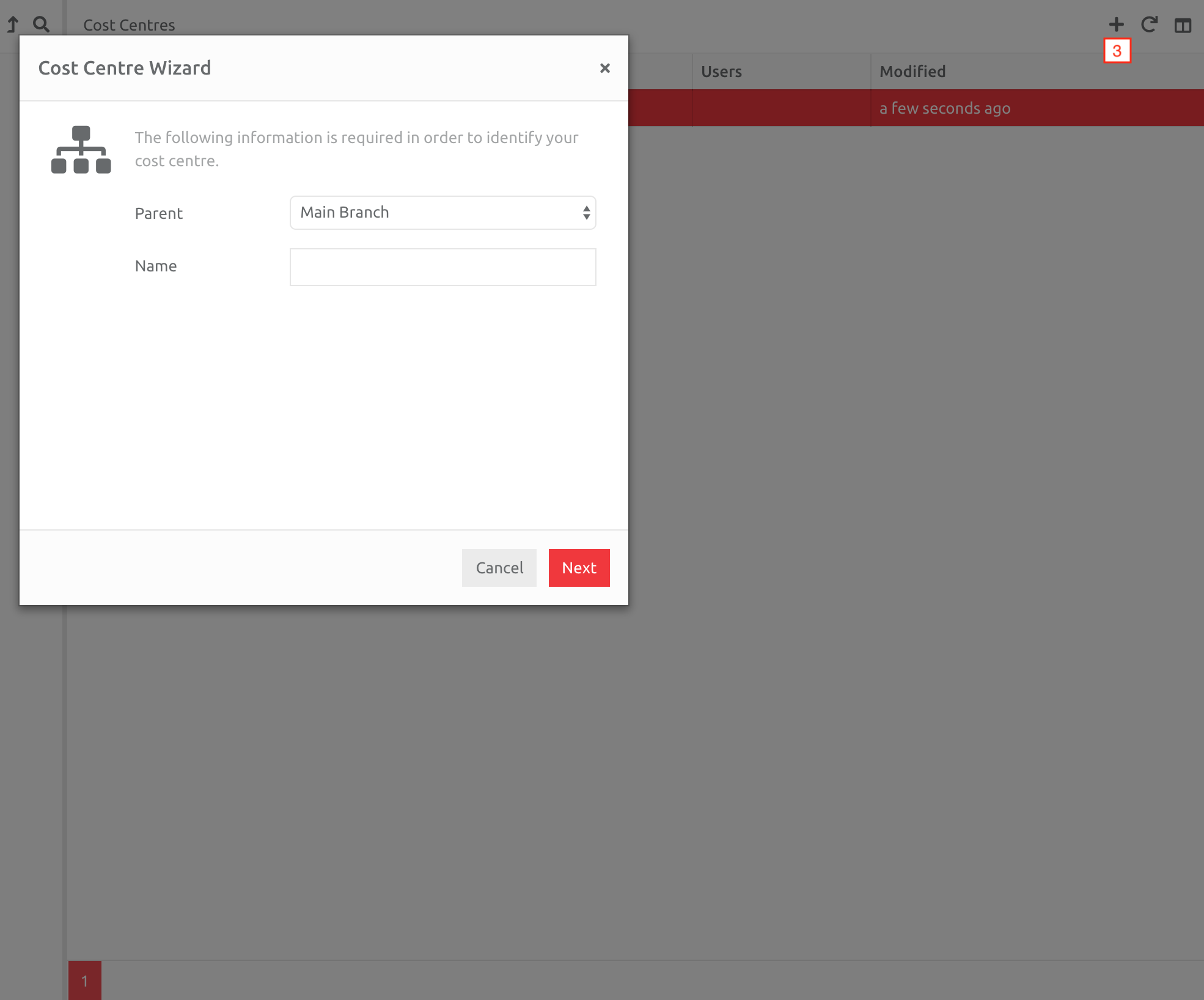
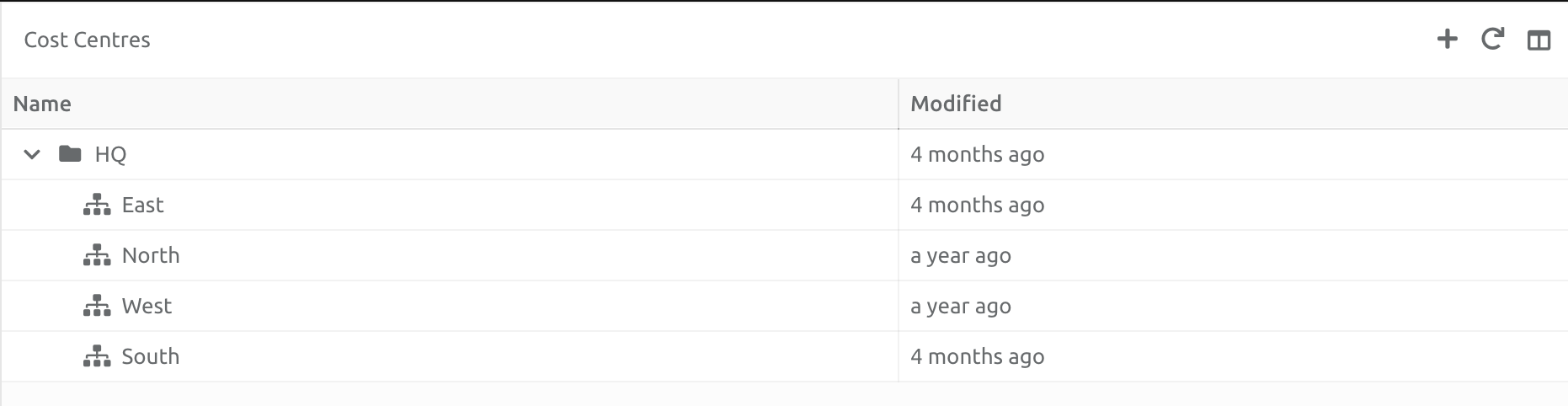
The first child you create has to fall under the parent folder you renamed. After you have created the first child, any new Cost Center can be added under the main parent, or the new child:
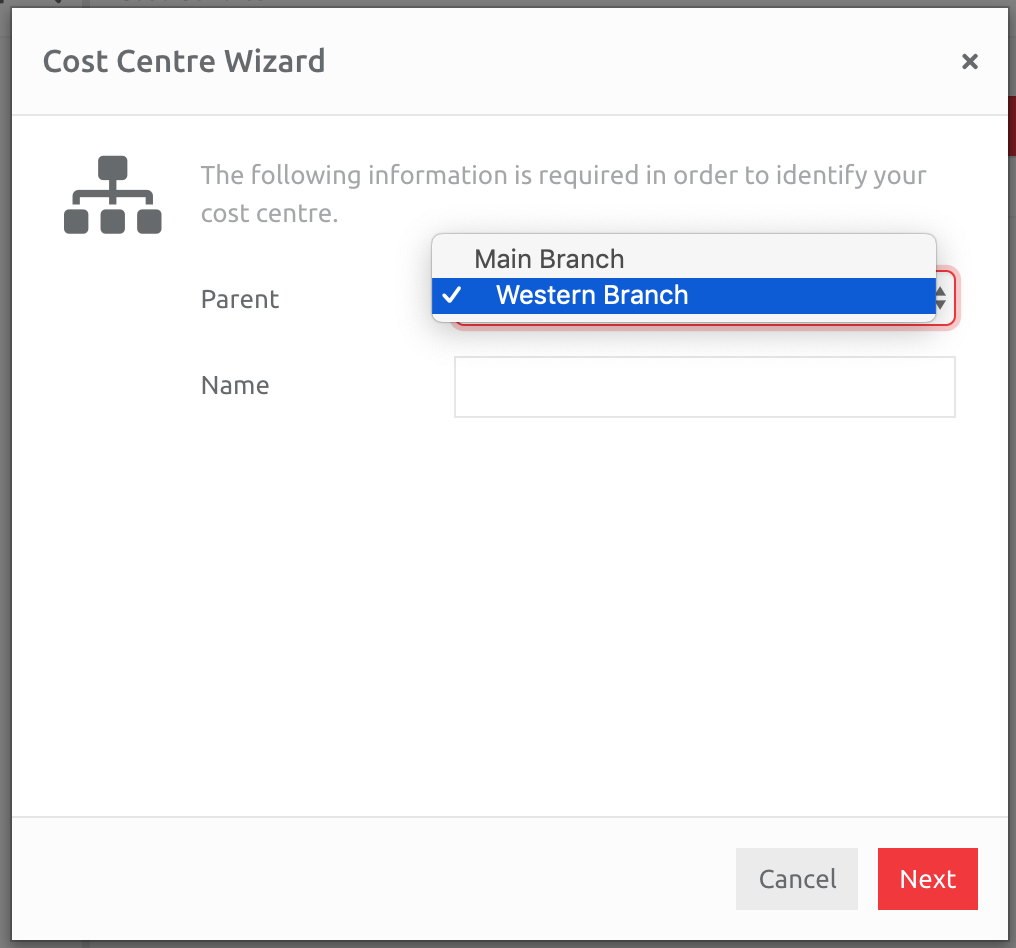
Keep adding children until you have completed the structure required.
Editing the Information in a Cost Center
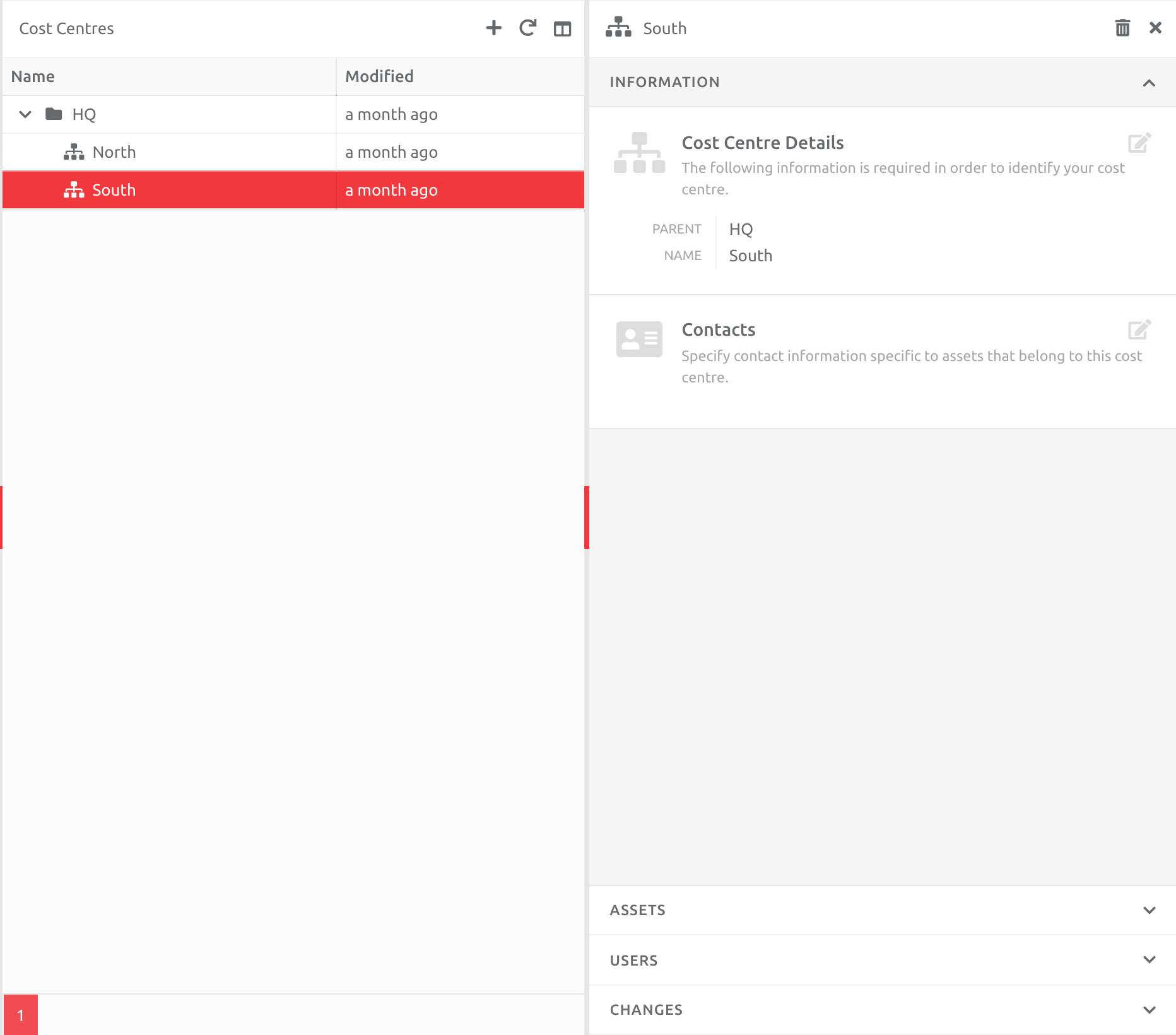
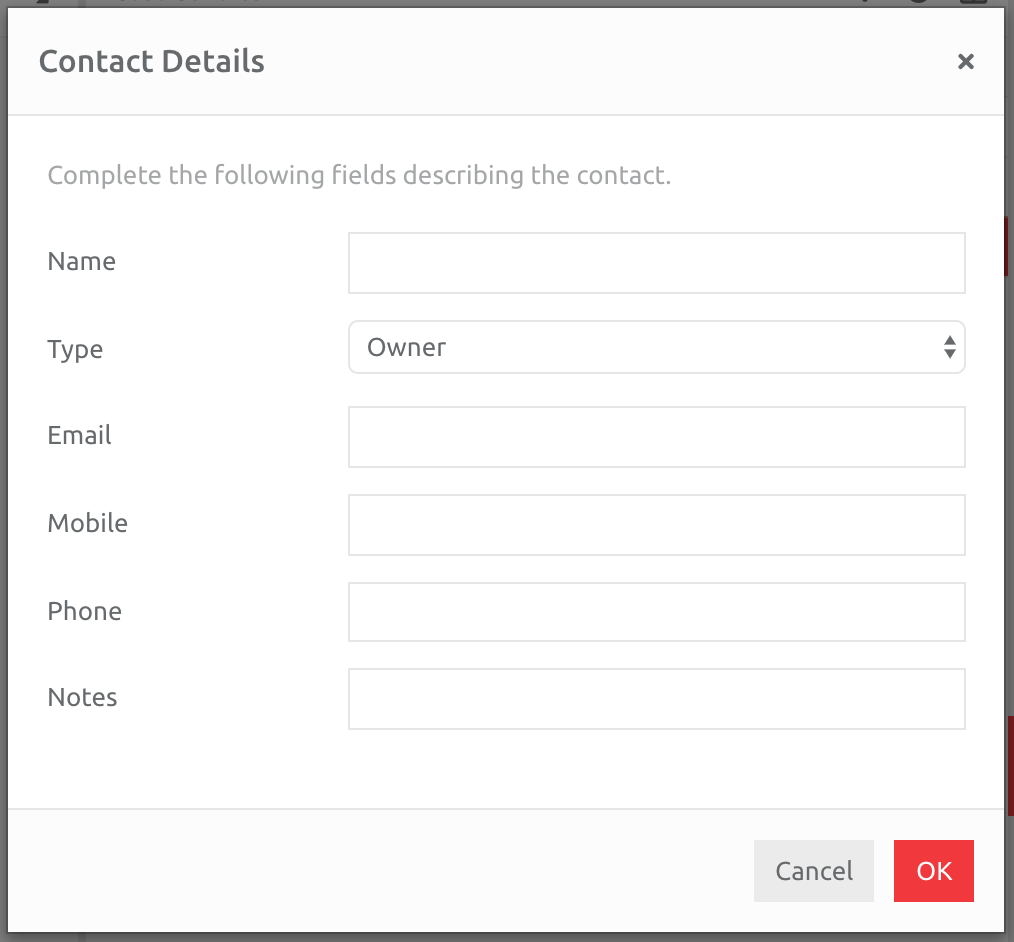
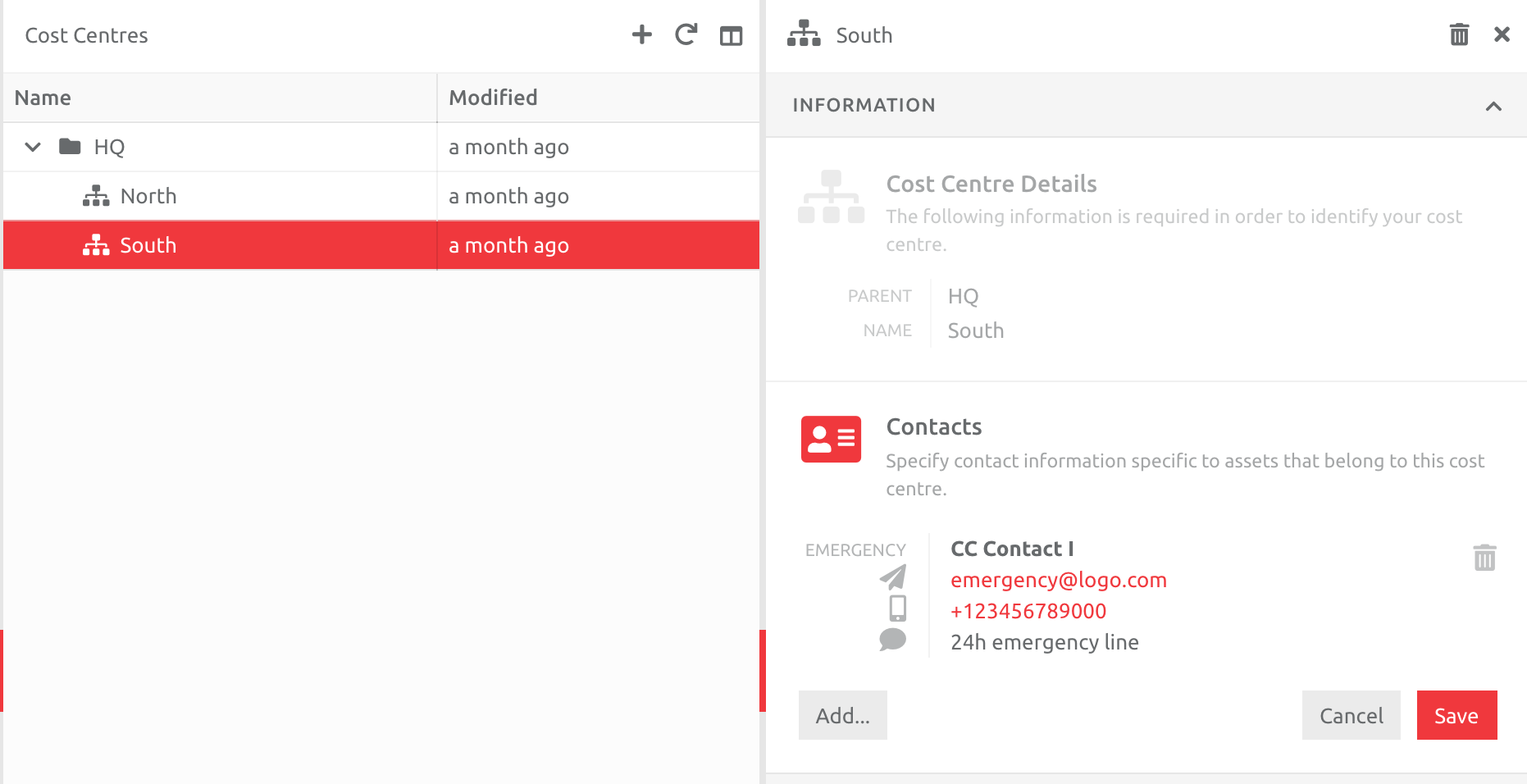
You can edit the Information in a Cost Center, which includes changing the Name and Parent, as well as add Contacts. Contacts will be seen by the Users on the Overview and Alerts section of the platform.
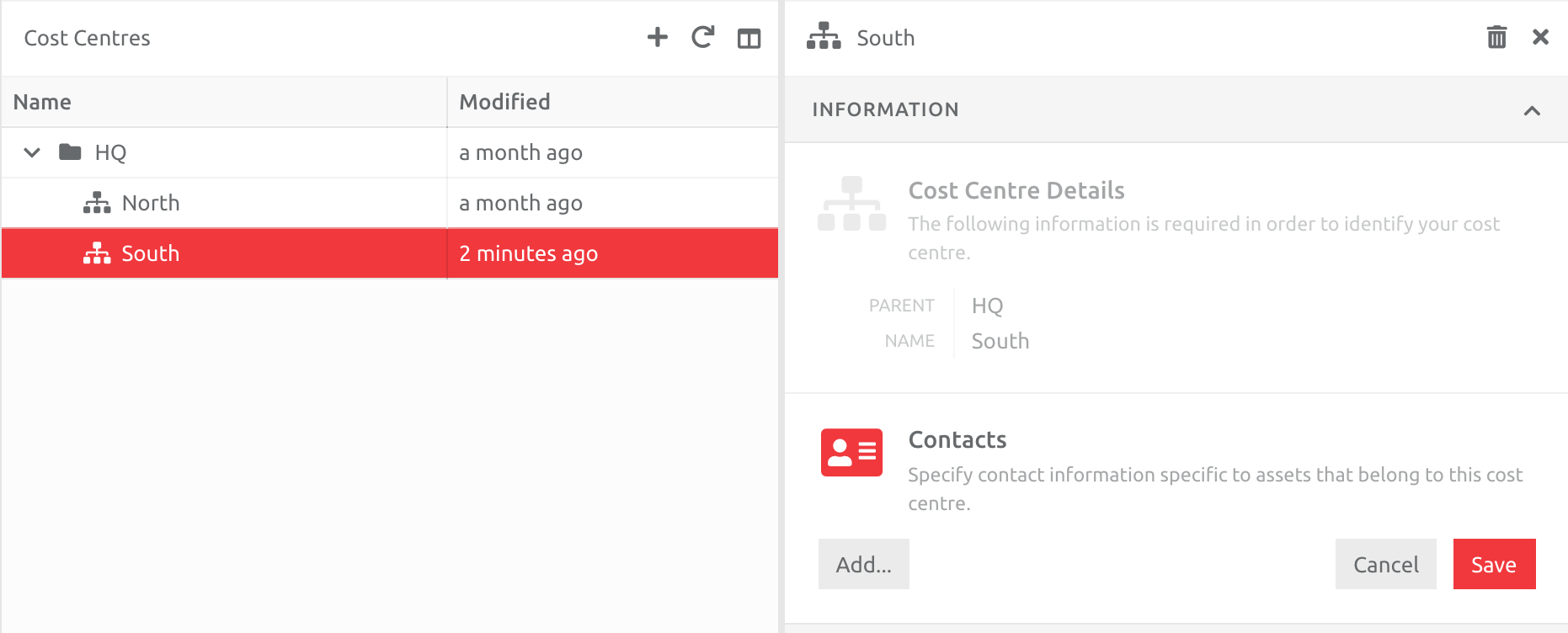
If you would like to add Contact details, click the Edit next to Contacts, and Add a new Contact:
Viewing Assets and Users in a Cost Center
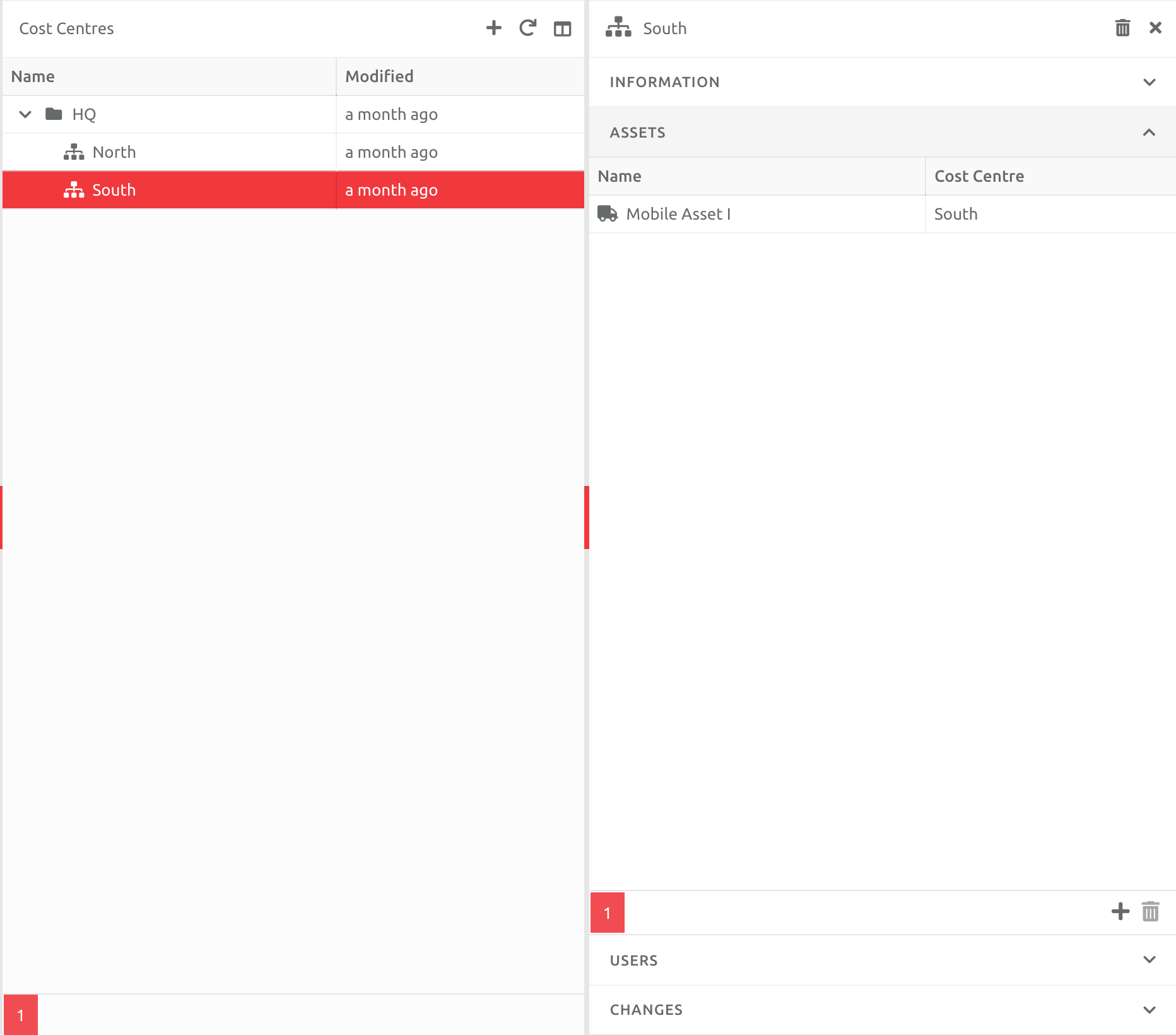
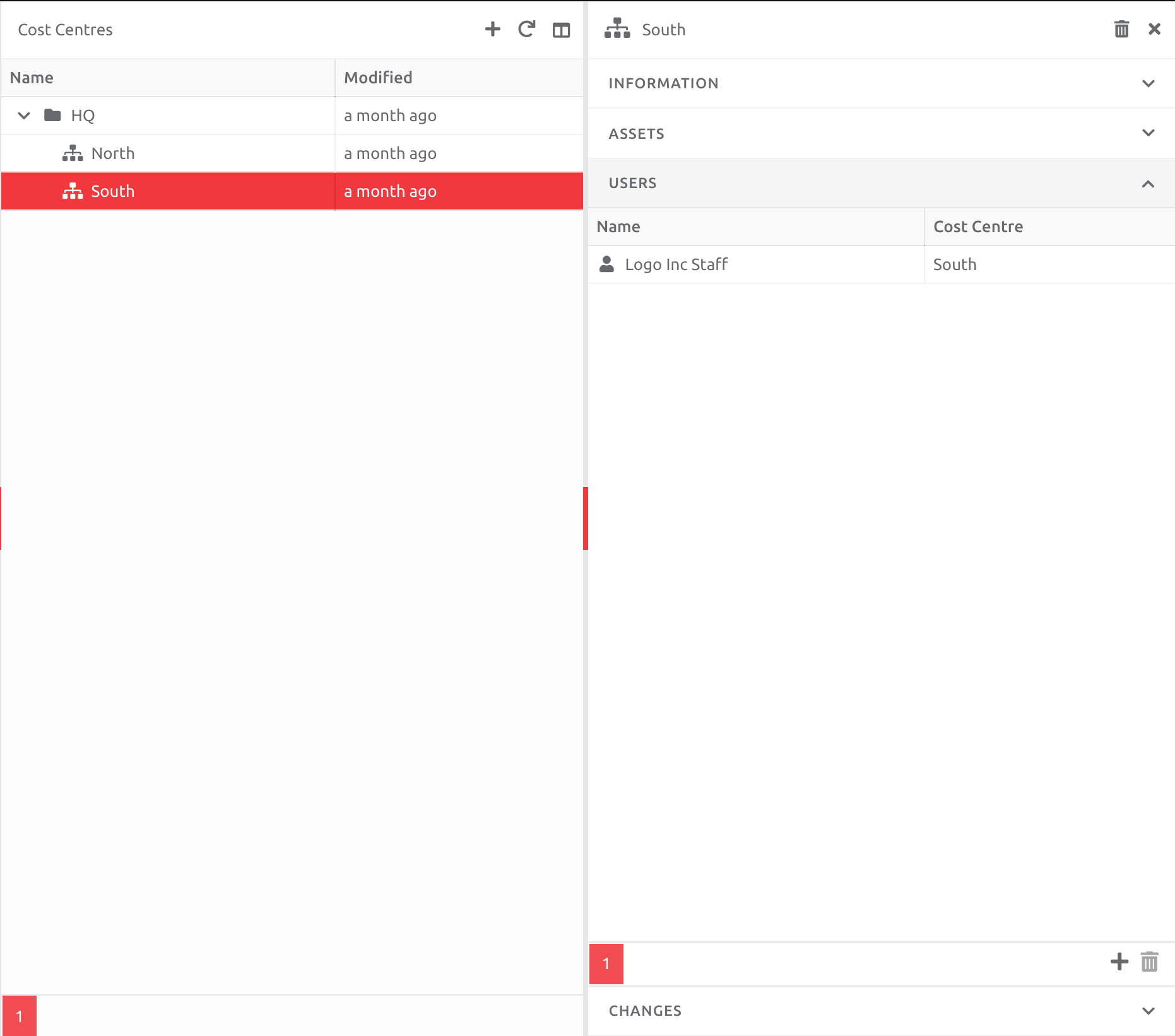
You can see which Assets and Users are assigned to a Cost Center by choosing that Cost Center in the list. Choose the relevant section (Assets or Users) to see the information:
Comments
0 comments
Please sign in to leave a comment.