Introduction
Bulk editing of items is quick and easy to perform on the platform. This is done in the Administration section of the platform.
Please note:
1. The platform assumes there is no information in the section you're are editing, and will overwrite any information present in that section,
2. Only items of the same type (e.g. device models) can be edited in bulk. If you attempt to edit items that cannot be bulk edited, a warning such as this will appear in the right hand menu section:

For a full list of the icons in the Administration section, and what they do, please follow this link to the article on the Icons in the platform.
Editing Multiple Items
To edit items, navigate to Administration, choose the Items you would like to edit, choose the menu section on the right for editing, and then edit accordingly. In the example below, the steps to edit multiple SIM cards are shown. These steps apply to any items in the platform:
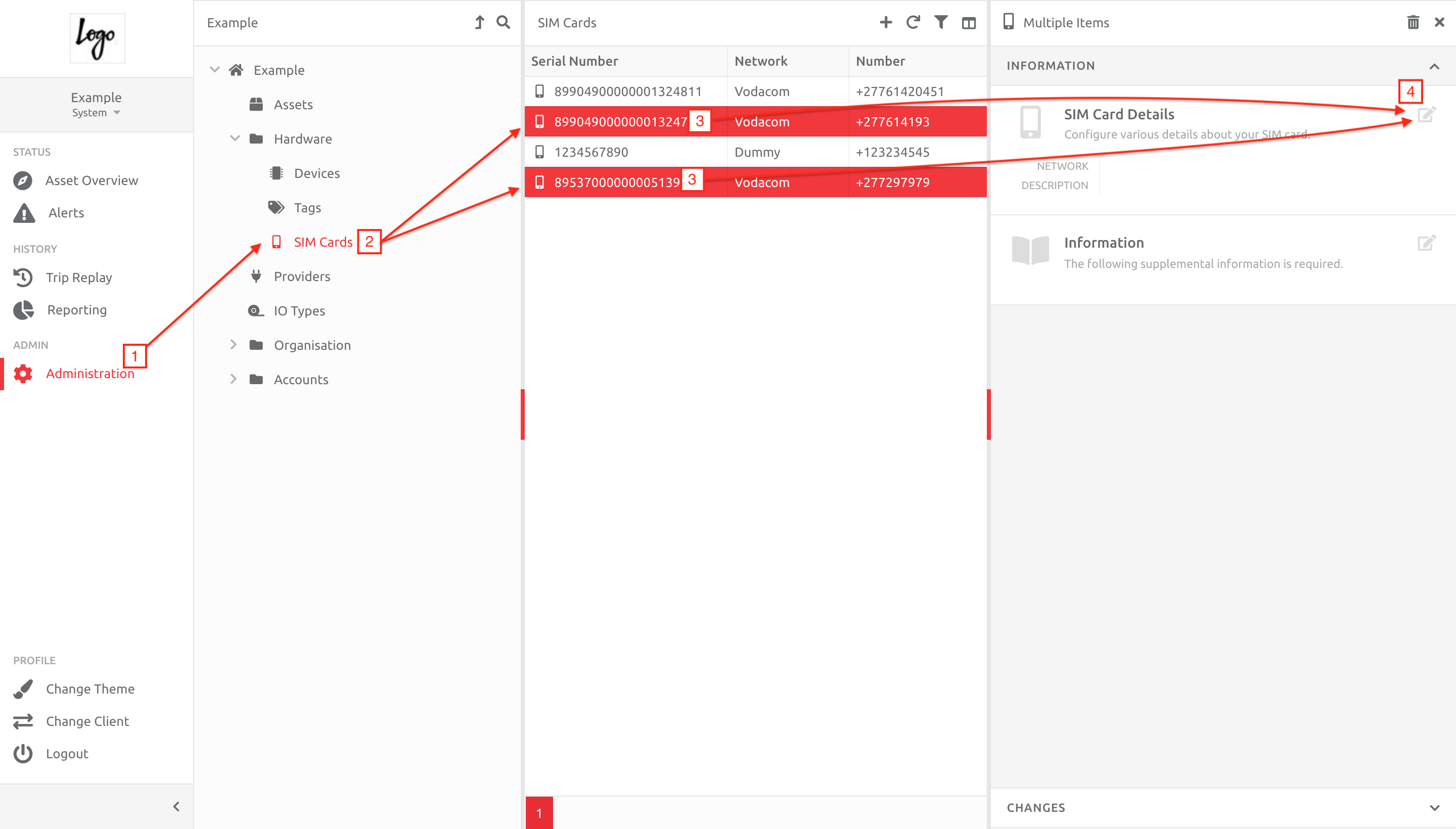
1. Go to Administration,
2. Choose the Item type you would like to create,
3. Choose multiple items using ctrl-click or shift-click,
4. Choose the menu section on the right, and choose Edit.
The information that can be edited will appear. Please bear in mind the platform assumes there is no information in the section you're are editing, and will overwrite any information present in that section. In this case, there may be a Network option on some of the SIM cards, and it is not visible in the editing box: whatever is added will overwrite those SIM cards.
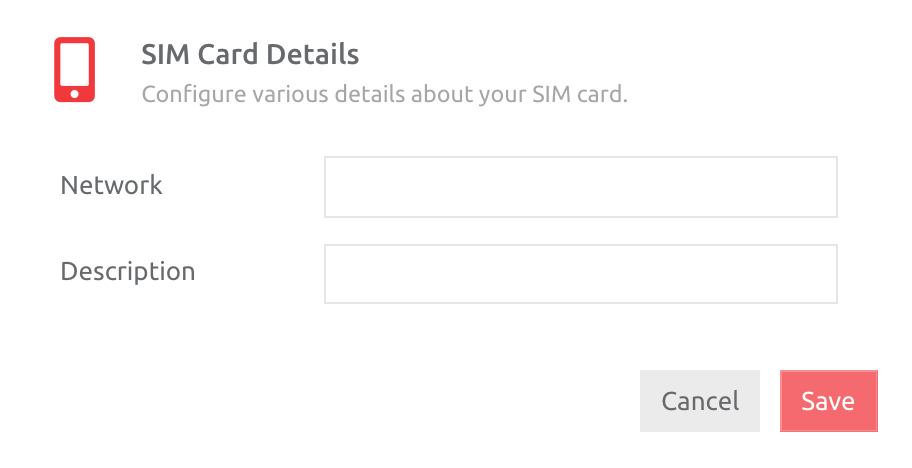
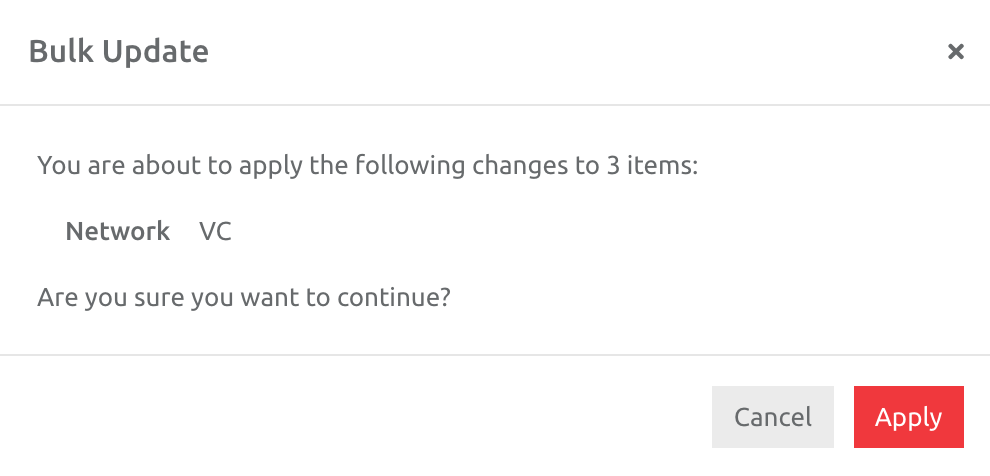
After entering the information and clicking Save, a pop up box will ask you you to confirm the changes. Click Apply to edit the items accordingly, or Cancel.
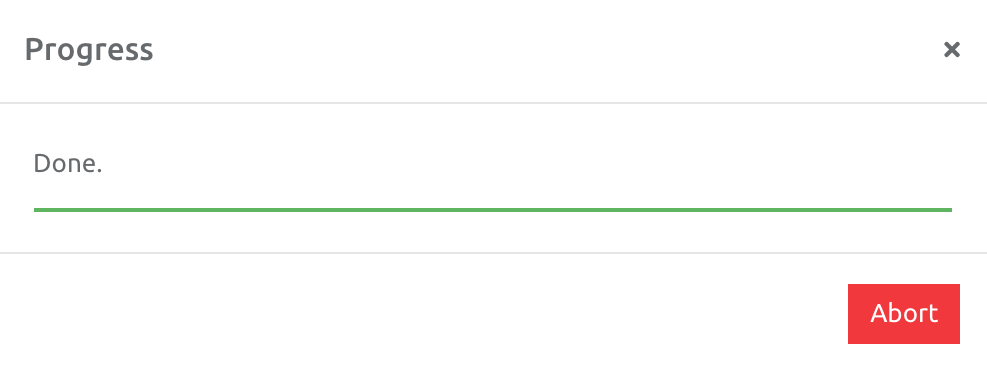
If you apply the changes, a progress bar appears and will confirm once the editing is complete.
Comments
0 comments
Please sign in to leave a comment.