Introduction
Fuel consumption is an output that can be reported on in the Trip Listing Report. There are a few points to take note of, and steps to follow to get the report generating fuel consumption.
How to Run Fuel Consumption Reports
1. Fuel data has to be sent to the platform via a Counter Input*
Counter Input data is sent to the platform through a CAN-enabled/connected Device, or an OBDII Device.
The Counter must be created, and the Rate Type set to the consumption required. For example L/100km or MPG:
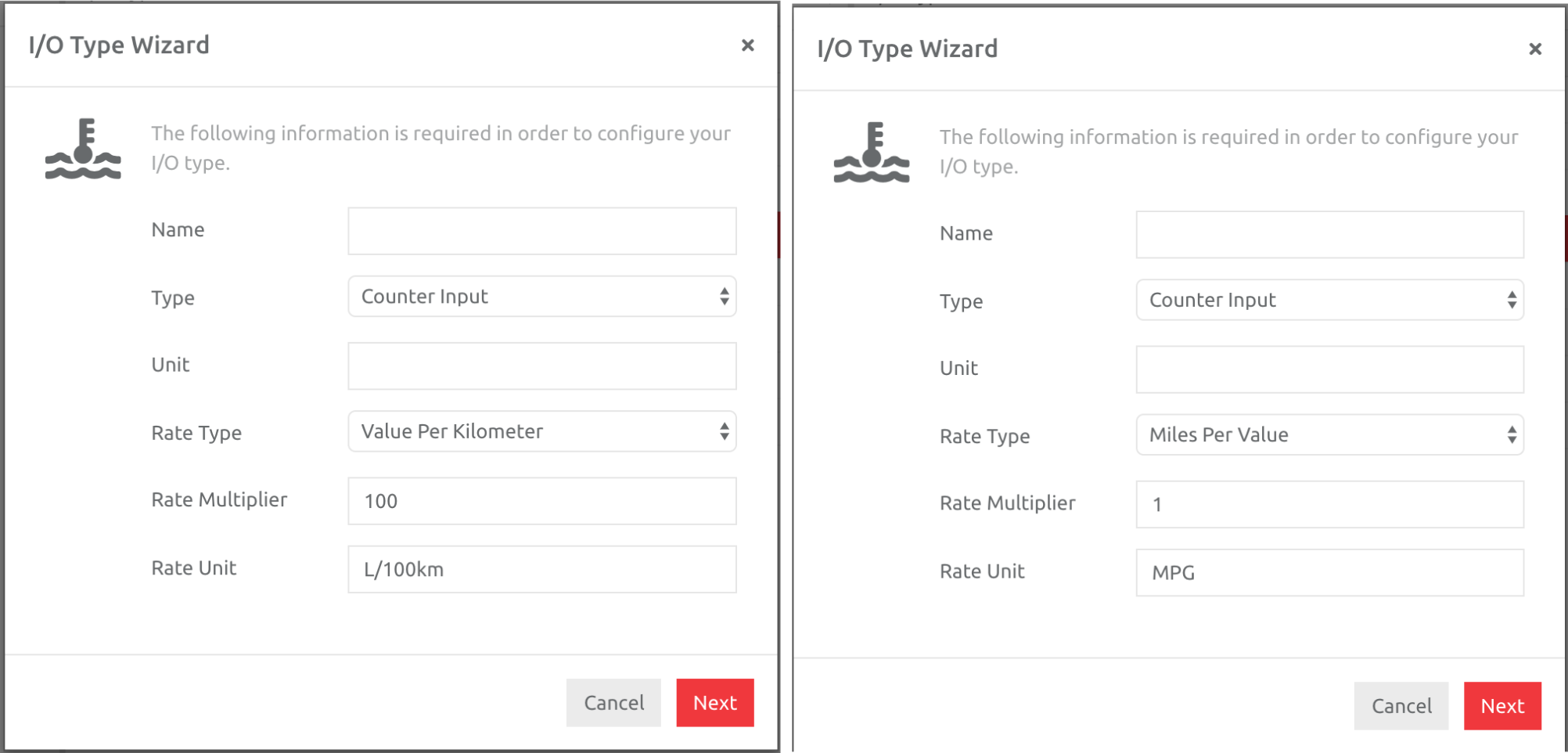
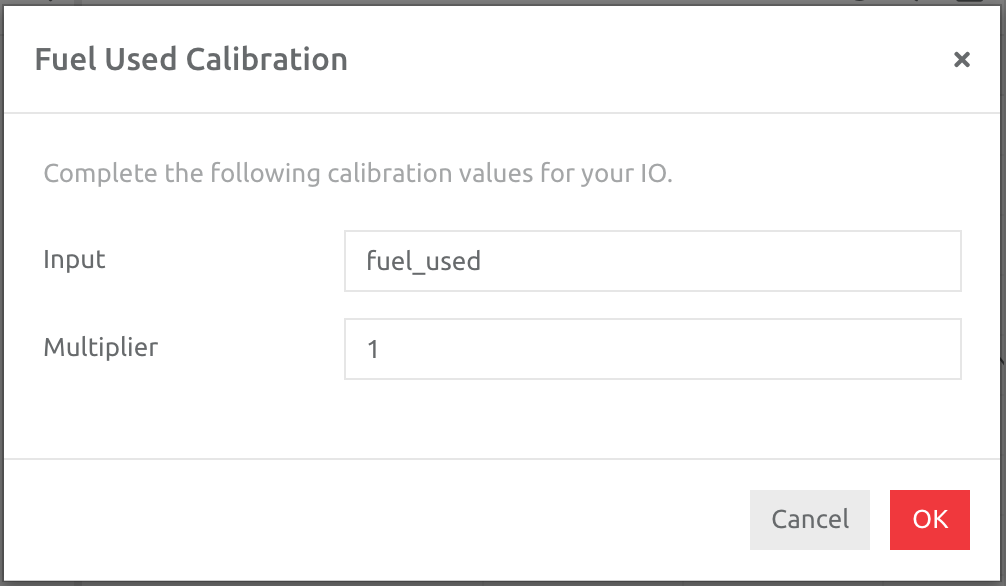
Assign the Counter Input to the Device/s in question, change the Multiplier if necessary (for example conversion from Litres to Gallons) and check the data is coming in as expected.
2. Run the Fuel Consumption Report
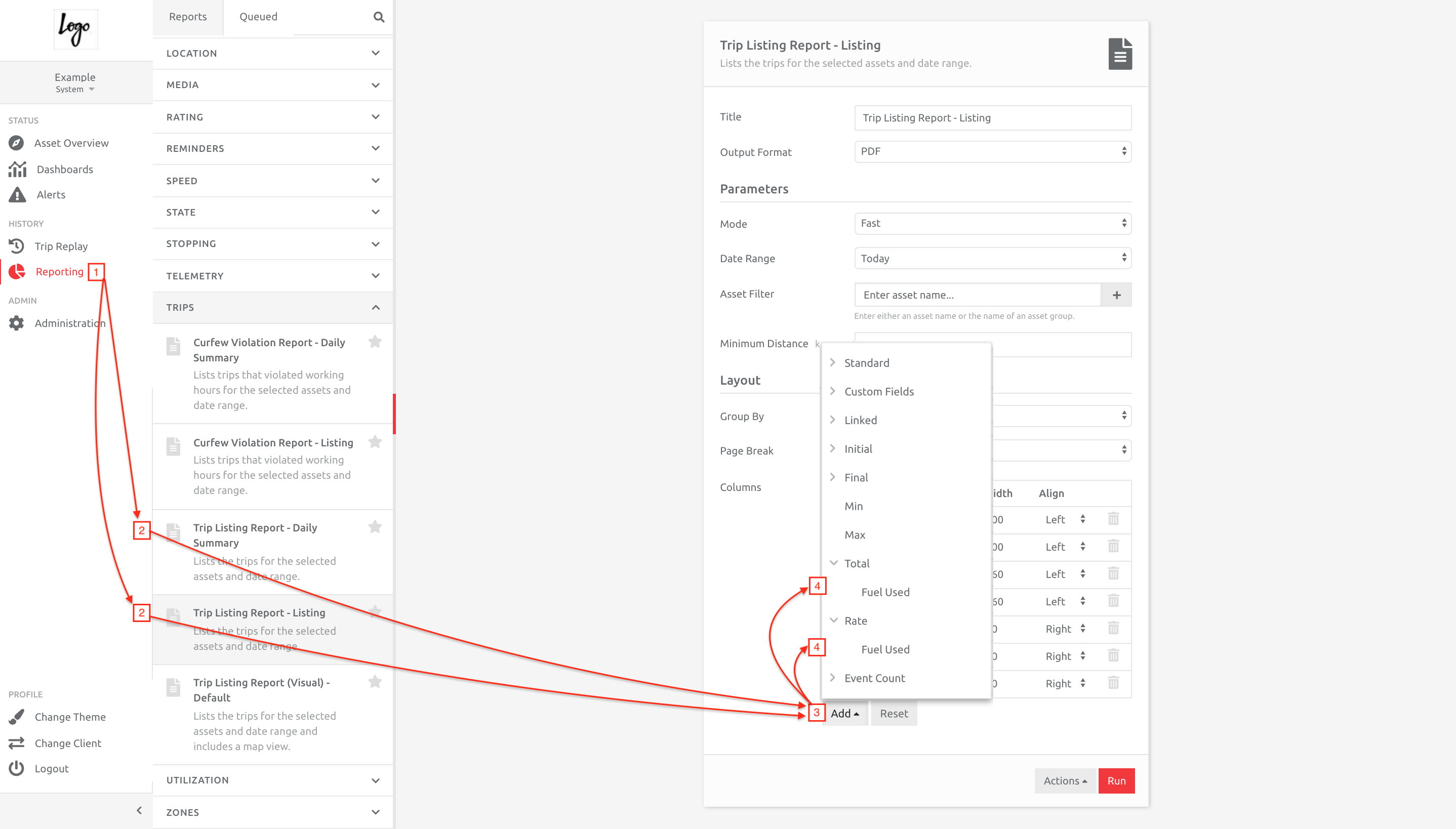
The Fuel Consumption/Rate option is found in the Trip Listing Report, and can be used for each trip (Listing option), or per day (Daily Summary option):
1. Go to Reporting,
2. Choose the Trip Listing Report - Daily Summary or Listing option under Trips,
3. Click the Add option, and
4. Choose the Total Fuel Used (IO Type) name and/or Rate (consumption) of Fuel Used (IO Type name).
You can rename the report to match your requirements, and save it as a template if needed [link to Reporting articles]
*The reason we only use these inputs is because the data is dependable, and always counts up, no matter the state of a vehicle, and is not influenced by the state of the fuel tank. For example, if a vehicle is filled up while idling, the final analog/CAN value of the fuel level may be higher than the starting level for that trip, however, the counter over the trip will tick up as per normal while the vehicle idles and drives.
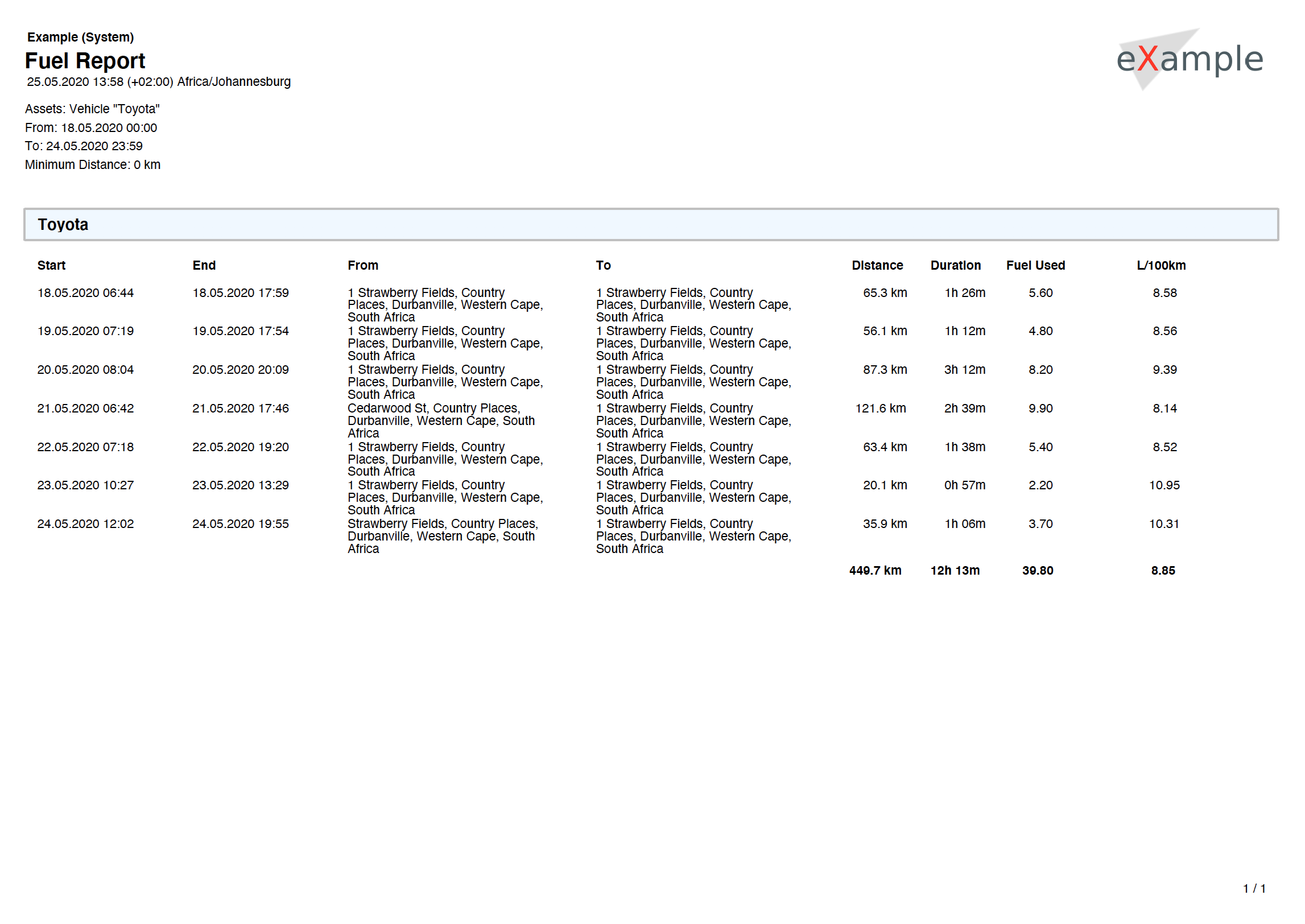
Fuel Consumption Report Example
In the Example Report below, the Rate of Fuel Used Column has been renamed to L/100km, which corresponds to the way the IO Type was set up.
Comments
0 comments
Please sign in to leave a comment.