Introduction
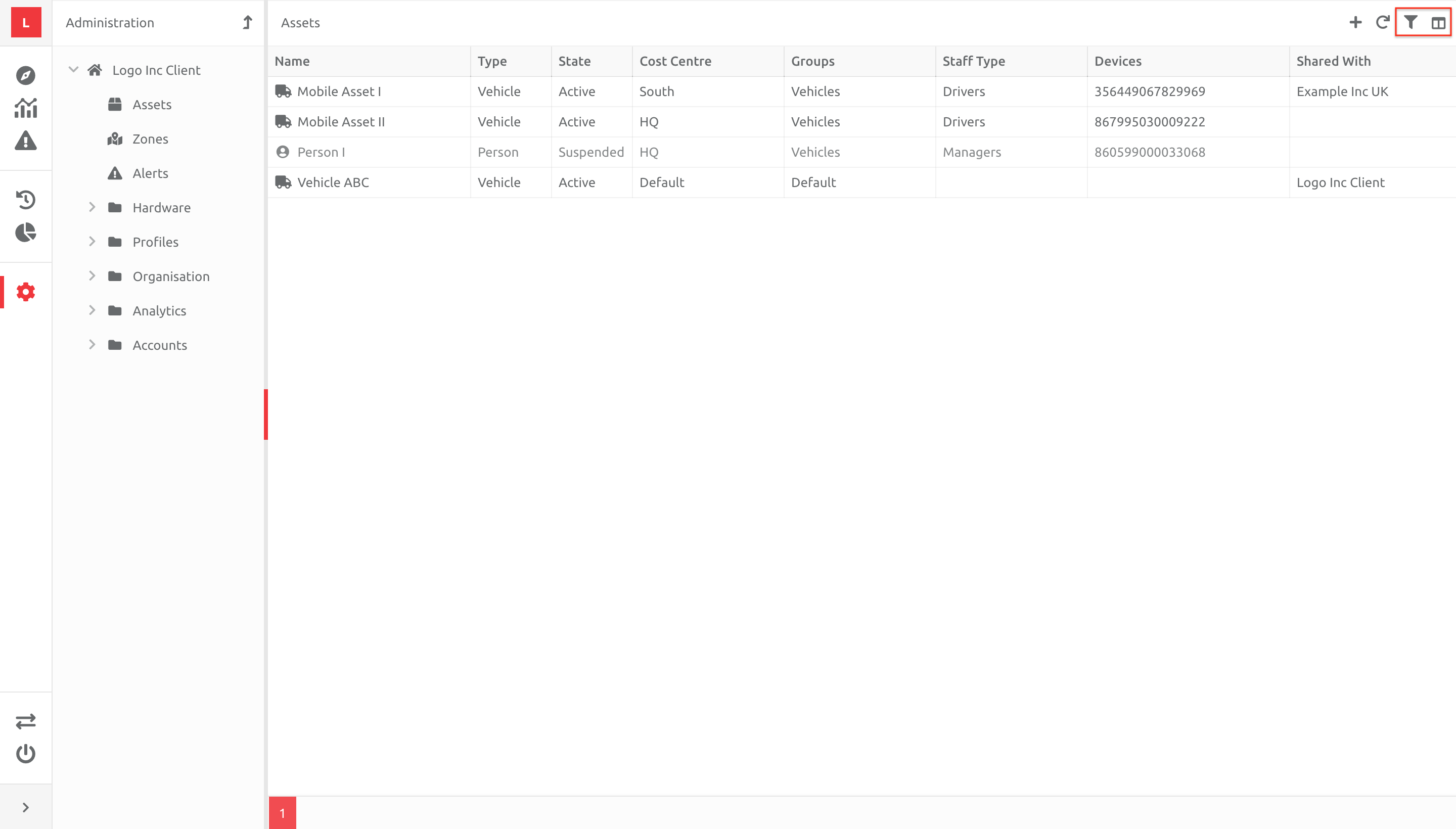
Items in the Administration section of the software can be filtered in multiple ways. By default all items (excluding deleted items and shared Assets) are listed on the page, and the column heading correspond to features like Custom Fields, Asset Categories, Cost Centres and Asset Groups. These headings can be used to filter items on the page, and enabled or disabled from the view. The options exist in the top right hand corner of the list of items, as highlighted below:
Changing the Column View
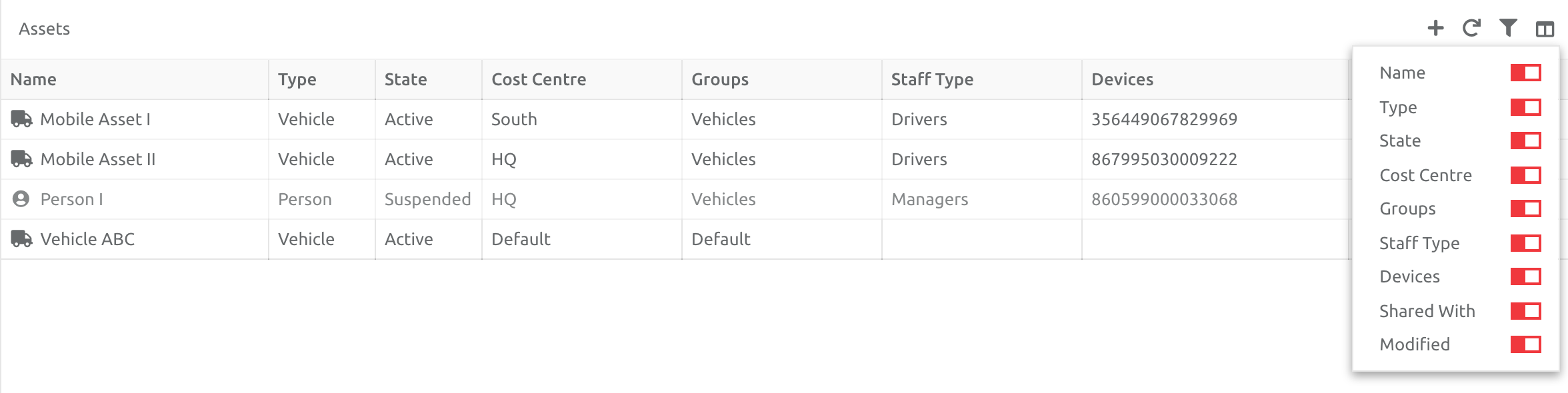
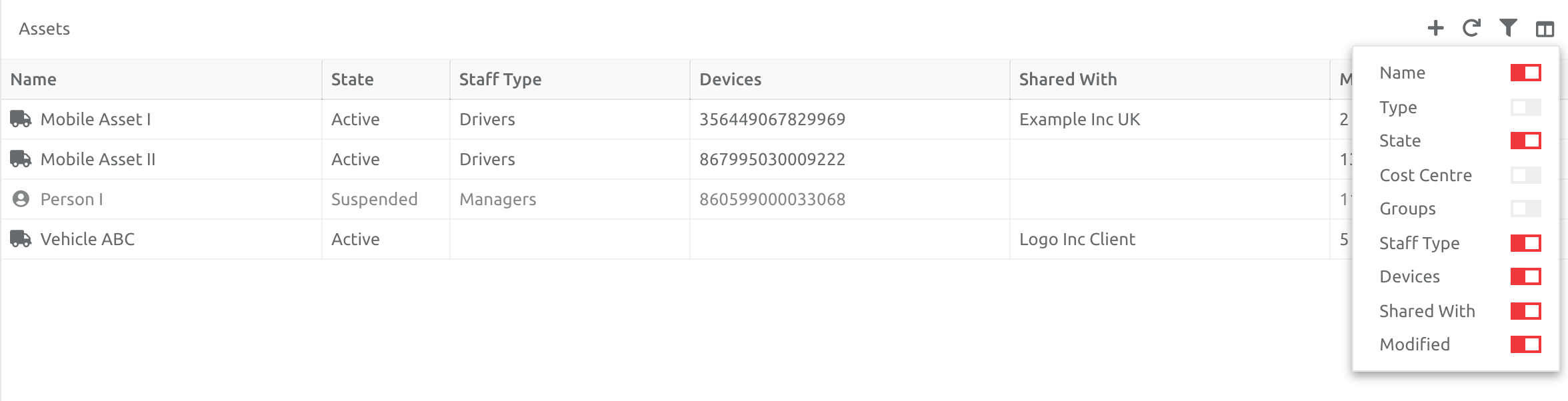
The default view includes all the column headings. These can be disabled and removed from the view as needed. Whatever changes are made remain like this after logging out, and will be the default view when logging back in.
Click the view option, and disable the columns as needed:
Filtering the Items in a Column
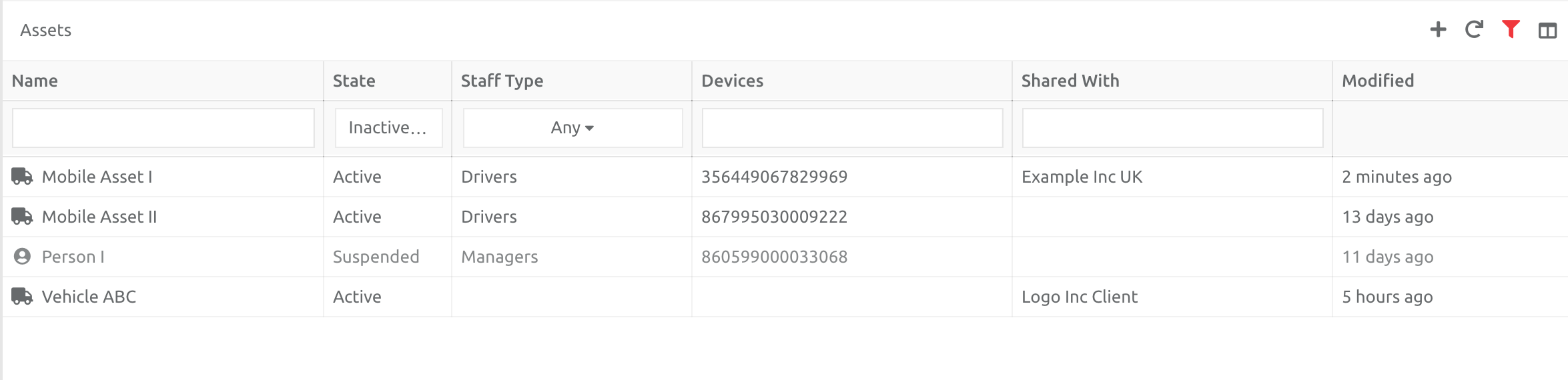
Items can be filtered within a column, to include only the ones required.
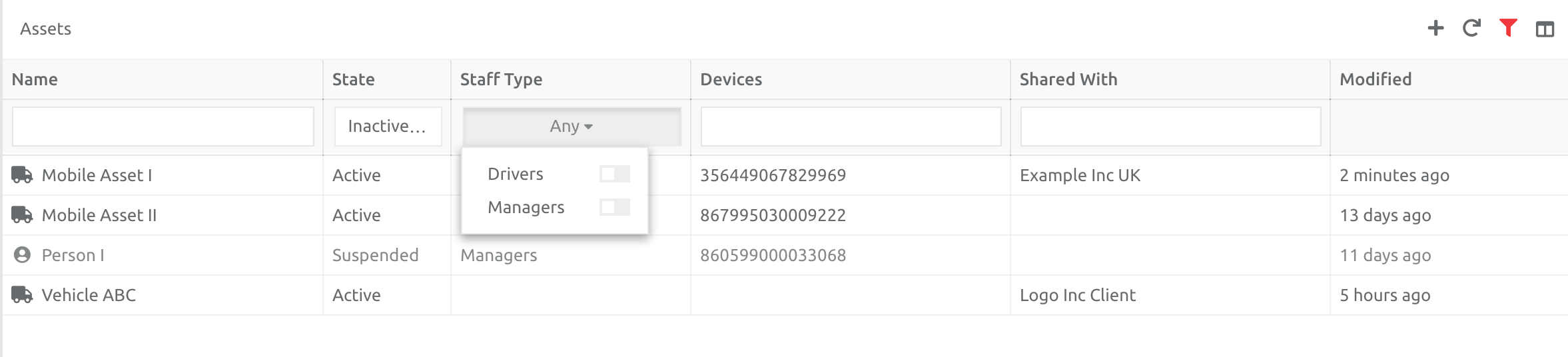
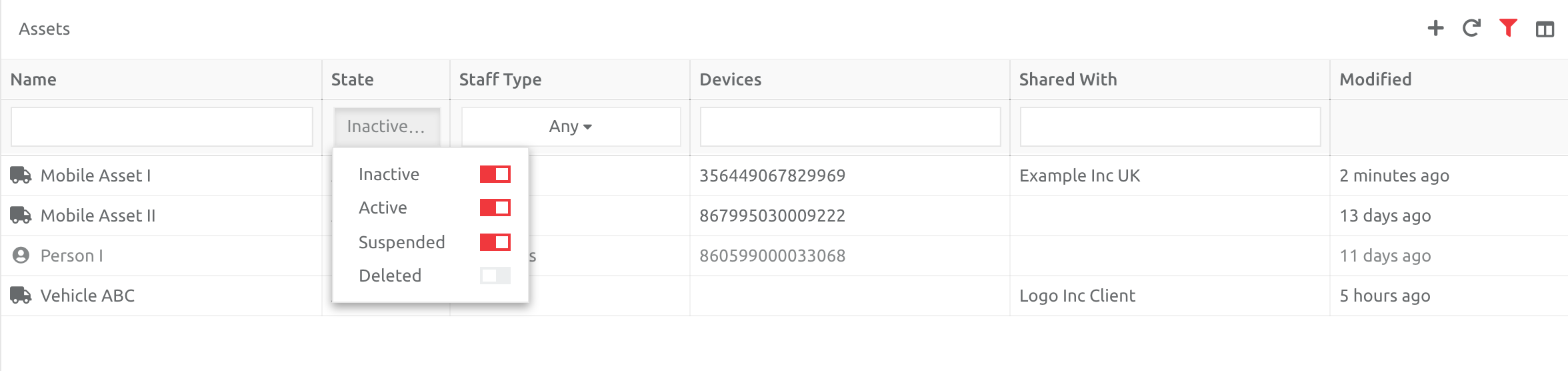
Click the filter option, and disable the columns as needed. Some columns will include options, while others text boxes:

Filtering Asset Groups (AND / OR Logic)
Asset Administration
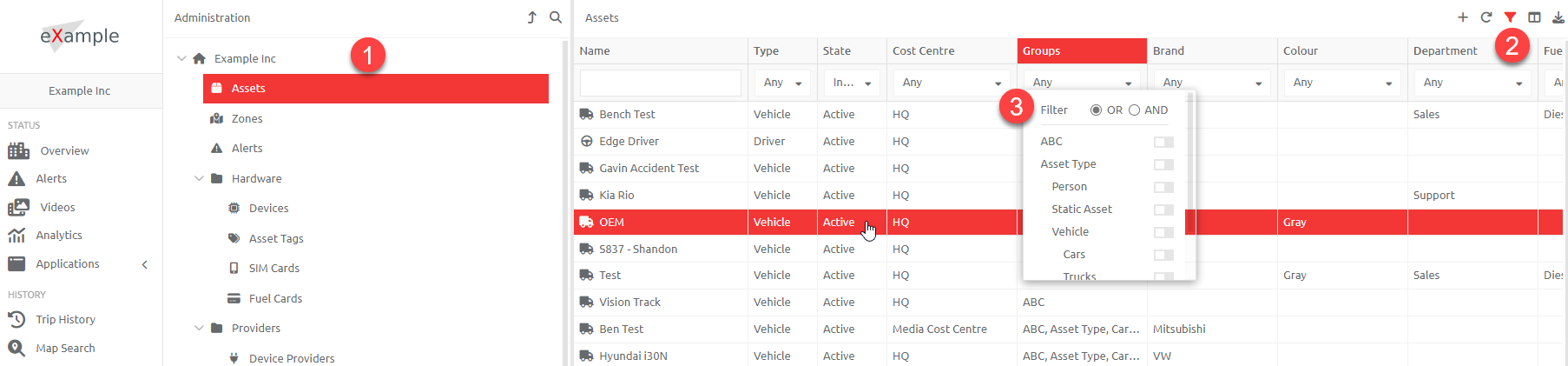
The "Groups" column in Asset Administration caters for AND / OR logic. Navigate to Administration, and select Assets then click on the filter icon. The Column named "Groups" includes the ability to use the AND /OR logics when filtering. See screenshot below:
Overview Filters
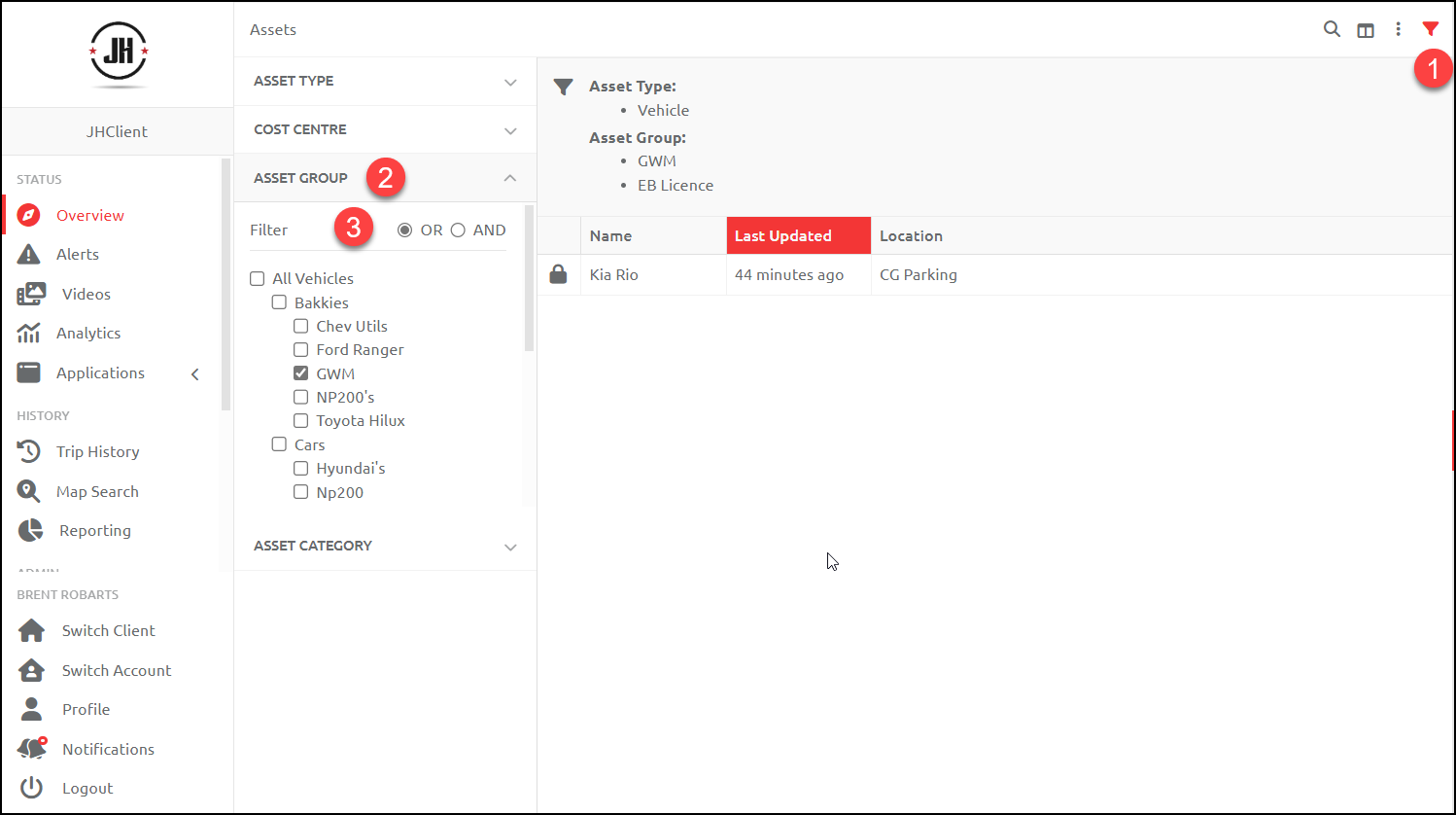
AND / OR logic can also be applied to the filter for Asset Groups in the Overview Page, as seen below.
Comments
0 comments
Please sign in to leave a comment.