Introduction
Videos can be requested in various places on the platform, including:
1. Asset Details, using the IO Types Request, or from the Video request button,
2. Asset Telemetry and Events,
3. Asset Alerts,
4. Video Page.
Video Request Button and Video Icon
The Video request button is only visible on Assets linked to an MDVR-type device, or if the linked device has a companion camera attached, and there are camera inputs set up. If there are no camera inputs set up on the device, the request options will not be visible.
The Video request button looks like this:

Assets that are linked to MDVR or companion camera devices, and have camera inputs set up, will also display a video icon in the asset list on the Asset Overview page:

The Video request button is visible in numerous places on the platform. Videos can either be requested for a specific time in the past using the Video request button or the Telemetry and Events option, or immediately, using the same Video Button, the IO Type Request, and on Alerts.
Requesting a Video
For details on how to request a video from the IO type request option, please follow the instructions in the device configuration document, per device.
For details on how to request a video from telemetry and events, or on alerts, please follow these documents:
How do I request videos on telemetry data or events?
How do I request videos for an alert?
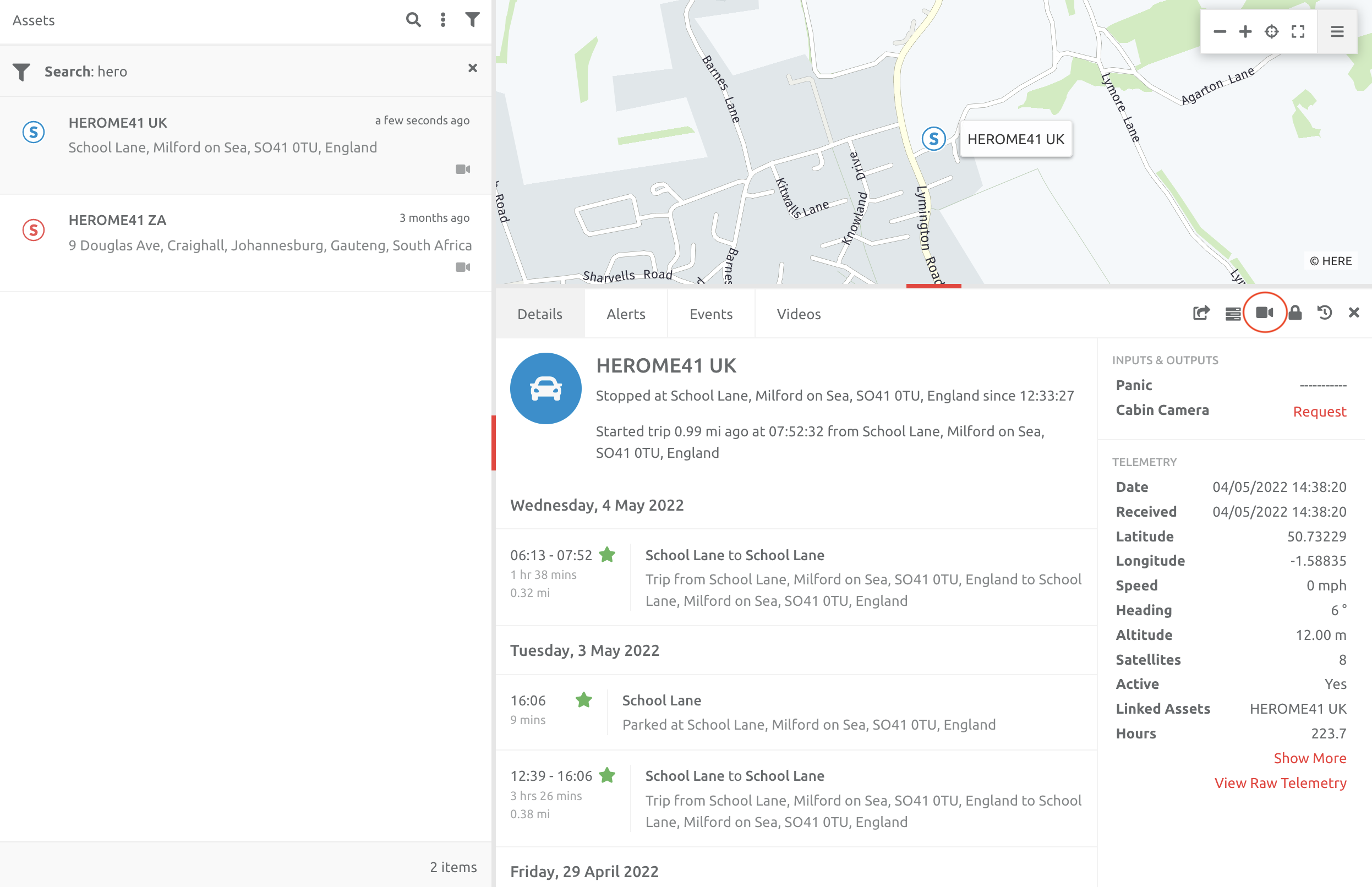
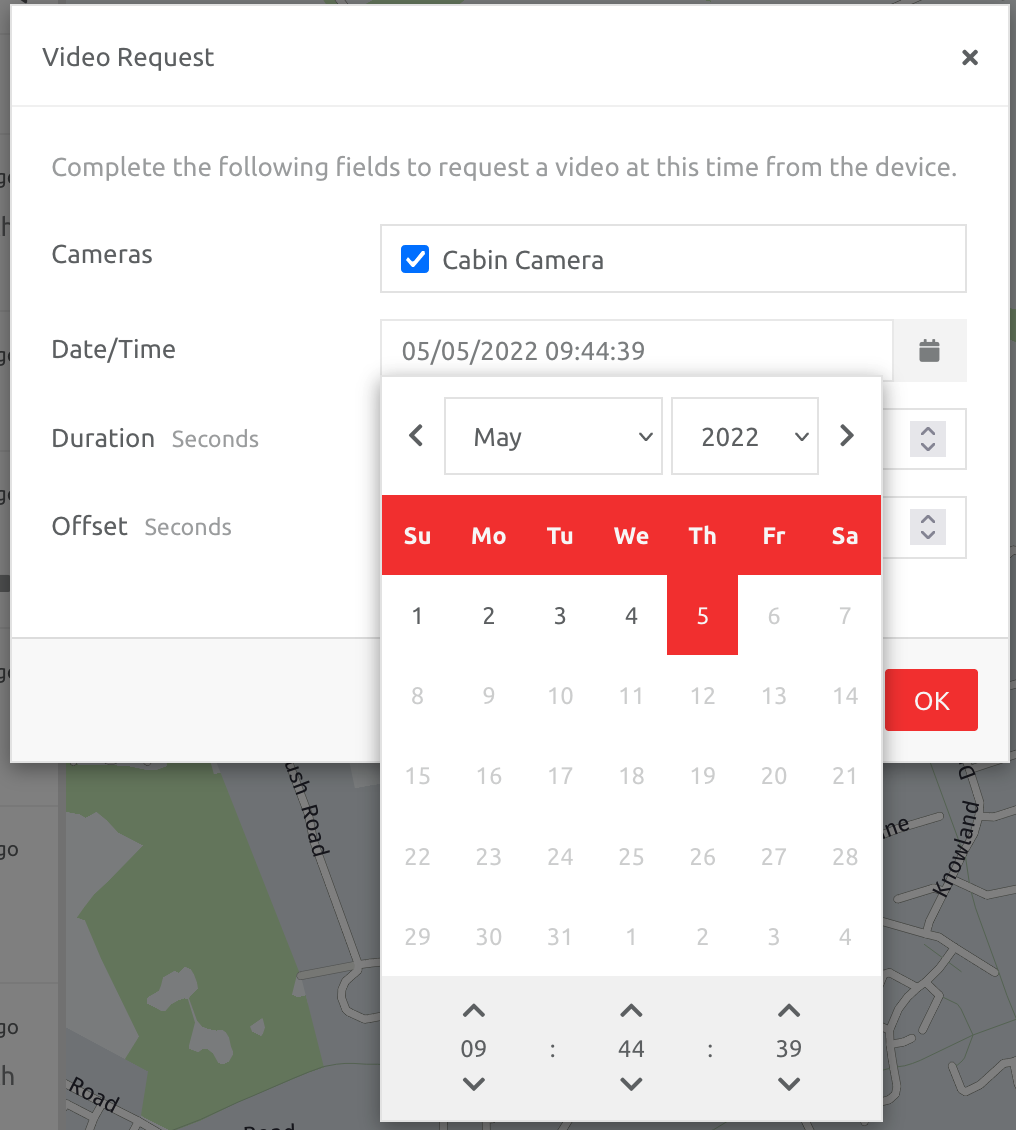
To request a video using the Video request button in the Overview page follow these steps:
1. Navigate to the asset in question,
2. Click the Video icon,
3. Complete the information and click ok.
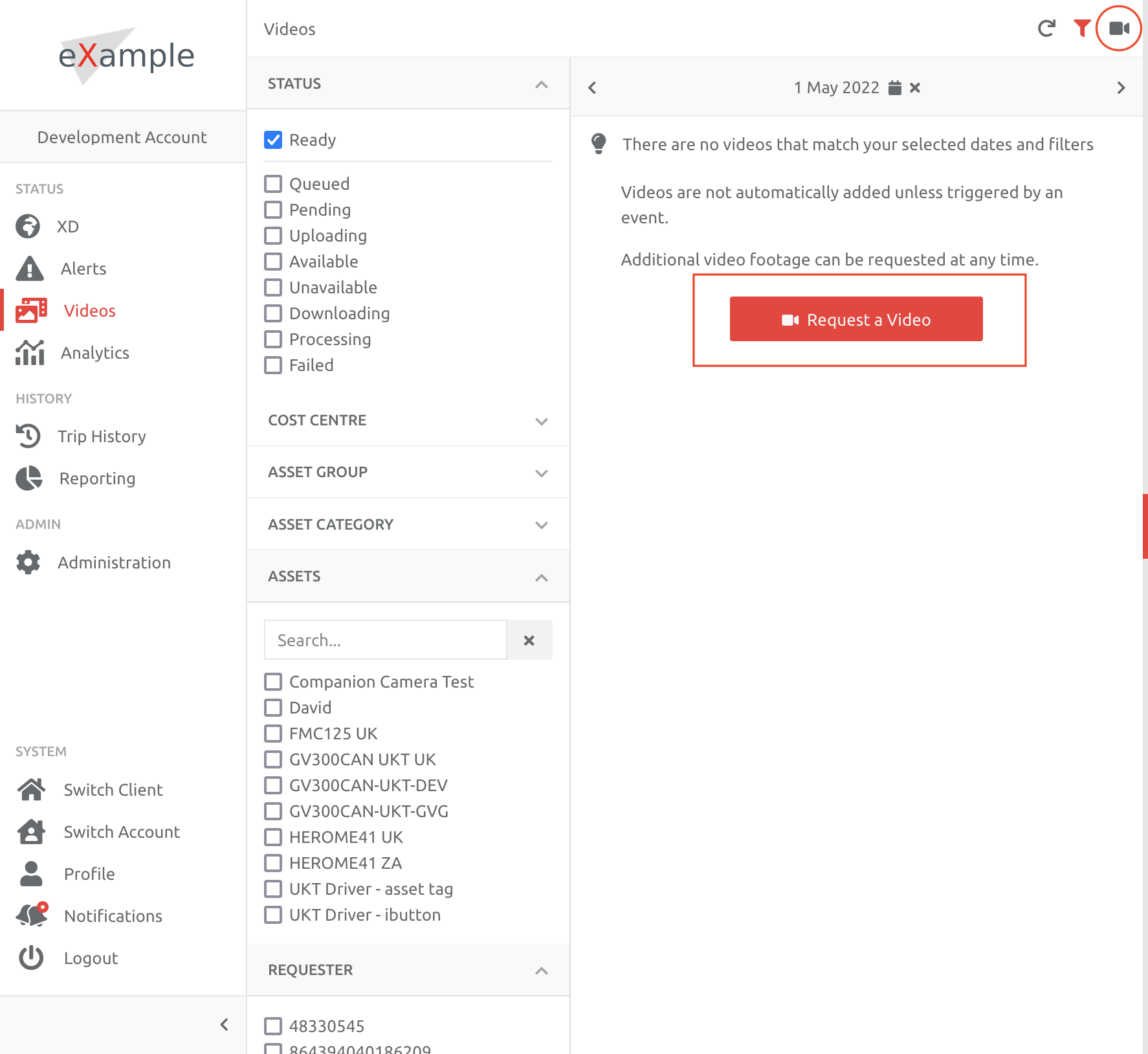
To request a video using the Video request button in the Video page follow these steps:
Either
1. Navigate to the day you are looking for a video, and follow the instructions if no videos appear, or
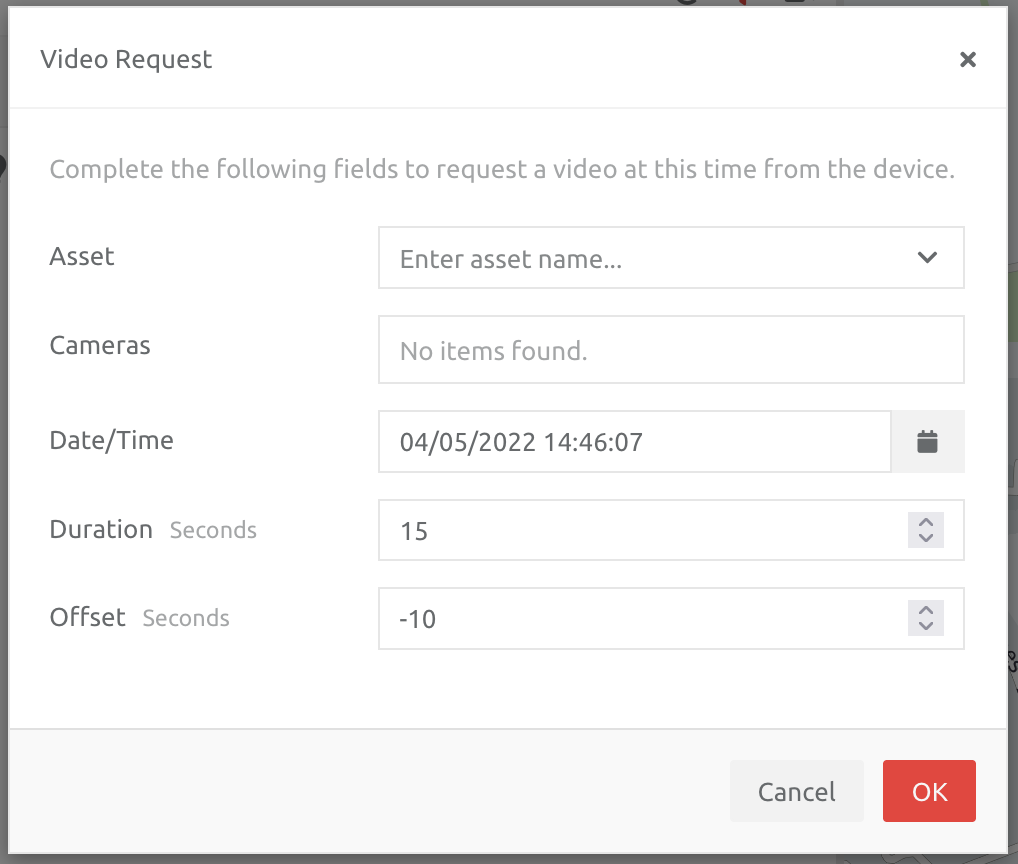
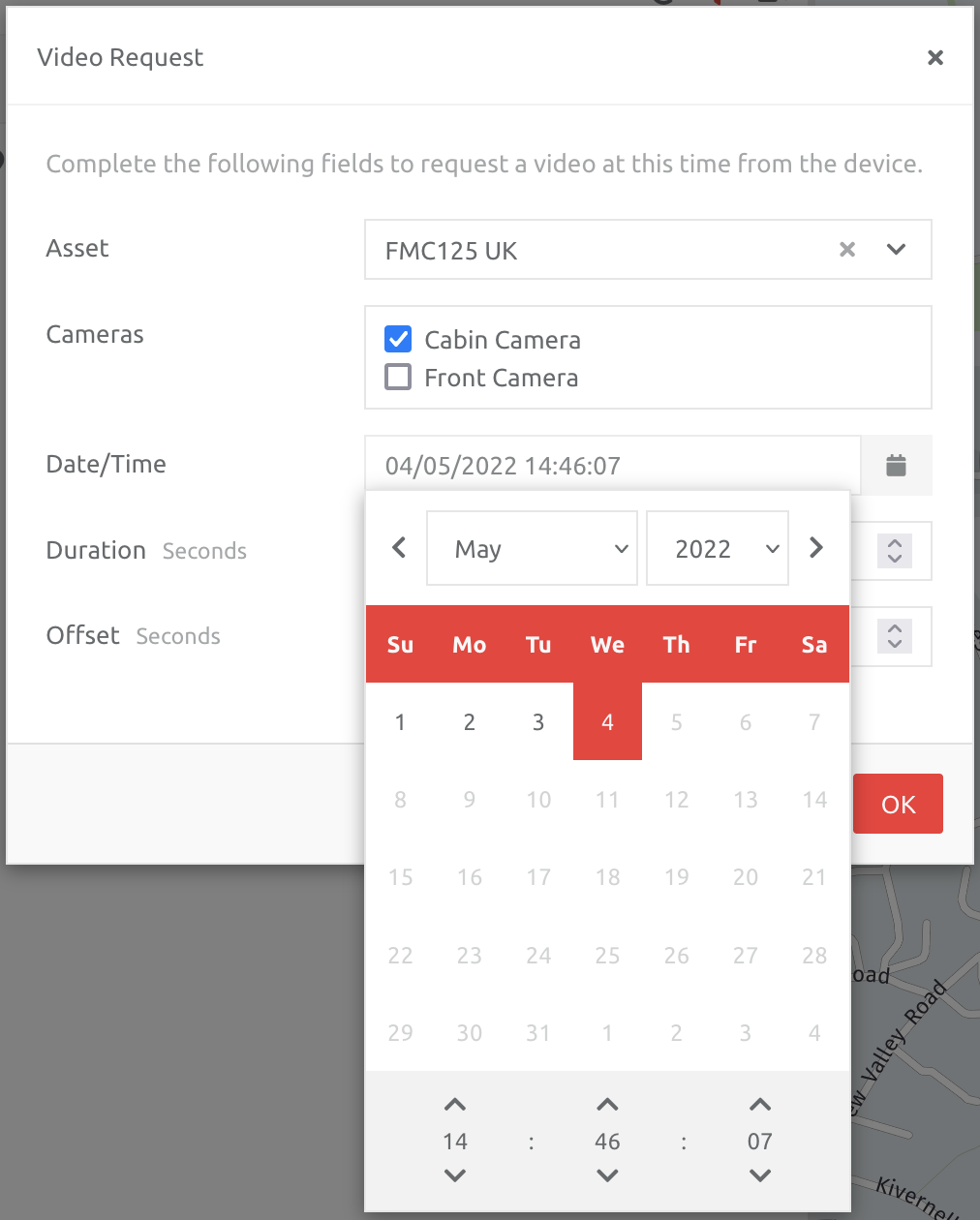
1. Click the video request button,
2. Complete the information and click ok.
Canceling a Video Request
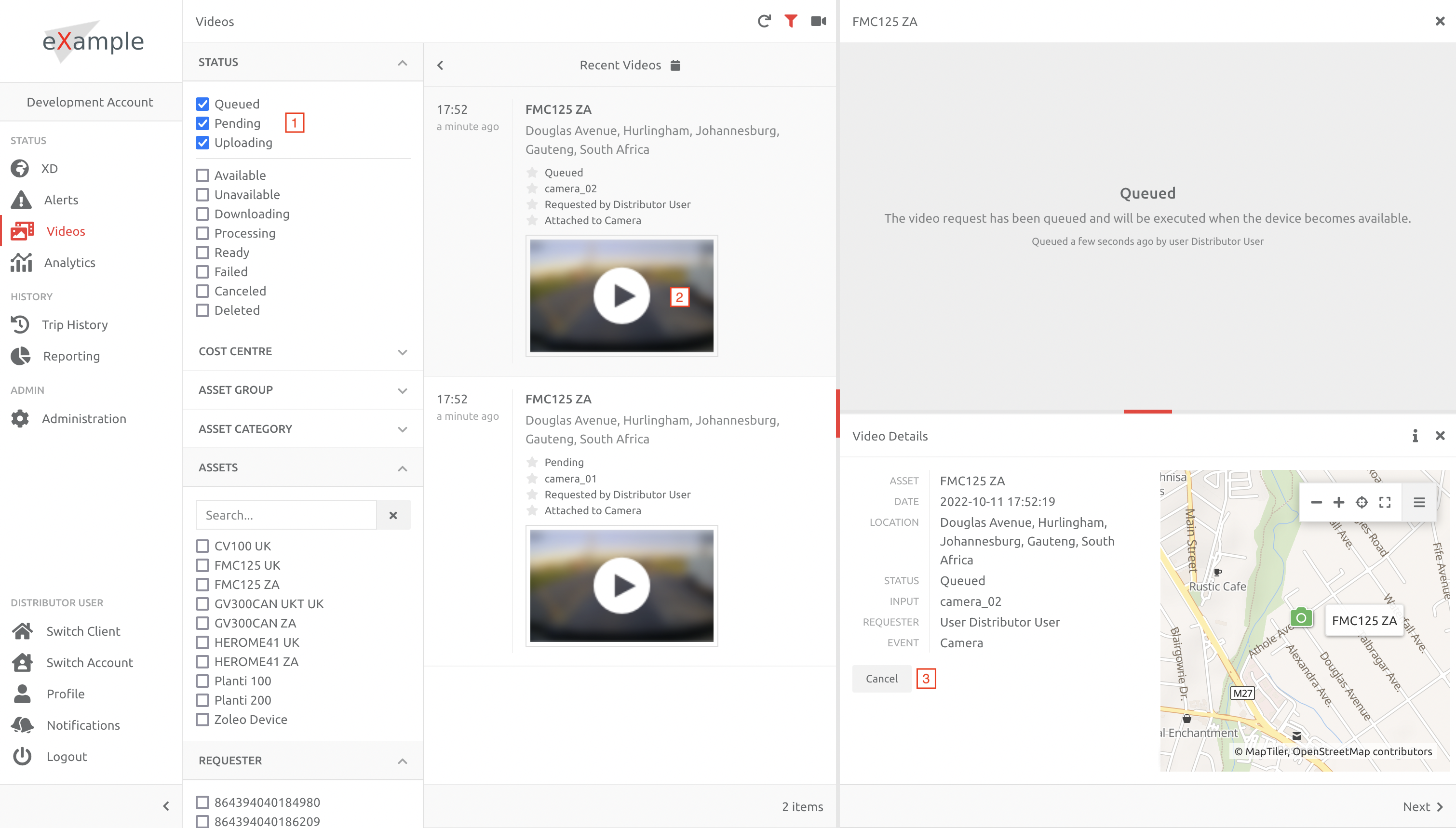
In the Videos Page you can cancel a video request in the following way:
1. Filter on all pending/queued/uploading videos, i.e. anything that has not fully uploaded to the platform,
2. Choose the video you would like to cancel,
3. Click the cancel button.
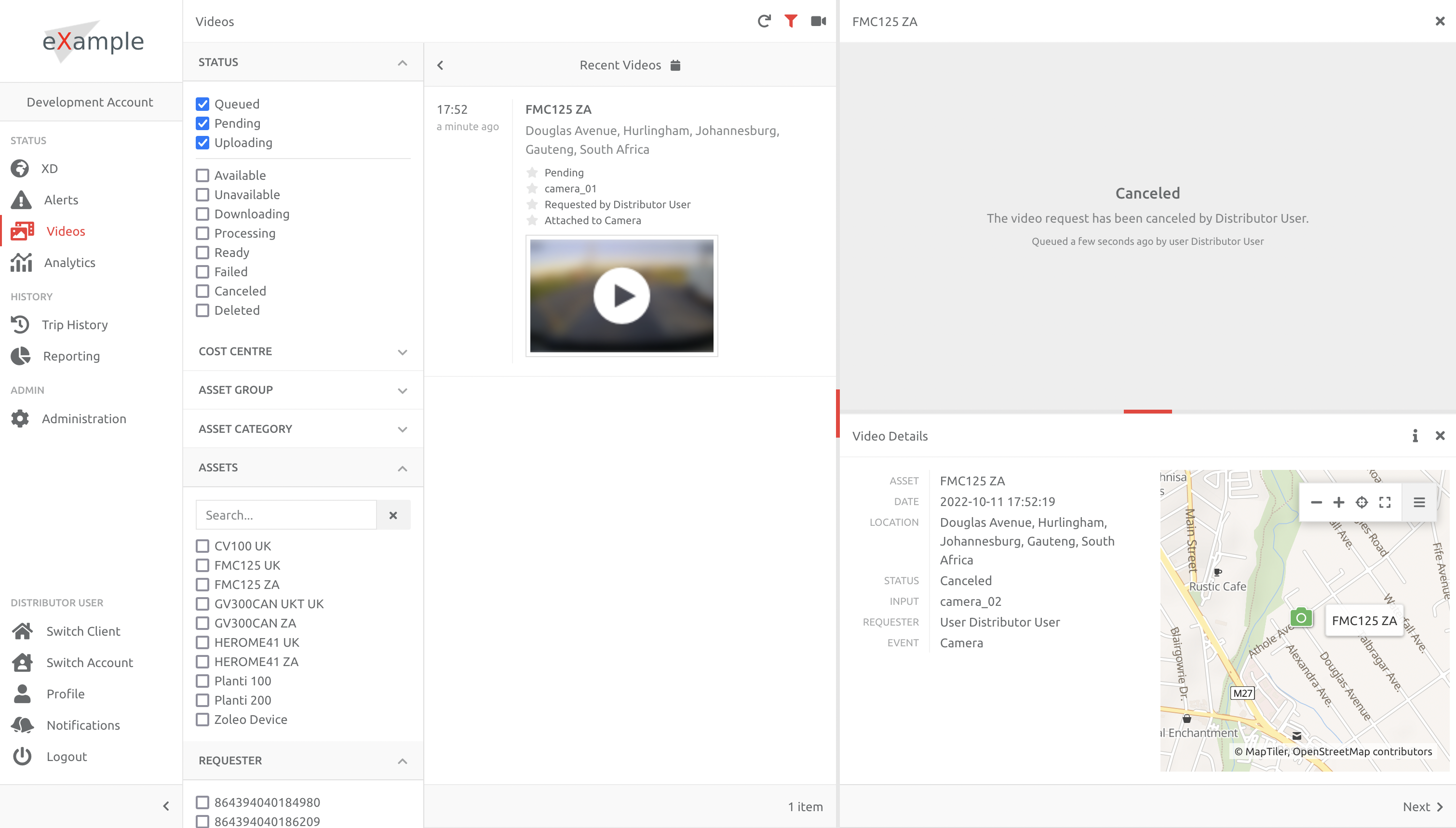
The video details will now display the video as canceled, and by whom.
Limitations
1. Videos requests are limited by the devices, i.e. no video on the device = failed requests.
2. The platform can only send the request to the device when it is connected to the device server infrastructure. The platform will hold the request until the device is connected, however only for 24 hours. If the device does not come online in the next 24 hours, the request will fail.
3. If the platform cannot get the video requested, e.g. no video on the device, or device is offline, it will try the same request for 24 hours. If a second video is requested on the same asset within that 24h period, it will queue after the first one, and when the first one succeeds or fails, then the second request will go to the device. i.e. video requests are sequential, and the first needs to complete before the second can proceed.
4. If the request time matches a video time on the device, the request will succeed and the video will upload.
5. If the request time does not match a video time on the device, one of 2 things will happen:
5.1 If there is telemetry for the asset within 24 hours backwards of the request, a video event will generate for the time, and the request will, after 24 hours, fail.
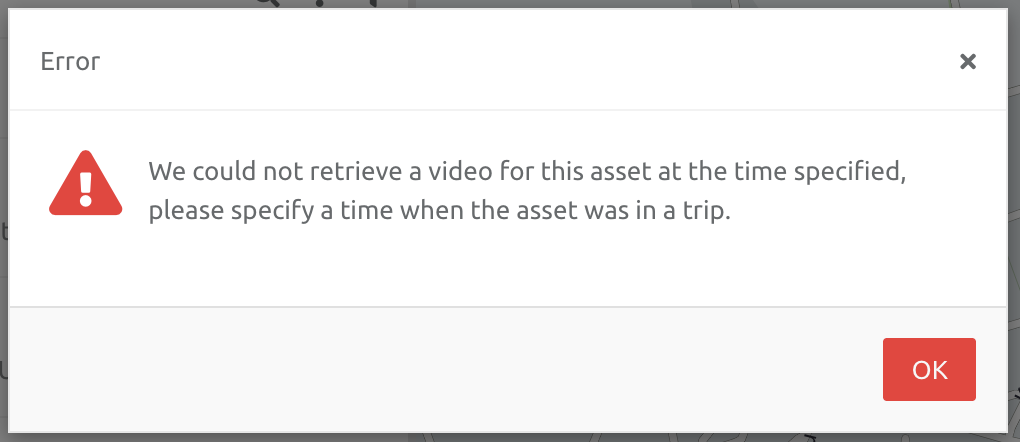
5.2. If there is no telemetry for the asset within 24 hours backwards of the request, the request itself will fail with the following message:
Please consult the user manual for the device in question, to understand the way in which videos are created, stored, managed and overwritten on the device. Also check how far back videos will be available on the device - there is no point requesting a video from 72h ago if the device overrides the video data every 48h.
Failed requests are caused by the lack of video on the device - the platform merely requests same from the device, based on the parameters you choose.
We suggest creating a video request after checking what times the asset was in a trip on the day in question, to ensure the video request is within that same time frame.
Comments
0 comments
Please sign in to leave a comment.